
Learn how to add pages to PDFs online in seconds. Insert one blank page, combine files, or mix pages from different PDFs, no software needed.
Need to add one page in a PDF fast? You can insert a blank page or drop in a page from another file in minutes, without breaking your layout.
Sometimes you only need one extra page for a signature. Sometimes you need to combine two PDFs before you send them. And sometimes you need a clean final PDF built from selected pages across multiple documents.
We’ll show you the simplest ways to:
- Add one page in a PDF at the exact position you want.
- Merge PDFs into one file.
- Insert pages from images or Word files.
- Reorder, delete, rotate, and number pages before you download.
Quick Start: Add One Page in PDF at the Right Spot
If you only need to add one page, start here. This table helps you pick the fastest method.
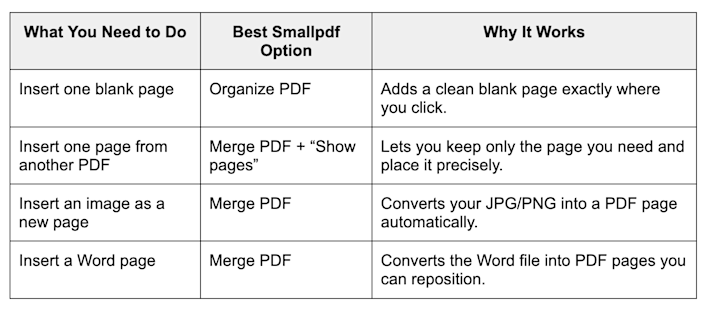
Add one page in PDF at the right spot
If you need to combine full documents instead of one page, jump to the merging section below.
How To Add One Page in PDF
This is the most common use case. You already have a PDF, and you need to insert exactly one page, in the middle, at the end, or right after a specific section.
Insert a Blank Page Online With Organize PDF
Use this when you need space for:
- Signatures
- Handwritten notes
- A divider page between sections
- A quick cover page you will fill later
Steps:
- Open Organize PDF.
- Upload your PDF from your device, Google Drive, Dropbox, or OneDrive.
- Hover between page thumbnails until you see the “+” insert option.
- Choose “Add blank page.”
- Pick “Before” or “After” the selected page.
- Click “Export” to download your updated PDF.
Tip: If you need multiple blank pages, repeat the same insert step where needed, then export once.
Insert One Page From Another PDF
Use this when you only want one page from a second PDF, like:
- A signed signature page
- A new appendix page
- A corrected page replacing an old version
Steps:
- Open Merge PDF.
- Upload your main PDF and the PDF that contains the page you want.
- Turn on “Show pages” so you can see every page thumbnail.
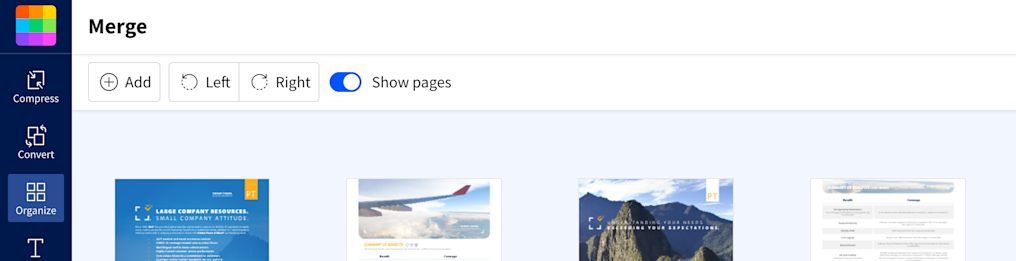
Turn on “Show Pages” so you can see every page detail and add a new one
- In the second PDF, delete the pages you do not need by clicking the trash icon.
- Drag the remaining page into the exact position inside your main document.
- Click “Finish,” then download your combined PDF.
Tip: Name your files with numbers before upload (01, 02, 03). It helps you keep the order clean from the start.
Insert a Page From an Image or Word File
This is great for adding:
- A scanned signature image as its own page
- A photo of a receipt or ID page
- A Word cover sheet or updated section
Steps:
- Open Merge PDF.
- Upload your main PDF first.
- Upload your image (JPG/PNG) or Word file (DOC/DOCX).
- Turn on “Show pages” if you want page-level control.
- Drag the new page to the right position.
- Click “Finish,” then download.
Smallpdf converts the image or Word file into PDF pages automatically, so you can treat them like any other page in the final PDF.
Add Pages to a PDF by Combining Files Online
If you need to add multiple pages at once, merging is usually the cleanest approach. It’s also the easiest way to build one final PDF from separate documents.
Merge Full PDFs With Merge PDF
Steps:
- Open Merge PDF.
- Upload your PDFs from your device, Google Drive, Dropbox, or OneDrive.
- Choose how you want to work:
- Keep “Show pages” off to merge full documents quickly.
- Turn “Show pages” on to rearrange individual pages.
- Drag items to reorder until the sequence looks right.
- Click “Finish.”
- Download your merged PDF.
If you want to review the final file before you download, use the preview thumbnails to confirm page order and rotation.
Page-by-Page Control
“Show pages” is the feature you use when you need precision.
It helps when you want to:
- Insert pages in the middle of a document.
- Pull only selected pages from multiple PDFs.
- Keep a signature page exactly in place.
- Remove ‘extra’ pages before saving the final version.
If you are building a final PDF for a client or an application portal, page-level control prevents mistakes that you only notice after sending.
Reorder, Delete, and Rotate Pages Before You Export
Once you add pages, you usually need a quick cleanup pass. This is the part that makes your PDF look intentional, not stitched together.
Reorder Pages Before You Download
In Merge PDF or Organize PDF:
- Turn on “Show pages.”
- Drag thumbnails to reorder.
- Drop pages between sections until the flow looks right.
Tip: For multi-part files, place the cover page first, then the main content, then the appendices.
Delete Pages You Do Not Need
If your PDF includes:
- Blank scans
- Duplicate pages
- Old versions of a page
- ‘Terms’ pages that are not required
Delete them before you export.
Steps:
- Turn on “Show pages.”
- Hover the page thumbnail.
- Click the trash icon.
- Export once you are done.
This also reduces file size, which helps if you are trying to stay under an upload limit.
Rotate Pages to Fix Orientation
Scanned pages often land sideways. Fix them before you send the file.
Steps:
- Turn on “Show pages.”
- Click the rotate icon on the page thumbnail.
- Rotate until it reads correctly.
- Export your updated PDF.
Tip: If multiple pages are rotated, fix them in one session, then export once.
Add Page Numbers After You Insert Pages
If you add or rearrange pages, numbering often needs a refresh. This matters for contracts, reports, and PDFs you reference by page in emails.
Add Page Numbers With Add Page Numbers
Steps:
- Open Add Page Numbers.
- Upload your PDF.
- Choose position (top/bottom, left/center/right).
- Pick the style and starting number.
- Click “Export” to download.
Skip a Cover Page or Start Numbering Later
For professional formatting, you might want:
- No number on the cover
- Numbering that starts on page two
- Numbering that restarts for a new section
In Add Page Numbers, set the page range and starting number so the first numbered page matches your structure.
Fix Numbering After Deleting or Reordering Pages
If you delete a page after numbering, your page references can become wrong. The quickest fix is simple.
Steps:
- Remove the old numbered version from your workflow.
- Run Add Page Numbers again on the new “final” order.
- Export a fresh copy.
Add Pages to a PDF Offline on a Mac With Preview
If you prefer working locally, macOS Preview can insert pages without uploading anything.
Insert Pages in Preview
Steps:
- Open the PDF in Preview.
- Turn on thumbnails if you do not see them: “View” > “Thumbnails.”
- To insert a blank page: “Edit” > “Insert” > “Blank Page.”
- To insert pages from another PDF: “Edit” > “Insert” > “Page from File.”
- Drag thumbnails to reorder.
- Select a page and press “Delete” to remove it.
- Save with “File” > “Save.”
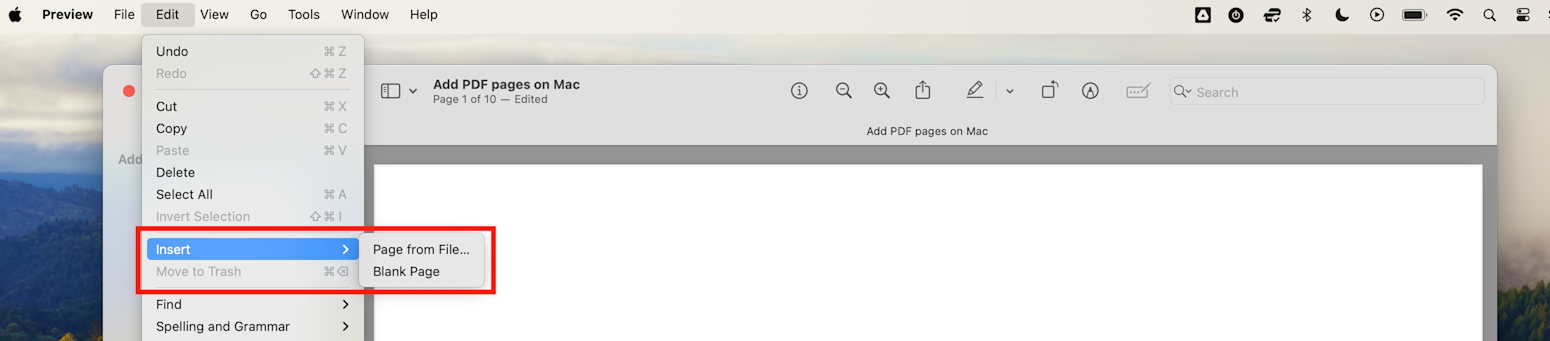
Adding pages to a PDF on Mac
Preview works well for small edits. For longer documents and page-level sorting across multiple files, Merge PDF is usually faster.
Fix Common Issues When Adding Pages to a PDF
1. Page Inserted in the Wrong Place
This usually happens when you do not switch to a page-level view. Try this:
- Turn on “Show pages.”
- Drag the page thumbnail to the correct position.
- Export again.
2. Need One Page From a File, Not the Whole PDF
Try this:
- Upload both files in Merge PDF.
- Turn on “Show pages.”
- Delete the pages you do not need from the second file.
- Keep the one page and place it where you want.
3. Inserted Page Is Sideways
Try this:
- Rotate the page thumbnail before exporting.
- If several pages are wrong, rotate them all before you click “Finish.”
4. Final PDF Is Too Large To Upload
Try this:
- Delete unnecessary pages first.
- Then use Compress PDF after you merge.
- If the file is still too big, split it into sections with Split PDF.
5. Word Page Looks Different After Converting
Try this:
- Keep the Word page formatting simple.
- Use standard fonts and normal margins.
- If it is a cover page, export it alone first, then merge into your main PDF.
What to Do After You Add Pages to a PDF
Once your pages are in place, you can finish the workflow in the same session.
Common next steps:
- Use Compress PDF to meet upload limits.
- Use Edit PDF to add a note, label, or small visual markup.
- Use Split PDF if you need to send only one section.
- Convert if needed using PDF to Word or PDF to JPG for sharing in other formats.
If the PDF is going to a client, a school portal, or a legal workflow, do one last review for order, rotation, and page numbers before you send it.
Add One Page in PDF Without Breaking Your Document
If you only need one extra page, Organize PDF is the fastest way to insert a blank page exactly where you want it. If you need to insert a page from another file, Merge PDF with “Show pages” gives you full control over placement, order, and cleanup before you export.
Want unlimited access to all 30+ Smallpdf tools? Start your free trial to access all Smallpdf tools for organizing, editing, and converting documents.
Frequently Asked Questions
How do I add one page in PDF at a specific position?
Upload your file to Organize PDF to insert a blank page, or use Merge PDF with “Show pages” to insert one page from another file exactly where you want it.
Can I add pages to a PDF for free?
Yes. You can add pages using Merge PDF or Organize PDF online, then export your updated PDF.
How do I insert pages from one PDF to another?
Open Merge PDF, upload both PDFs, turn on “Show pages,” delete the pages you do not need, then drag the page you want into position and click “Finish.”
Can I add an image as a new PDF page?
Yes. Upload your PDF and your image to Merge PDF. The image converts into a PDF page automatically, and then you can place it anywhere in the file.
Can I add a blank page for signatures?
Yes. Use Organize PDF, click the insert “+” where you want it, choose “Add blank page,” then export.
Can I reorder pages after I combine PDFs?
Yes. Turn on “Show pages,” then drag thumbnails into the right order before you export.
Can I add page numbers after inserting pages?
Yes. After you finish merging or inserting pages, run Add Page Numbers and choose your position, style, and starting number.
Can I add pages on my phone?
Yes. Smallpdf works in mobile browsers, and you can upload from your device or cloud storage, then export the final PDF when you are done.
What if my PDF is password-protected?
If a PDF has restrictions that block editing, you may need the password or permission from the owner before you can modify it.