
Reduce JPG file size quickly with a simple Smallpdf workflow. Plus, get tips for hitting 200 KB or 500 KB targets, privacy notes, and FAQs.
Do you have a JPG that’s too big to upload, email, or even save?
Big JPGs cause the same three problems every time: Slow uploads, failed forms, and email limits. Even already compressed photos can be huge if they come from a modern phone or camera.
We’ll show you how to compress JPG files in seconds so they upload faster, meet size limits, and still look sharp when you share them. We’ll start with the quickest Smallpdf method, including a visual-style checklist. Then we’ll cover size-target tricks, batch compression, limits, and what to expect for quality.
Quick Guide: Compress JPG in Smallpdf
Here’s the workflow at a glance, before we break it down.
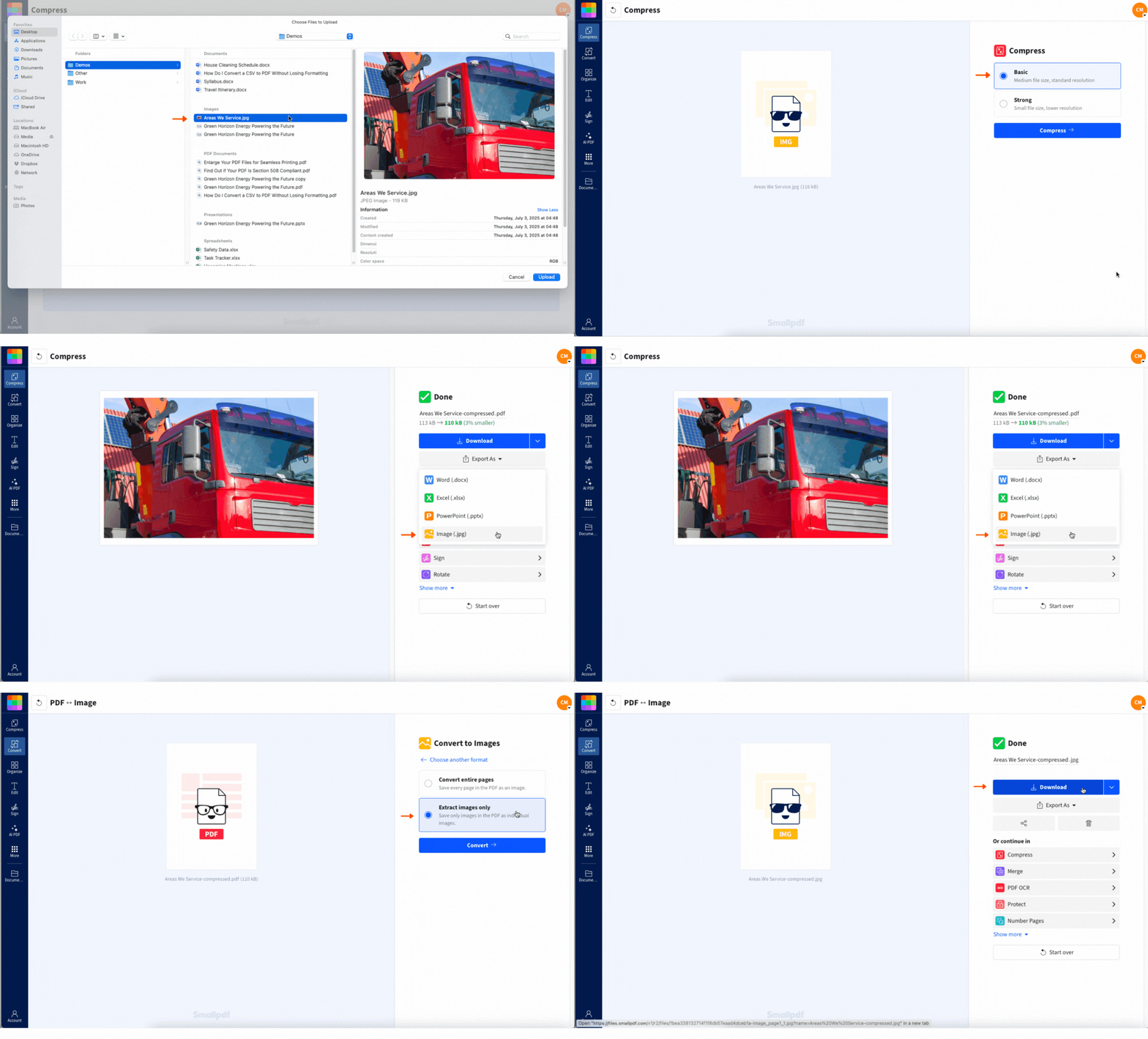
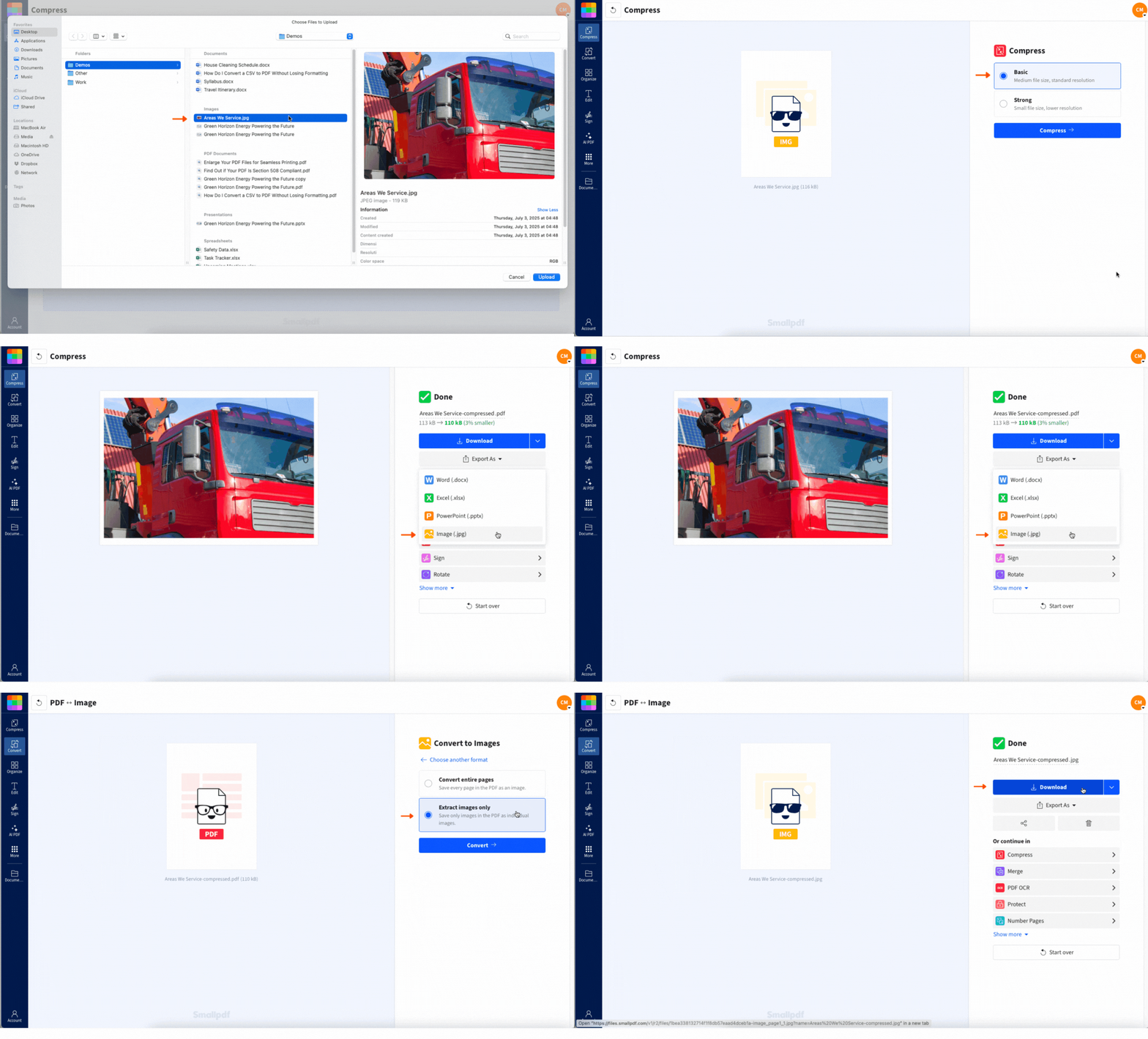
- Upload your JPG to Compress PDF.
- Choose “Basic compression.”
- Export as “Image (.jpg).”
- Download your compressed JPG.
The easiest way to reduce photo file size without stress
How To Compress JPG Online
Smallpdf compresses your image through a quick conversion workflow, then exports it back as a smaller JPG. You don’t need to install anything, and it works in any modern browser.
Step 1: Upload Your JPG
Open Compress PDF and upload your image.
- Drag and drop your JPG into the upload area.
- Or click “Choose Files” to upload from your device.
- You can also import from Google Drive, Dropbox, or OneDrive.
You’ll see a progress bar while your file processes.
Step 2: Choose Your Compression Level
Pick the option that fits your goal.
- Choose “Basic compression” for a quick, clean size drop.
- If “Strong compression” is available for your plan, use it when the file must be much smaller.
Compression starts automatically after you choose.
Step 3: Export Back to JPG
When compression finishes:
- Click “Export As.”
- Select “Image (.jpg).”
- Choose “Extract images only.”
Compress your JPG online for free with Smallpdf
This keeps the output as a JPG you can use anywhere.
Step 4: Download or Save to the Cloud
Finish by saving your image.
- Click “Download” to save to your device.
- Or save back to Google Drive, Dropbox, or OneDrive.
Why Your JPG Is Still Huge
JPG is a compressed format, but file size depends on what’s inside the image.
1. High Resolution From Phones and Cameras
A single photo can be several thousand pixels wide. That’s great for detail, but heavy for uploads and email.
2. Lots of Color Detail
Photos with gradients, shadows, and textured backgrounds carry more data than simple graphics.
3. Hidden Metadata
Many images include extra information, like camera data and location details. Removing metadata can shave off size without changing what you see.
What Happens to Quality When You Compress a JPG
JPG compression is usually lossy, meaning the file gets smaller by removing detail you’re less likely to notice.
With Basic compression, the goal is to keep the image looking the same for real-world use, like sharing, web uploads, and forms.
You’ll usually notice the biggest savings on:
- Large smartphone photos
- Images saved at maximum quality
- Photos that were never compressed for the web
If your image is already heavily compressed, the size drop may be smaller. That’s normal.
Get Your JPG Under 200 KB or 500 KB
Some websites and portals set strict limits. If you need a specific target size, use this sequence.
Start With Basic Compression
Basic often gets you under 500 KB for many photos, especially if they started at several MB.
Crop Before You Compress
Cropping removes pixels, which reduces file size quickly.
- Remove empty borders around documents or product photos.
- Cut out background areas you don’t need.
- Keep the subject centered and tight.
Resize If the Image Is Still Too Large
Resizing makes the biggest difference for oversized images.
A simple guideline that works well:
- Reduce width and height by about 10% to 20% if you can.
- If the image is very large, reduce it more aggressively.
Then compress again.
Run a Second Pass If Needed
If you’re close to the limit, upload the already-compressed JPG again and compress one more time. This can squeeze out extra KB, but watch for quality changes if the image contains small text.
Compress JPG on iPhone or Android
You can compress JPG files on mobile without installing anything. 1. Open the Smallpdf compression page in Safari or Chrome. 2. Upload the photo from your device, or from Google Drive, Dropbox, or OneDrive. 3. Choose “Basic compression.” 4. Export back to “Image (.jpg),” then download.
Tip: If the upload feels slow on mobile data, connect to Wi-Fi before you start.
Batch Compress Multiple JPGs
If you’re working with lots of images, compressing one by one gets old fast. With Smallpdf, you can process multiple files in the same workflow, then export your results.
This is especially useful for:
- Product photos for an online store
- Portfolio images you need to email
- Scanned pages you saved as JPG
- A folder of photos you’re uploading to a site with limits
If you’re on a plan that supports batch processing, you’ll be able to upload and export in one run, then download everything together.
Free vs. Pro Limits and Supported File Sizes
Here’s what to expect for typical usage.
- Supported file size: Smallpdf can handle very large files, up to 5 GB.
- Free usage: You can complete a limited number of actions per day. In many cases, that’s up to two actions daily.
- Pro plans: Higher limits, batch processing, and access to stronger compression options.
If you only need to shrink a couple of images for a form or email, the free option usually covers it. If you compress images regularly, Pro removes the daily friction.
Smallpdf vs. Other JPG Compression Options
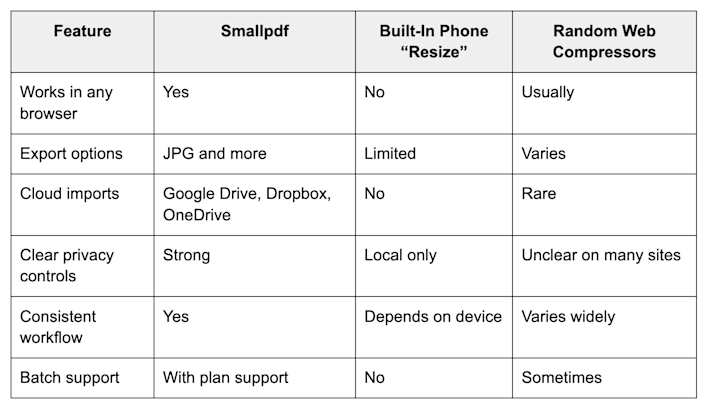
If you’re comparing choices, here’s a practical overview. Results vary by image, but this is how the experience usually feels.
Smallpdf vs. other JPG compression options
If you need a predictable result, cloud imports, and a clean download workflow, Smallpdf is the smoother path.
Is Online JPG Compression Safe?
If you’re compressing personal photos, IDs, or client images, security matters. Here’s how we handle it:
- Transfers use TLS encryption.
- Files are deleted automatically after an hour of processing most tasks.
- We don’t manually review your uploads.
- Smallpdf follows GDPR practices and maintains ISO 27001 certification.
If you’re working with sensitive images, avoid saving them in shared folders unless you control access. Download to your device and store them where you trust the permissions.
More Ways Smallpdf Helps With Image and PDF Workflows
JPG compression often connects to other jobs.
- If you need a smaller PDF made from photos, use JPG to PDF after compressing.
- If you’re shrinking scanned documents, Compress PDF helps reduce file size for sharing.
- If you need to convert formats first, converting the image to JPG keeps everything compatible.
Keep Your JPGs Small
If your JPG won’t upload or keeps bouncing back from a form, you usually don’t need fancy software. Compress it once, check the size, and export back to JPG so it’s ready to share anywhere.
When you need the fastest fix, start with Basic compression. If you’re chasing a strict size target like 200 KB, crop and resize first, then compress again.
Frequently Asked Questions
How do I compress a JPG without losing quality?
JPG compression always removes some data, but Basic compression is designed to keep the image looking the same for normal viewing. For documents with small text, crop and resize carefully so letters stay crisp.
Can I compress JPGs on my phone?
Yes. Open the Smallpdf page in your mobile browser, upload your photo, compress it, then export it back to JPG and download. The steps are the same on iPhone and Android.
What’s the difference between JPG and JPEG?
Nothing. They’re the same format. JPG became common because older systems preferred three-letter extensions.
How much can I reduce JPG file size?
Many photos shrink by about 30% to 70%. The biggest drops usually come from high-resolution phone images and photos saved at maximum quality.
How do I get my JPG under 200 KB or 500 KB?
Start with Basic compression. If the image is still too large, crop unused areas first, then resize the dimensions. If you’re close to the limit, compress the already-compressed image one more time.
Is Smallpdf safe for personal photos and ID scans?
Yes. Uploads are protected with TLS encryption and files are deleted automatically after a short period. If you want the safest routine, compress, download, and remove the original from any shared cloud folder.
Does it work on Mac and Windows?
Yes. Smallpdf runs in a browser, so it works on Mac, Windows, and most modern devices.
Why does my compressed JPG still look big?
The image has lots of fine detail, or it was already compressed before you uploaded it. Try cropping and resizing first, then compress again.