
Transform JPG images into editable Word documents in five simple steps using OCR. You’ll be able to copy, edit, and format text without retyping.
Need to convert a JPG to Word fast? Turn your image into a PDF, export it as “Word (.docx),” then use OCR if you need editable text instead of an image.
JPGs are great for sharing, but they’re painful to edit. Once the content lives in Word, you can fix text, reuse paragraphs, and clean up formatting like you would with any DOCX.
We’ll walk you through the quickest Smallpdf workflow, show what to expect on screen, explain OCR in plain English, and help you fix the common issues that show up with scans and phone photos.
Quick Summary: Convert JPG to Word in Five Steps
If you just want the steps, use this.
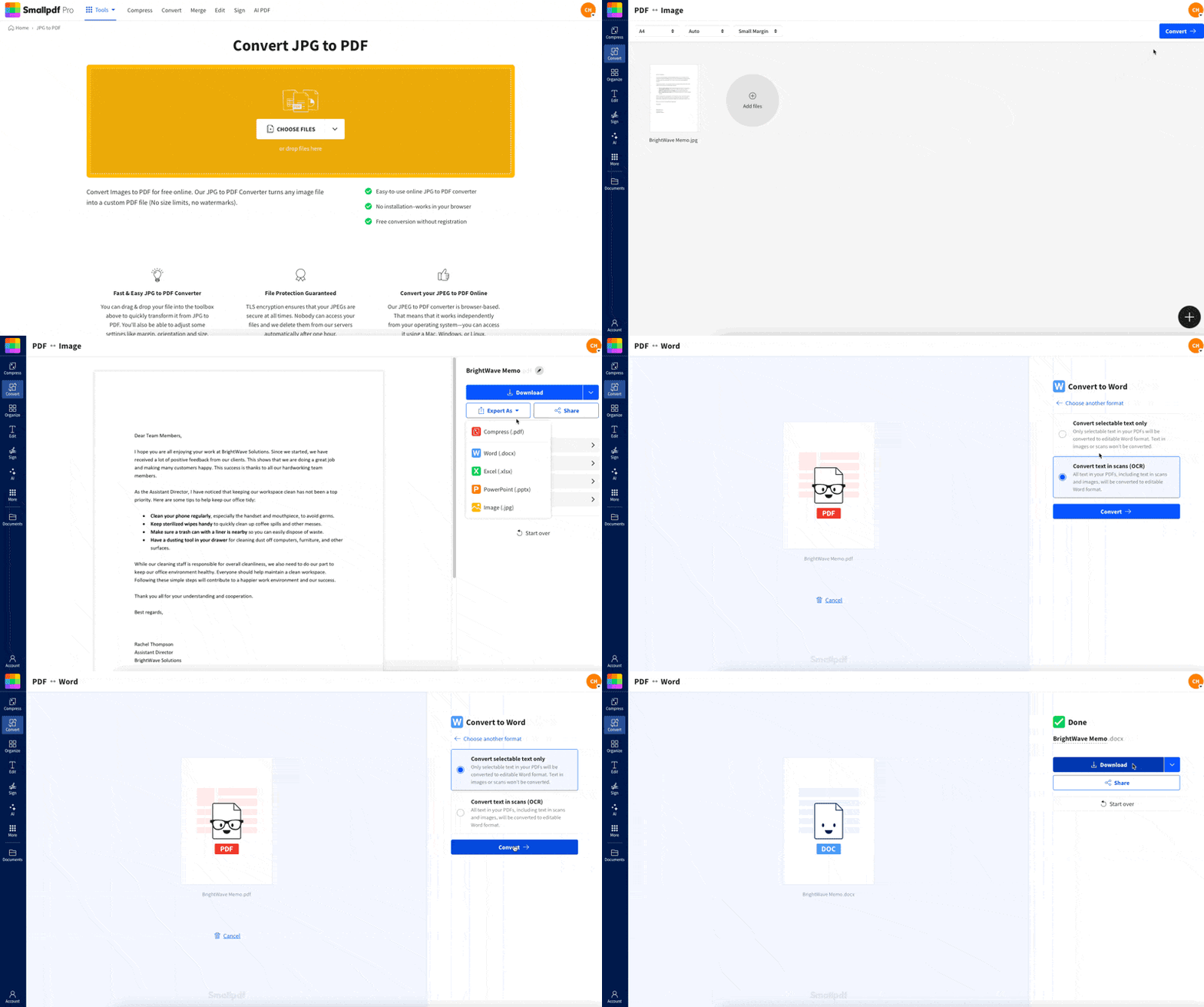
- Upload your JPG to Smallpdf JPG to PDF.
- Click “Finish” to create a PDF.
- Choose “Export As.”
- Select “Word (.docx).”
- Turn on OCR if you want editable text, then download.
Convert JPG to Word online with Smallpdf
How To Convert JPG to Word Online: Step-by-Step Guide
Smallpdf doesn’t convert JPG straight to DOCX in one click. The cleanest path is converting the image to a PDF first, then exporting that PDF to Word. It’s still fast, and it’s easier to control results.
Step 1: Upload Your JPG to Smallpdf JPG to PDF
Open Smallpdf JPG to PDF, then add your image.
- Drag and drop the file into the page.
- Or click “Choose Files” and select the image from your device.
- You can also import from Google Drive, Dropbox, or OneDrive.
If you’re converting multiple images, upload them all at once so Smallpdf can build a multi-page PDF in the same order.
Step 2: Create the PDF
Once your images are uploaded:
- Click “Finish.
Smallpdf will generate a PDF version of your JPG. This keeps the layout stable and gives you a clean file to export into Word.
Step 3: Export the File as Word
After the PDF is created, don’t download it yet.
- Click “Export As.”
This is the handoff point that lets you convert into Word instead of stopping at PDF.
Step 4: Choose Word (.docx)
In the export options:
- Choose “Word (.docx).”
At this stage, you’re deciding what you want in the Word file:
- A Word document that contains your image (not editable text)
- A Word document with editable text (requires OCR)
Step 5: Turn On OCR If You Need Editable Text, Then Download
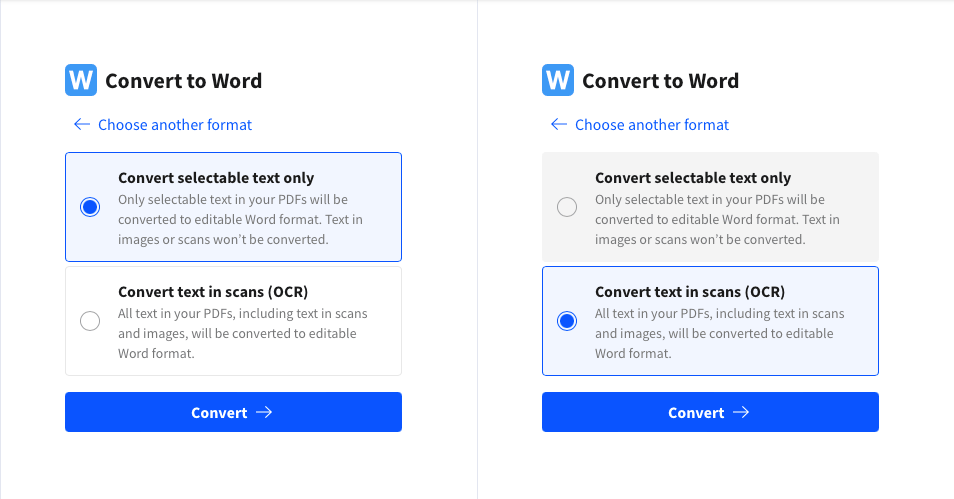
If your JPG contains text you want to edit, enable OCR.
- Select “Convert text in scans (OCR).”
- Click “Convert.”
- Download your Word file when it’s ready.
Convert the Word document with OCR
OCR is a Pro feature, so you’ll see it as an option tied to your plan. If you don’t enable OCR, your DOCX will still open in Word, but the text will behave like an image.
OCR Explained: When You Need It and What It Can’t Do
OCR stands for Optical Character Recognition. It reads text that’s inside an image and turns it into selectable, editable characters.
You Need OCR If the Text Isn’t Selectable
A quick test helps.
- If you can’t highlight text in the JPG, you’ll need OCR.
- If your image is a screenshot of text, OCR still helps, since it’s still image-based.
- If your source is already text-based, OCR won’t add much.
What OCR Does Well
OCR works best on printed text with clear contrast.
- Documents scanned at high quality
- Phone photos taken straight-on with good lighting
- Screenshots with sharp fonts
OCR Limitations You Should Expect
OCR is powerful, but it’s not magic. These are the typical limitations that affect results.
- Handwriting accuracy varies a lot. Printed text converts better.
- Tables may come through with shifted columns.
- Decorative fonts can lead to misread characters.
- Text on curved pages or at steep angles can warp.
If your goal is usable, editable text, OCR usually delivers. If your goal is a perfect layout matching the image, expect some cleanup in Word afterward.
OCR Accuracy Tips That Make a Real Difference
Small changes in the image can improve results more than people expect.
- Use a sharp image. If it looks blurry on your screen, OCR will struggle.
- Aim for 300 DPI if you’re scanning.
- Use even lighting if you’re using a phone. Avoid shadows across the page.
- Keep the page flat and straight. Avoid angles and perspective distortion.
- Crop out backgrounds. OCR performs better when the text fills the frame.
- Increase contrast if the text is light gray or faded.
If you’re capturing text on the go, the Smallpdf mobile app scanner can help you take cleaner scans before you convert.
Convert JPG to Word: Which Method Should You Use?
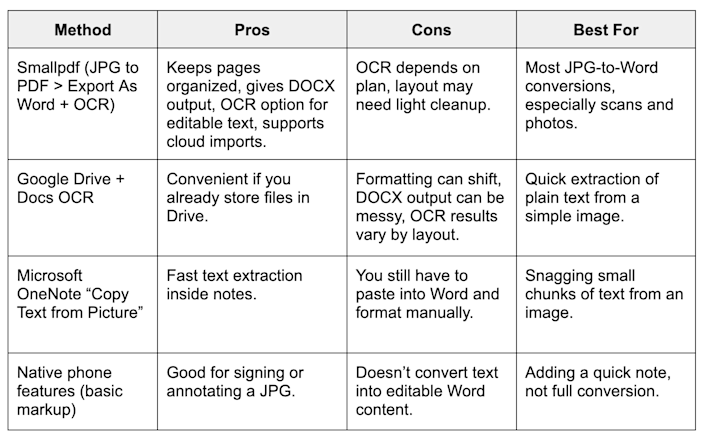
If you’re deciding between Smallpdf and alternatives, this table makes it easier. Each method has tradeoffs.
Different methods to convert JPG to Word
If you’re converting more than one page, or you need a real Word file you can send to someone else, Smallpdf’s export flow is usually the cleanest.
Convert JPG to Word on Mobile
Mobile conversion works best when you split it into two parts: capture a clean image, then convert.
What Works Online on Mobile
On iPhone or Android, you can do the full flow in a browser if you have internet access.
- Upload your JPG to Smallpdf Converter.
- Convert to PDF.
- Export as Word.
- Enable OCR if you need editable text.
What Works Offline
Offline is mostly about capturing.
- You can scan or photograph the page and save the image locally.
- You can organize files on your device.
- The actual conversion to DOCX and OCR generally needs an online step.
Troubleshooting JPG to Word Conversion Issues
If your DOCX looks off, the fix is usually simple. Start with the issue that matches what you see.
1. The Text Isn’t Editable in Word
This almost always means OCR wasn’t enabled.
- Re-run the export as “Word (.docx).”
- Turn on “Convert text in scans (OCR).”
- Convert again and download the new DOCX.
2. The Words Have Typos or Strange Characters
OCR mistakes typically come from image quality. Try this:
- Re-capture the image in better lighting.
- Increase resolution if you’re scanning.
- Crop the page tighter so OCR focuses on the text.
- Avoid busy backgrounds behind text.
3. The Layout Looks Messy or the Page Breaks Are Odd
Word files from images often need formatting cleanup.
- Use Word’s “Layout” settings to adjust margins.
- Fix spacing with “Line and Paragraph Spacing.”
- Recreate tables manually if column alignment matters.
If exact formatting is critical, consider keeping the PDF as your final version and using Word mainly to edit the text.
4. Handwriting Didn’t Convert Well
That’s normal. OCR is strongest with printed text.
If you have handwriting:
- Try higher contrast and a sharper image.
- Expect partial results.
- Consider manually editing the text after conversion.
5. The File Won’t Upload or Processing Fails
This is usually a file size or connection-related issue.
- Check your internet connection and retry.
- Resize the image if it’s extremely large.
- If you have multiple pages, try uploading fewer at a time.
Convert JPG to Word When You Need Real Editability
If you only need to view a JPG, converting isn’t necessary. If you need to edit text, reuse content, or clean up a scanned page, converting JPG to Word saves a lot of manual typing.
Use the five-step flow, turn on OCR when the text isn’t selectable, and start from the cleanest image you can.
You’ll get a DOCX you can actually work with, then format and share like any normal Word document.
Frequently Asked Questions
Can I convert JPG to Word online free?
Yes, you can convert a JPG into a Word file online. If you want editable text, you’ll need OCR, and OCR availability depends on your plan.
Will the text in my image be editable in Word?
Only if you enable OCR during conversion. Without OCR, Word will contain the image, and you won’t be able to edit the words inside it.
What image formats does Smallpdf support?
Smallpdf supports common image formats like JPG, JPEG, and PNG. If you have another format, convert it to JPG or PNG first, then follow the same steps.
How accurate is OCR?
OCR accuracy depends on image quality, lighting, font clarity, and page angle. Clean, high-contrast printed text usually converts well. Handwriting and decorative fonts convert with lower accuracy.
Can I convert multiple JPGs into one Word document?
Yes. Upload multiple JPGs together, so they become a multi-page PDF, then export the PDF to “Word (.docx).” Keep your images in the right order before uploading.
Why is my signature or stamp showing up but text isn’t editable?
Stamps and signatures are visual elements, so they appear fine even without OCR. Text won’t be editable unless OCR is enabled.
How do I handle scanned PDFs instead of JPGs?
If your source is already a scanned PDF, convert it to Word directly. By converting and using OCR, you’ll make the PDF searchable.
What should I do if OCR misses whole lines?
Re-capture the image with better lighting and a straighter angle. If the page is curved, flatten it and try again. Cropping tighter around the text also helps.
How long are files stored after conversion?
Smallpdf uses secure connections during file transfer, and files are kept only for a short period to complete processing, then removed automatically.