
Need a PDF that looks the same everywhere? Convert DOCX to PDF online free in seconds, with clean formatting and a file you can share confidently.
You can quickly turn your Microsoft Word files into PDFs to protect their contents from editing. One way to do this is with the “Save as PDF” functionality native to Microsoft Word. This is nice and easy, as long as you have Microsoft Office and a small file with heavy load times.
With Smallpdf, none of those concerns matter. We help you convert your DOCX to PDF quickly, free of charge, and without annoying watermarks.
Quick Steps: Convert DOCX to PDF
If you just want the steps, use this checklist.
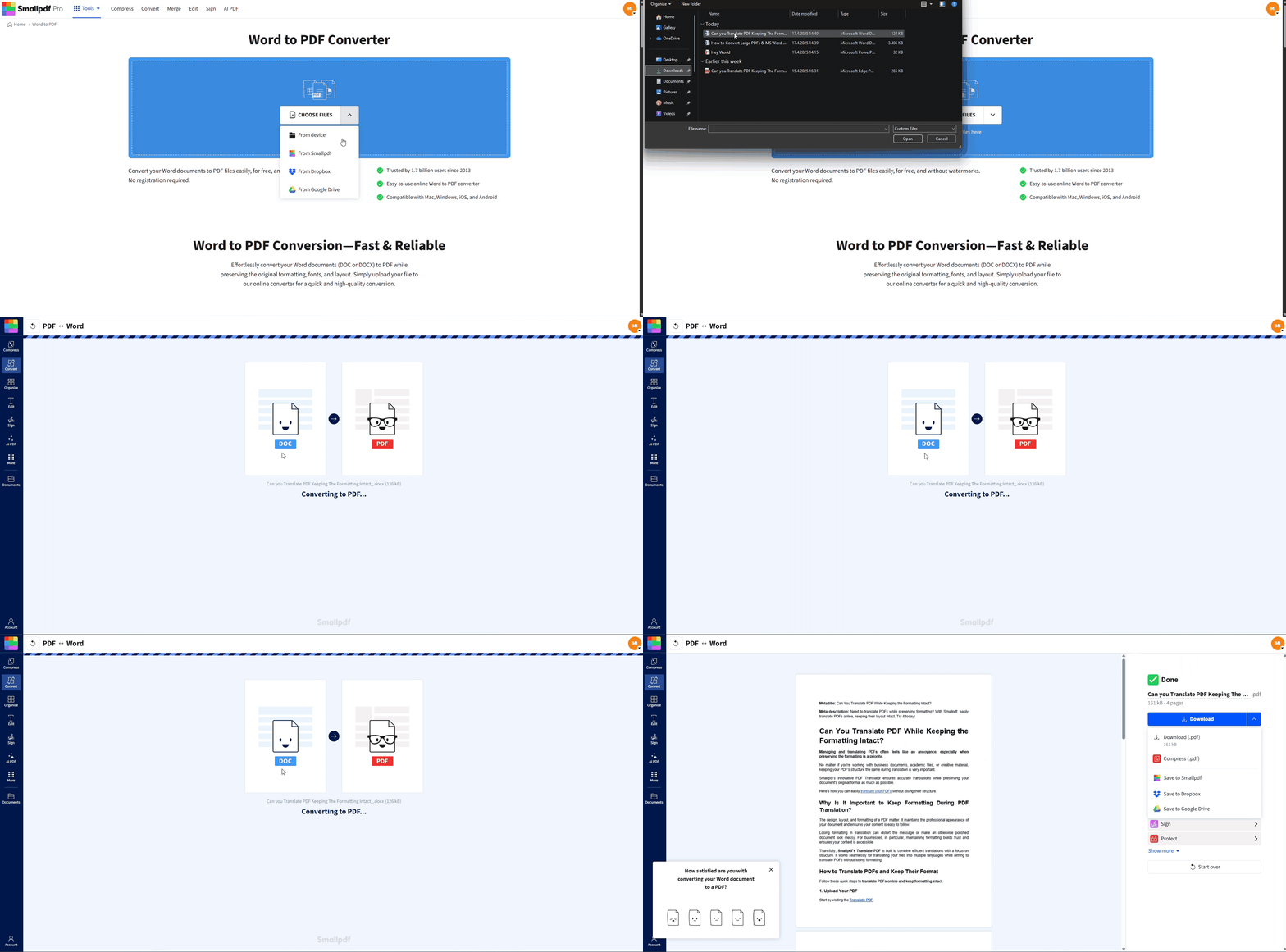
- Open our DOCX to PDF converter.
- Drag and drop your DOCX file into the upload area.
- Wait a moment while we convert it.
- Download your PDF, or save it to Google Drive or Dropbox.
Convert DOCX to PDF online with Smallpdf
How to Convert DOCX to PDF Online
You can finish this in under a minute. You don’t need to install Word.
Step 1: Upload Your DOCX
Add your file from anywhere you store it.
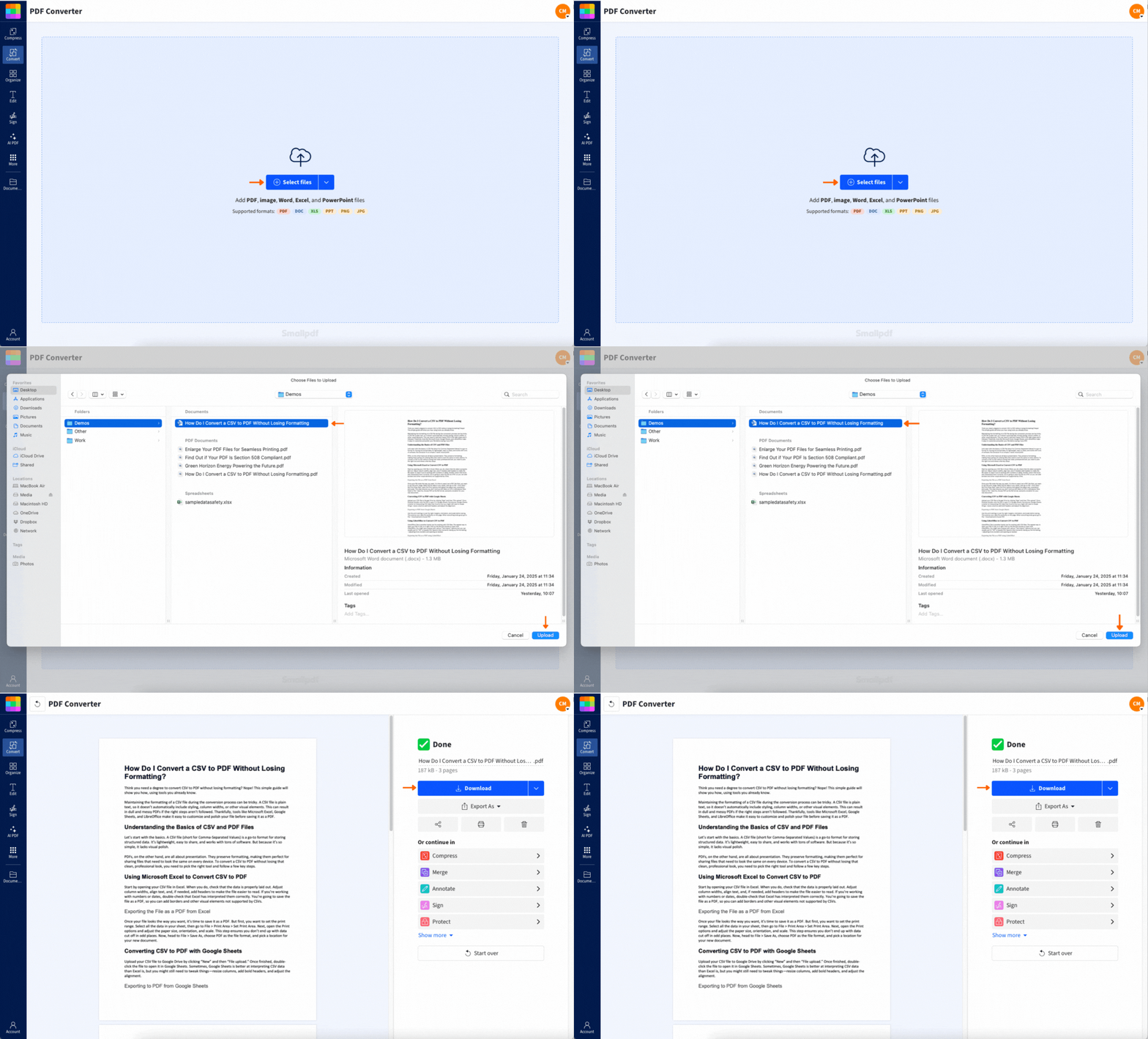
- Drag and drop your DOCX into the Word to PDF converter.
- Or click to upload from your device.
If you work in the cloud, you can also import from Google Drive, Dropbox, or OneDrive.
Step 2: Let the Converter Run
Once the upload finishes, conversion starts automatically. We turn your Word file into a PDF that’s easy to view, print, and share.
Step 3: Download Your PDF
When the result page appears, download your PDF to your device. If you want to keep everything in one workflow, save it back to your cloud folder instead.
Convert DOCX to PDF online for free
Step 4: Keep Going With Your PDF (Optional)
Right after conversion, you can do more without starting over.
- Compress PDF to make sharing easier.
- Edit PDF to add notes or fix small details.
- Merge PDF if you’re combining documents.
- Sign PDF if the file needs a signature.
Why Convert DOCX to PDF Instead of Sharing a Word File
A DOCX can look different depending on the device, fonts, and app version. A PDF is more predictable.
Here are the most common reasons people convert DOCX to PDF:
- You’re sending a resume, cover letter, or application form.
- You’re sharing a contract draft that shouldn’t shift layouts.
- You’re submitting a document to a portal that prefers PDFs.
- You’re printing a file and want consistent page breaks.
- You’re sharing a report and don’t want accidental edits.
A PDF also feels final. That’s useful when you want the reader focused on the content, not the formatting.
What We Preserve When You Convert DOCX to PDF
Most documents convert cleanly without any changes. This is what we aim to keep consistent:
- Headings, spacing, and page breaks
- Tables and columns
- Images and their placement
- Links and clickable URLs
- Page size and margins
If your DOCX uses unusual fonts or heavy layout features, you may see small shifts. The troubleshooting section below shows the fastest fixes.
Real-World DOCX to PDF Scenarios
These are the moments where a quick conversion saves you time.
Sending a Document That Must Look Official
Invoices, letters, reports, and proposals often read better as PDFs. The layout stays stable, so the recipient sees what you intended.
Submitting Files to a Portal With Strict Rules
Many forms, visa portals, job applications, and school systems accept PDFs more reliably than DOCX files. Converting first prevents upload errors and formatting issues.
Sharing a Draft Without Inviting Edits
A DOCX makes it easy for someone to change text by accident. A PDF keeps the content more controlled, especially when you only need review and approval.
Convert DOCX to PDF on Mobile
Sometimes you get a file by email and need a PDF fast. You can convert on iOS or Android without switching devices.
Convert in Your Mobile Browser
Open the converter in Safari or Chrome, upload the DOCX, then download the PDF. The steps are the same as the desktop.
Convert With the Smallpdf Mobile App
If you convert files often, the Smallpdf mobile app can make the workflow quicker. It’s built for touch, so uploading, converting, and saving back to cloud storage feels more direct.
Batch Conversion and Cloud Workflows
If you work with more than one file, batch conversion saves a lot of clicks.
Convert Multiple DOCX Files at Once
If you have a folder of Word docs, you can convert them in one session instead of repeating the same steps. This is especially helpful for:
- HR packets and onboarding documents
- Client reports by month
- School submissions in multiple files
- Contracts that need archiving as PDFs
Keep Files Organized in the Same Cloud Folder
A simple workflow that stays tidy:
- Import DOCX from Google Drive, Dropbox, or OneDrive.
- Convert to PDF.
- Save the PDF back to the same folder.
That way, you don’t end up with files scattered across downloads, desktop folders, and email attachments.
Is DOCX to PDF Conversion Secure?
We treat document privacy seriously. Here’s what you can expect during conversion:
- Encrypted transfer using TLS during upload and download.
- Automatic deletion after a short retention window, so files don’t sit online longer than needed.
- No manual review of your documents as part of conversion.
If you’re handling sensitive content, download your PDF when you’re done and avoid sharing public links unless you need them.
Troubleshooting DOCX to PDF Conversion Issues
If your PDF doesn’t look right, it’s usually caused by how the DOCX was created. These fixes cover the most common problems.
1. The PDF Layout Looks Different
This is often font-related.
- Use standard fonts when possible (common system fonts convert more consistently).
- If your DOCX uses custom fonts, try embedding them in your document before converting.
- If spacing looks tight, check line spacing and paragraph spacing in the DOCX, then convert again.
2. Images Are Missing or Moved
This happens when images are linked instead of embedded.
- Reinsert images using “Insert” so they’re part of the file.
- Avoid floating images with complex text wrap if the layout is critical.
- If the DOCX uses lots of layered objects, simplify the layout and try again.
3. The File Won’t Upload or Takes Too Long
Large images are usually the cause.
- Reduce image size inside the DOCX before you upload.
- Split a long document into smaller sections, convert, then merge PDFs afterward.
- Try a different browser if the upload stalls.
4. The DOCX Is Password-Protected
You’ll need to remove the password restriction before conversion. After you convert, you can add protection on the PDF side using Protect PDF.
5. The PDF Text Looks Fine, but the File Is Too Large
Convert first, then compress.
- Convert DOCX to PDF.
- Use Compress PDF to reduce the final PDF size.
- If the file includes many images, compression can make a noticeable difference.
Do More After You Convert
DOCX to PDF is usually step one. A few follow-up actions make the file easier to use.
Edit and Organize Pages
If the PDF needs quick cleanup:
- Reorder pages before sending.
- Remove pages you don’t need.
- Add small edits or annotations using Edit PDF.
Compress for Email and Upload Limits
If you’re sharing by email or uploading to a portal, compression helps you avoid size errors. Convert first, then compress the PDF.
Use AI Features When the PDF Is Long
If you’re converting a long report or draft:
- Summarize PDF can give you a quick overview.
- Translate PDF helps when you need a second-language version.
- Chat with PDF helps you pull key details without scanning every page.
Share Your Word File as a Clean PDF
When you need a document that looks the same on every screen, PDF is the safer format. Drop your DOCX into the converter, download the PDF, then keep going with compression, edits, or signatures if you need them.
Frequently Asked Questions
How do I convert DOCX to PDF without Microsoft Word?
Upload the DOCX to the converter, wait for processing, then download the PDF. Everything runs in your browser.
Can I convert DOCX to PDF on my phone?
Yes. You can convert in a mobile browser, or use the Smallpdf mobile app for a touch-friendly workflow.
What’s the difference between DOC and DOCX?
DOCX is the newer Word format. DOC is the older format. Both can be converted to PDF.
Is it free to convert Word to PDF?
You can convert for free with a daily usage limit. If you convert often or need batch processing, a paid plan can remove limits.
Why does my PDF look different from my Word document?
The most common cause is fonts or complex layout objects like text boxes and floating elements. Using standard fonts and simpler layout rules usually fixes it.
Can I password-protect the PDF after conversion?
Yes. Convert first, then use Protect PDF to add a password to the final PDF.