



Learn three simple methods to add PDF icons in HTML—from basic image tags to CSS automation—plus styling tips and troubleshooting solutions.
Adding a PDF icon in HTML helps your site’s visitors easily identify and access your shared PDFs. Whether you’re using simple image tags, icon fonts, or CSS styling, the right approach makes your documents more discoverable and user-friendly.
How to Add a PDF Icon Using HTML
To add a PDF icon in HTML, you have three main approaches that work across all modern browsers. Each method offers different benefits depending on your project needs and technical requirements.
Method 1: Using an Image Tag
The simplest way to add a PDF icon is using an img tag with the src attribute pointing to your icon file:
<a href=“document.pdf”><img src=“pdf-icon.png” alt=“PDF document” width=“24” height=“24”>Download PDF< /a>
This method works everywhere and gives you complete control over the icon’s appearance. Make sure to include descriptive alt text for accessibility.
Method 2: Using Font Awesome Icons
Font Awesome provides scalable PDF icons that you can style with CSS:
<link rel=“stylesheet” href=“https://cdnjs.cloudflare.com/ajax/libs/font-awesome/6.0.0/css/all.min.css”> <a href=“document.pdf”><i class=“fas fa-file-pdf”></i> View PDF </a> This approach keeps your icons crisp at any size and reduces the number of image files you need to manage.
Method 3: Using CSS Pseudo-Elements
You can automatically add PDF icons to all PDF links using CSS attribute selectors: a[href$=“.pdf”]:before { content: “📄 “; margin-right: 5px; } This method automatically applies icons to any link ending in “.pdf” without touching your HTML.
Where to Get PDF Icons for Your HTML
Before implementing icons, you’ll need to source them from reliable libraries or create custom designs. Here are the best places to find high-quality PDF icons:
Free Icon Libraries
- Font Awesome - Offers multiple PDF icon styles with excellent browser support
- Material Icons - Google’s icon set includes clean PDF symbols
- Feather Icons - Minimalist SVG icons perfect for modern designs
- Heroicons - Tailwind’s icon library with PDF document options
Most free libraries require attribution, so check the licensing requirements before using them in commercial projects.
Premium Icon Collections
- Flaticon - Thousands of PDF icon variations with different styles
- IconScout - High-quality icons with commercial licenses included
- The Noun Project - Diverse collection with flexible licensing options
SVG vs PNG: Which Format Should You Choose?
The format you choose affects both visual quality and website performance. Here’s when to use each:
When to Use SVG Icons
- Scalability - Looks crisp at any size, perfect for responsive designs
- Small file sizes - Vector graphics are typically smaller than high-resolution PNGs
- Styling flexibility - Change colors and effects with CSS
- Retina displays - Always appears sharp on high-density screens
When PNG Works Better
- Complex designs - Detailed icons with gradients or photographic elements
- Legacy browser support - Older browsers handle PNG more consistently
- Existing assets - When you already have PNG icons in your design system
Styling and Customizing Your PDF Icon
Once you’ve added your PDF icon, CSS lets you customize its appearance to match your site’s design perfectly.
Sizing and Positioning
Control icon dimensions and alignment with these CSS properties:
- .pdf-icon { width: 20px; height: 20px; vertical-align: middle; margin-right: 8px; }
Color and Hover Effects
Add interactive styling to make your icons more engaging:
- .pdf-link:hover .pdf-icon { color: #e74c3c; transform: scale(1.1); transition: all 0.2s ease; }
Accessibility Best Practices
- Include descriptive alt text for image-based icons.
- Use aria-label attributes for icon fonts.
- Ensure sufficient color contrast for visibility.
- Don’t rely solely on icons—include text labels.
Troubleshooting Common PDF Icon Issues
Even experienced developers encounter issues when embedding PDF icons. Here are solutions to the most common problems:
Icon Not Displaying
- Check the file path and ensure your icon file is in the correct location.
- Verify image format support. Some older browsers don’t support WebP.
- Test for CORS issues if loading icons from external domains.
- Clear browser cache to see recent changes.
Sizing Problems
- Set explicit width and height attributes.
- Use CSS “object-fit: contain” to prevent distortion.
- Check for conflicting CSS rules affecting icon dimensions.
Cross-Browser Compatibility
- Test icon rendering in Chrome, Firefox, Safari, and Edge.
- Provide PNG fallbacks for SVG icons in older browsers.
- Use vendor prefixes for CSS transforms and transitions.
Alternative Methods for PDF Icon Implementation
Beyond basic HTML and CSS, these advanced techniques offer more flexibility for dynamic applications.
JavaScript Dynamic Insertion
Automatically add icons to PDF links using JavaScript:
document.querySelectorAll(‘a[href$=“.pdf”]’).forEach(link => { const icon =
document.createElement(‘span’); icon.innerHTML = ‘📄 ‘; link.prepend(icon); });
Using Icon Fonts
Create custom icon fonts with tools like IcoMoon for consistent styling across your site.
Data URI Embedding
Embed small icons directly in your CSS to reduce HTTP requests:
- background-image: url(‘data:image/svg+xml;base64,PHN2Zy...’);
How To Place a Smallpdf Icon in Your HTML
Want to give your visitors instant access to view, edit, and annotate PDFs? The embedded Smallpdf icon makes it easy for your readers to immediately access your PDF—be it a form, information material, or any other downloadable resource.

They can read, fill out, and even add notes. The best part is that they won’t have to download anything to do this at all! They can do it right inside their web browser in a tab that opens when they click the icon. 1. Copy the URL of the PDF file you want readers to open. 2. Paste the URL into our Embed PDF page’s “Add PDF link here” box. 3. Copy the code produced by our tool in the preview box. 4. On your HTML page, find the spot where you want the Smallpdf icon to appear. 5. Paste the code there, and the PDF icon will appear there.
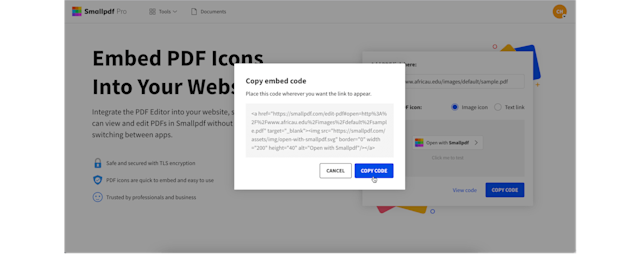
Using Smallpdf to generate embedding code for your PDFs
If you want, test your code to make sure everything works correctly. The JS Bin tester is a good way to do this. Just click “Copy Code” and paste it in. You’ll get a preview and can click on the PDF icon on the right-hand window to see how it works.
When you’re happy with how it all works, you can update your HTML, and watch how much readers appreciate how easy it is to see, fill out, and add to the PDF you provided. No app, download, or registration is necessary.
Work with PDFs Beyond Icons with Smallpdf
While PDF icons help improve the user experience, managing the PDF itself matters just as much. Once someone opens a file via the Smallpdf icon, they have three main options: view, annotate, or edit.
For forms, Smallpdf makes filling in PDFs simple. After the file opens, readers can use the Add Text tool to enter information anywhere on the page. They can also add shapes to highlight sections, mark notes in the margins, or draw lines to flag important content.
If the document needs a signature, users can sign it directly with the Sign PDF tool. A built-in link inside the editor lets them add a signature without leaving the file. Smallpdf even saves signatures for future use, making repeat signing faster and easier.
- PDF compression - Reduce file sizes without losing quality.
- Format conversion - Transform PDFs to Word, Excel, PowerPoint, and more.
- Document merging - Combine multiple PDFs into one file.
- Digital signatures - Sign documents securely online.
- OCR technology - Make scanned documents searchable and editable.
You can find more information about all our tools for managing PDFs here. Try it free and see how Smallpdf can streamline your document workflow beyond just adding icons.
FAQs About PDF Icons in HTML
How do I make a PDF icon clickable?
Wrap your icon in an anchor tag: <a href=“document.pdf”><img src=“pdf-icon.png” alt=“PDF”></a>. This creates a clickable link that opens the PDF when users click the icon.
Can I use emoji as PDF icons?
Yes! Unicode emojis like 📄 or 📋 work as simple PDF icons. They’re universally supported and don’t require additional files, though they offer less customization than traditional icons.
What’s the standard size for PDF icons?
Most PDF icons work well at 16-24 pixels for inline text or 32-48 pixels for standalone buttons. Choose sizes that match your site’s typography and don’t overwhelm the surrounding content.
How do I add PDF icons to all PDF links automatically?
Use CSS attribute selectors: a[href$=“.pdf”]:before { content: “📄 “; }. This automatically adds an icon before any link ending in “.pdf” without modifying your HTML.
Are there accessibility requirements for PDF icons?
Yes, include alt text for image icons and aria-labels for icon fonts. Ensure sufficient color contrast and don’t rely solely on icons to convey meaning. Include descriptive text alongside them.
Can I animate PDF icons on hover?
Absolutely. Use CSS transitions for smooth effects: .pdf-icon:hover { transform: scale(1.1); transition: transform 0.2s ease; }. Keep animations subtle to maintain usability.



