
Need to turn a PDF into a writable document fast? Add text, signatures, and form fields online with Smallpdf, then download a clean copy.
PDFs are great for sharing because they maintain a consistent layout. That same stability is also why editing can feel tricky. Some PDFs allow you to type right away, while others only permit you to add notes. Then there’s scanned PDFs that behave like images until you run OCR.
Below, we’ll cover the fastest way to turn a PDF into a writable document, plus deeper methods when you need real editing, form fields, or text extraction.
Quick Start: Turn a PDF Into a Writable Document Online
If your goal is simple, start here. You’ll be done in a minute. 1. Open Smallpdf Edit PDF, then upload your file from your device, Google Drive, Dropbox, or OneDrive 2. Add a text box anywhere you need to type, then adjust size and placement 3. Add a signature if needed, then download the updated PDF.
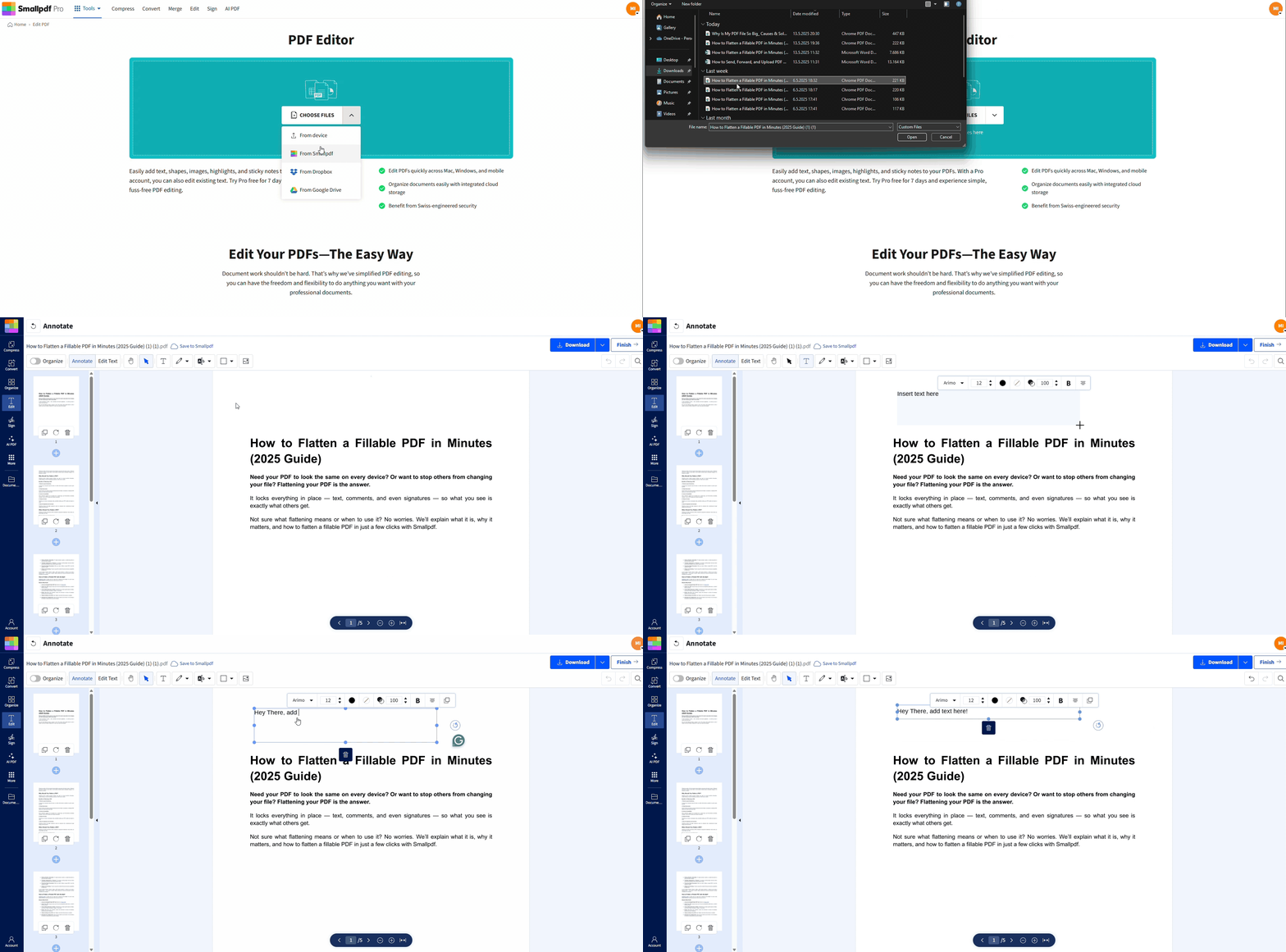
Edit or add text on your PDF
If your PDF is scanned and you need editable text (not just a text box on top), jump to the OCR section.
What ‘Editable’ Means for PDFs
People refer to an ‘editable PDF’ in a few different ways. Understanding the following differences will help you figure out what you need.
A Writable PDF
You can type on top of the page, add notes, and sign. This is perfect for filling in info, adding comments, or completing a document quickly.
An Editable-Text PDF
You can change the actual text content. For many PDFs, the smooth way to do this is to convert to Word or another editable format, edit, and then convert back.
A Fillable PDF
This is a real form with interactive fields like text inputs, checkboxes, and dropdowns. It’s designed for other people to fill out cleanly.
How To Turn a PDF Into a Writable Document With Smallpdf
This method works for regular PDFs and scanned PDFs, because you’re adding content on top of the page.
Step 1: Open Edit PDF
Go to Edit PDF and upload your document. You can pull it from your device or cloud storage.
Step 2: Add Text, Marks, and Images
Use the editing options to add a text box, highlight sections, place shapes, or insert an image like a logo. These changes stay in place when you download the PDF.
Step 3: Add a Signature If Needed
If you’re finalizing a document, add your signature in the same session, then place it where it belongs. Download the updated PDF when you’re done.
Step 4: Download or Save Back to Cloud
Download the file to your device, or save it back to your Google Drive, Dropbox, or OneDrive folder so your team sees the updated version.
How To Edit a PDF by Converting It to Word, PowerPoint, or Excel
If you need to rewrite paragraphs, move sections, or do heavier edits, conversion is usually faster than trying to edit inside the PDF.
Step 1: Convert the PDF to an Editable Format
Use Smallpdf PDF Converter to convert your PDF to Word, PowerPoint, or Excel, depending on what you need to edit. The output file is easier to work with for real text changes.
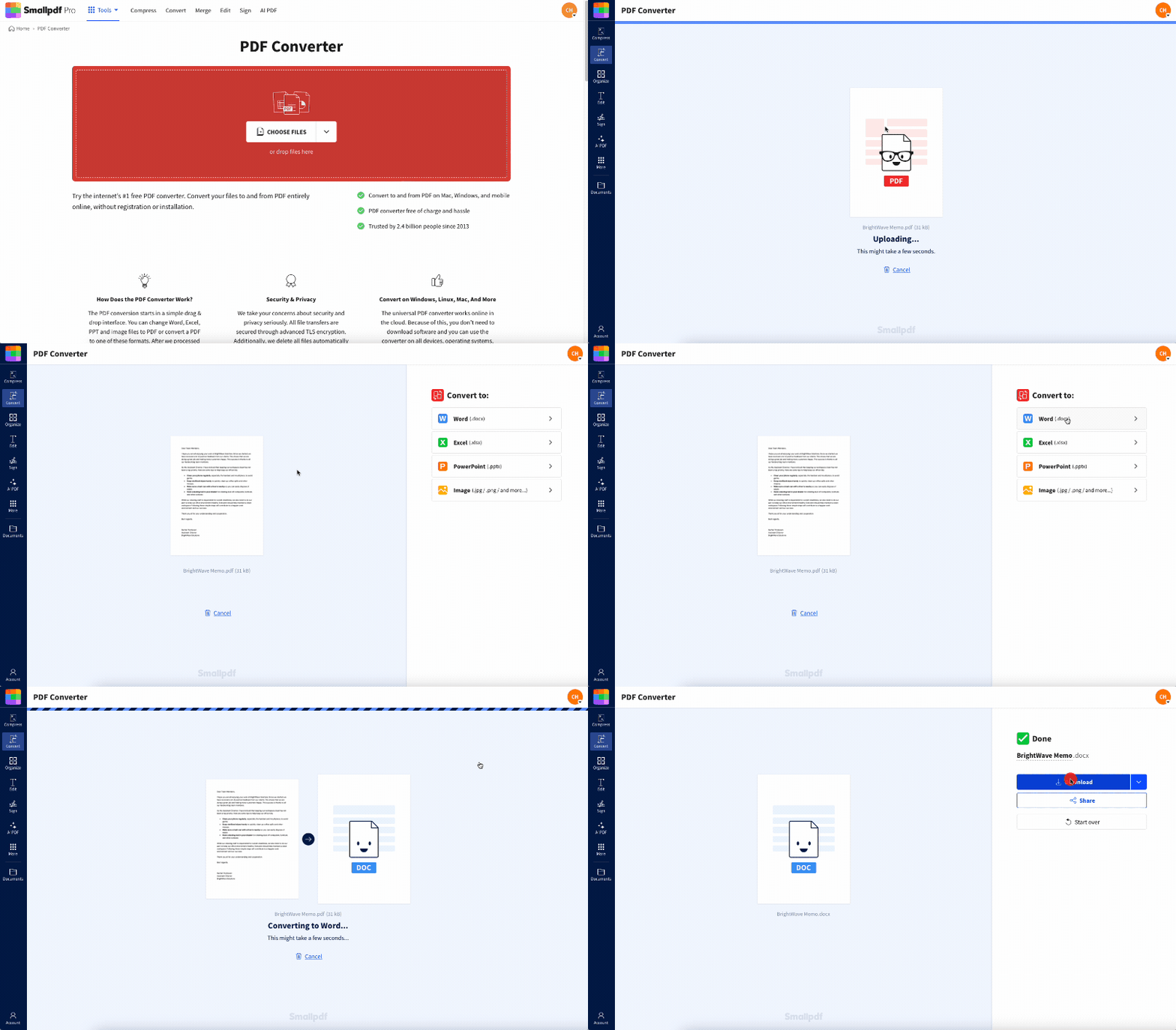
Convert a PDF to an editable Word doc with Smallpdf
Step 2: Make Your Changes
Edit the document like a normal file. Fix text, update tables, replace images, and adjust spacing.
Step 3: Convert It Back to PDF
Convert the edited file back to PDF so it shares cleanly and keeps a consistent layout.
Tip: If you see small layout shifts after conversion, fix headings and spacing first. Those tend to cause most formatting drift.
How To Make a Scanned PDF Editable With OCR
Scanned PDFs are usually just images. That’s why you can’t select text or copy a paragraph. OCR converts image text into real, searchable text.
Step 1: Upload the Scan to OCR
Open Smallpdf PDF OCR and upload your scanned PDF.
Step 2: Let OCR Recognize the Text
OCR processes the pages and creates a text layer so you can search and copy content. This is the step that makes a scanned document feel editable again.
Step 3: Choose Your Next Move
After OCR, you can:
- Keep it as a searchable PDF if your goal is copy, search, and reference.
- Convert it to Word if you need to rewrite and reformat sections.
Best results come from clean scans. If the scan is blurry, dark, or angled, OCR will guess more.
How To Create a Fillable PDF Form
If you need other people to type into a form cleanly, fillable fields beat text boxes. A fillable PDF keeps inputs aligned and consistent, even when someone types a lot.
Option 1: Fill an Existing Form
If your PDF already has form fields, use PDF Form Filler to type into fields, add checkboxes, and sign without printing.
Option 2: Create Fillable Fields
If your PDF is not fillable yet, build fields first so the form behaves like a proper form.
- Add text fields where someone needs to type.
- Add checkboxes for yes or no questions.
- Add signature fields for approvals.
Smallpdf supports creating fillable PDFs with common field types like text fields and checkboxes, which is ideal for intake forms, approvals, and simple agreements.
Real-World Examples That Match Common Editable PDF Needs
Here are a few scenarios that show which method to use, so you don’t overcomplicate it.
Example 1: You Need to Fill Out a PDF and Send It Back Today
Use Edit PDF. Add text and a signature, then download and email the finished PDF.
Example 2: You Have a Scanned Contract and Need to Copy a Clause
Use OCR first so the text becomes searchable. Then copy what you need, or convert to Word for deeper edits.
Example 3: You’re Updating a PDF Report Before a Meeting
Convert the PDF to PowerPoint or Word, update the content, then convert back to PDF so the final share looks consistent.
Smallpdf vs Other Ways to Make a PDF Editable
You can edit PDFs in a few different ways. The best choice depends on how much control you need.
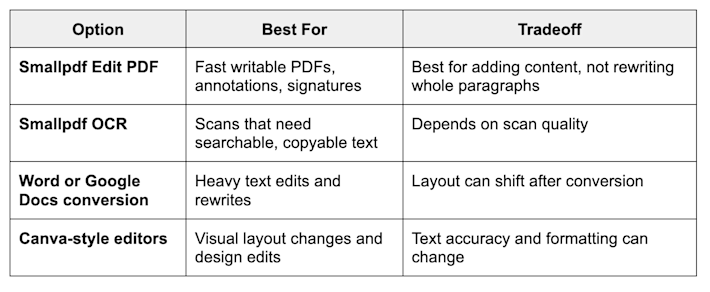
Smallpdf vs other ways to make a PDF editable
The advantage with Smallpdf is the workflow stays browser-based, and you can jump between editing, converting, OCR, and form filling without rebuilding the file each time.
Troubleshooting When a PDF Won’t Edit
PDFs usually resist editing for a few predictable reasons.
The PDF Is a Scan, So Text Won’t Highlight
Fix: Run OCR first, then edit the extracted text or convert to Word.
The PDF Has Restrictions
Fix: If you have permission to edit, remove restrictions first, then edit. If you don’t have permission, ask the sender for an unlocked version. For simple notes and signatures, adding text boxes may still work.
Fonts or Layout Shift After Conversion
Fix: Adjust the converted file before converting back to PDF.
- Replace missing fonts with a close match.
- Rebuild complex tables if they break.
- Check headings, lists, and spacing first.
Your Text Doesn’t Fit in a Form Field
Fix: Use a text box overlay so you control line breaks, font size, and spacing. This also helps when a form field doesn’t wrap nicely.
Is It Safe to Make a PDF Editable Online?
Security matters, especially for contracts, IDs, or internal files. Smallpdf uses TLS encryption during file transfer and supports compliance standards like ISO/IEC 27001 and GDPR.
Smallpdf also deletes files automatically after one hour of processing for most tools, which helps reduce exposure after you finish editing.
Make Your PDF Writable, Then Keep It Moving
If you only need a writable PDF, Edit PDF is the quickest path. If you need real text editing, convert to Word and convert back when you’re done.
For scans, OCR is the step that changes everything because it turns a picture of text into text you can actually use.
When your file needs clean inputs from other people, make it fillable so the form behaves like a form instead of a markup layer.
Frequently Asked Questions
How can I make a PDF editable for free?
Use Smallpdf Edit PDF to add text boxes, annotations, and signatures, then download the updated file.
How do I turn a PDF into a writable document?
Upload it to Smallpdf Edit PDF, add text boxes where you need to type, then save the updated PDF.
How do I make a scanned PDF editable?
Use Smallpdf PDF OCR to turn image text into searchable, editable text. Then convert to Word if you need heavy edits.
Can I create a fillable PDF with checkboxes and fields?
Yes. Use Smallpdf’s fillable PDF approach to add common fields like text inputs and checkboxes, then share the form for others to complete.
Will making a PDF editable reduce quality?
Adding text boxes and annotations won’t reduce image quality. Quality issues usually come from exporting low-resolution scans or converting images too aggressively.
Is it private to edit PDFs online?
Smallpdf uses TLS encryption for transfer and deletes files automatically after one hour for most tools. It also supports ISO/IEC 27001 and GDPR compliance.