
Combine Word files into one document with two reliable methods: Smallpdf for fast online merging, or Word’s built-in option for offline work.
When you need one clean DOCX, copying and pasting usually breaks formatting. Merging is faster, cleaner, and easier to fix.
We’ll show you how to merge Word documents and what the difference is between merging and combining.
Quick Steps: Combine Word Files Fast
Use this when you need results right away.
Method A (Fastest, online): Smallpdf
- Open Merge PDF.
- Drop your Word documents (we convert them to PDF automatically).
- Merge the PDFs into one file.
- Export the merged file back to Word.
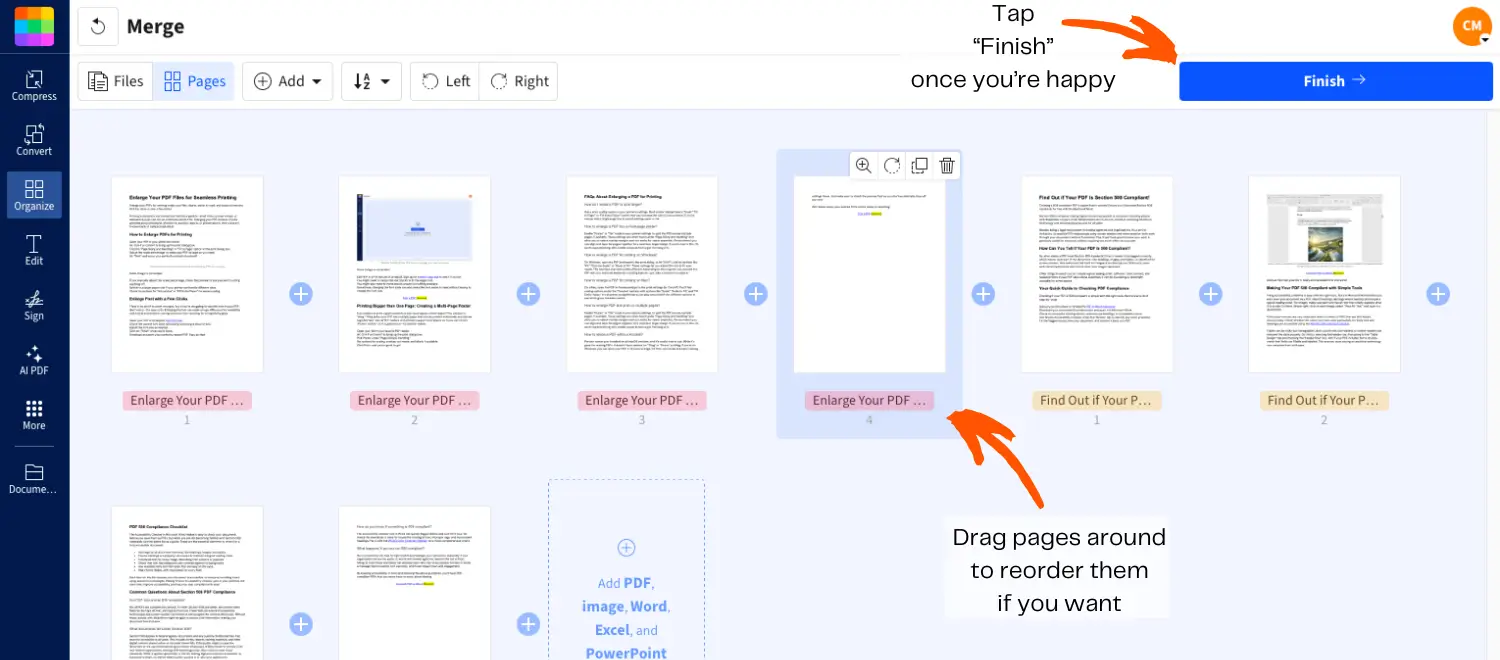
Smallpdf has the easiest method to merge two or more Word documents
Method B (Offline): Microsoft Word
- Open your main document.
- Use “Insert” > “Object” > “Text” from File to pull in other Word files.
Merging vs. Combining: What’s the Difference?
People use these words interchangeably, but they can mean slightly different things.
Merging usually means you’re joining complete documents into one file, in a set order, with pages flowing together.
Combining can mean the same thing, but some users also mean inserting parts of one document into another, like adding sections, tables, or chapters.
The Quickest Way: Merge Word Docs With Smallpdf
If you want the easiest way to combine Word files, Smallpdf is usually the smoothest option. It works on any device, and PDF is the safest bridge format for keeping the layout stable.
What You’ll Need Before You Start
- Your Word files saved as DOCX
- A browser (or the Smallpdf mobile app)
- Optional: A clear file order, like 01, 02, 03 naming
Step-By-Step: Combine Word Files Using Smallpdf
Because Word files don’t merge cleanly across different templates, we merge via PDF and then export back to Word.
1. Merge The PDFs
- Open Merge PDF.
- Drag and drop the Word files, and our tool will directly convert them to PDF.
- Choose “Merge files” if each file should stay grouped.
- Choose “Merge pages” if you want page-level mixing.
- Click “Merge PDF.”
2. Export The Merged File Back To Word
- On the result page, click “Export As.”
- Choose “Word (.docx).”
- Download your combined Word file.
Why This Method Preserves Formatting Better
PDF locks in layout. That helps when your Word files include:
- Different fonts and style sets
- Tables and page breaks
- Headers, footers, and numbering
- Mixed margin or paper size settings
If you’ve ever merged two DOCX files and watched headings change size, this is the workaround that avoids most of that.
Smallpdf vs. Word: Quick Comparison
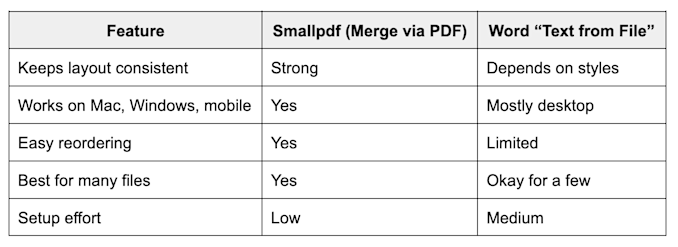
Smallpdf vs. Word - merging methods
How Many Word Files Can I Merge at Once?
It depends on your plan and workflow.
If you’re merging often or you’re working with lots of documents, Pro makes batch work easier. On the free plan, you’ll hit daily limits sooner, so it’s best for quick, occasional merges.
If your final file turns out large, compressing the merged PDF before exporting back to Word can help.
How To Combine Word Files in Microsoft Word
If you need to stay offline or you’re already working inside Word, use Word’s built-in “Text from File” feature. It’s not as consistent with formatting, but it’s solid for documents that share the same template.
Step-By-Step: “Text from File” on Windows
- Open the Word document you want as the main file.
- Place your cursor where the next document should start.
- Go to “Insert.”
- Click “Object” (sometimes under the Text group).
- Select “Text from File.”
- Choose the files you want to insert.
- Click “Insert.”
Tip: To select multiple files, hold “Ctrl” while clicking.
Step-By-Step: “From File” on Mac
- Open the main Word document.
- Place your cursor where you want the next file inserted.
- Go to “Insert.”
- Choose “Text” > “From File…”
- Select your files, then insert.
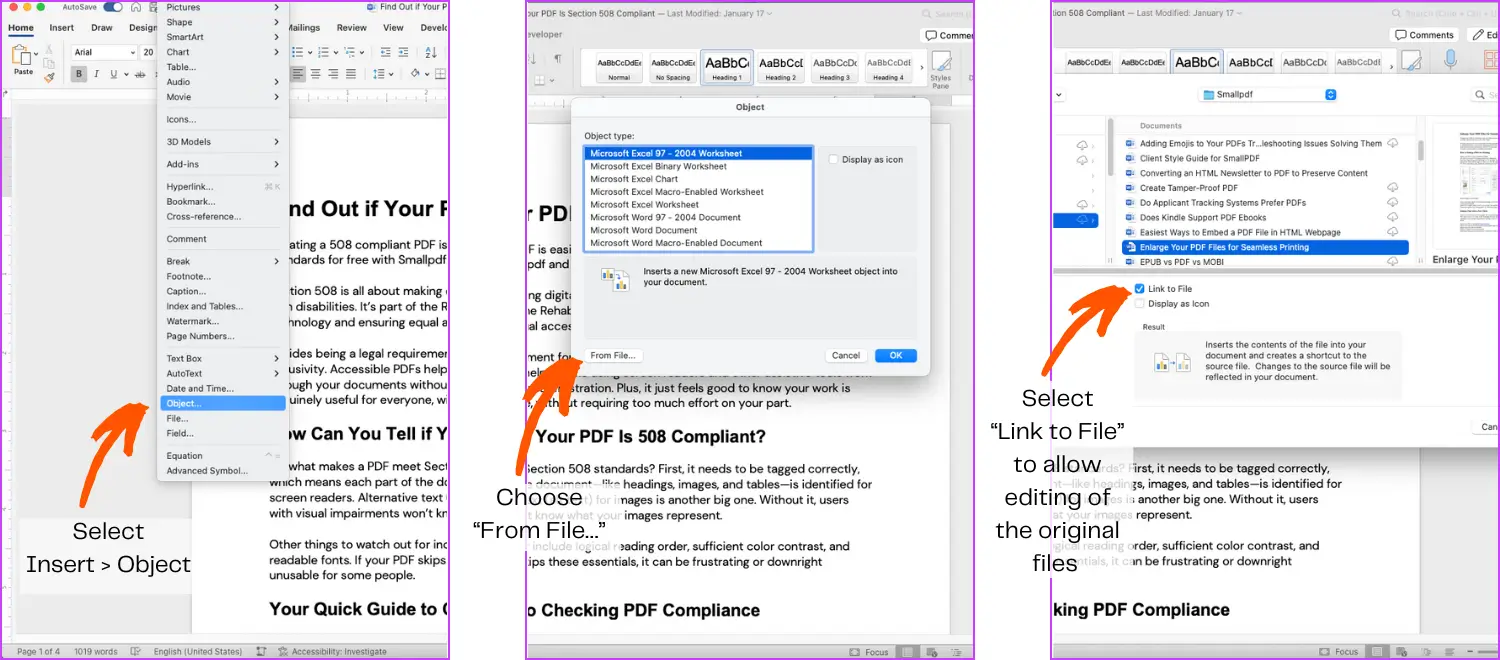
On macOS, “Text from file” is simply “From File...”
Where Is “Text from File” in Word?
On Windows: “Insert” > “Object” > “Text from File”
On Mac: “Insert” > “Text” > “From File…”
How To Keep Word Documents in the Right Order
Word inserts files in the order they appear in your file picker, which isn’t always what you expect.
A simple fix is naming your files like this:
- 01_Intro.docx
- 02_Chapter-One.docx
- 03_Chapter-Two.docx
- 04_Appendix.docx
That keeps order predictable, both in Word and in Smallpdf.
Merge Versions With Tracked Changes
If you’re combining feedback from multiple reviewers, merging documents can get messy fast. Two cleaner options exist.
Option A: Accept Changes First, Then Merge
- Open each file.
- Accept or reject tracked changes.
- Delete resolved comments.
- Merge clean, final versions.
Option B: Use Word’s Combine Feature
In Word, go to “Review” > “Compare” > “Combine” to merge two versions of the same document while keeping revisions attributed.
This is best when you have:
- One original document
- One edited version
- A need to track who changed what
Can I Merge Word Documents Without Losing Formatting?
Sometimes. It depends on how similar the files are.
If your files use different templates, fonts, or heading styles, Word tends to apply the main document’s styles to everything. That’s why content can shift.
A practical rule: If formatting must stay identical, merging via PDF first is usually safer.
Fix Common Formatting Issues After Merging
Even with good tools, merged docs sometimes need a quick cleanup.
1. Page Numbers Restart or Reset
- Insert a section break before the problem area.
- Click the page number.
- Go to “Page Number” > “Format Page Numbers.”
- Choose “Continue from previous section.”
2. Headers and Footers Change
- Double-click the header/footer area.
- Use “Link to Previous” to control what carries over.
- Turn it off when sections need different headers.
3. Fonts and Styles Look Inconsistent
- Open the “Styles” pane.
- Apply the same Heading and Body styles across the document.
- If things are chaotic, use “Clear Formatting” on problem sections, then restyle.
When You Shouldn’t Merge DOCX Files
Merging isn’t always the best move. Avoid merging when:
- You need live links to source documents that must update automatically.
- You’re collaborating with multiple people in separate files at once.
- Your document depends on advanced Word features like master documents.
In those cases, sharing a PDF bundle or using links may be better.
Why Combine Word Files at All?
Because it saves time and reduces errors. Combining Word files is helpful when you’re dealing with:
- Contracts from multiple parties
- Multi-chapter reports
- School packets and handouts
- Policies, SOPs, and documentation sets
Instead of juggling attachments, you end up with one final document that’s ready to share. Jump straight to merging your Word documents and finish the job in under a minute.
Frequently Asked Questions
How do I merge multiple Word documents into one?
Use Smallpdf to convert each DOCX to PDF, merge them in Merge PDF, then export back to Word. Or use Word’s Text from File feature.
How do I combine Word files without losing formatting?
If formatting must stay identical, merge via PDF first and export back to Word. Word’s built-in method can change styles based on the main document.
Can I merge Word documents on my phone?
Yes. You can convert and merge using Smallpdf in a mobile browser, or use the Smallpdf mobile app if you prefer.
Why does Word change my formatting when I combine documents?
Word applies the style set of the main document. If inserted files use different templates, headings, fonts, or spacing, Word may normalize them.
What’s the easiest way to merge Word files from different sources?
Merge via PDF first. It’s the simplest way to combine files created by different people, apps, or templates.
How do I merge documents in Google Docs?
Google Docs can import DOCX files, but combining them often requires copy and paste. If you want cleaner formatting, convert to PDF and merge first, then export back to Word.