
Cover sensitive text or images with clean white boxes, then download your updated PDF. Get quick steps, troubleshooting, and safer redaction options.
Need to hide a name, price, or photo in a PDF? We’ll help you white out PDF content online in minutes, with no account needed.
White-out edits work great for quick cleanups, like removing an outdated line on a form or covering a draft image before sending a preview. You’ll place a white rectangle over what you want hidden, then download the updated file.
Quick Checklist: White Out PDF Text in 60 Seconds
If you’re in a hurry, this is the fast path:
- Open Edit PDF and upload your file.
- Select “Rectangle” from the shapes option.
- Drag a box over the text or image you want to hide.
- Set fill and border to white, with 100% opacity.
- Download your updated PDF.
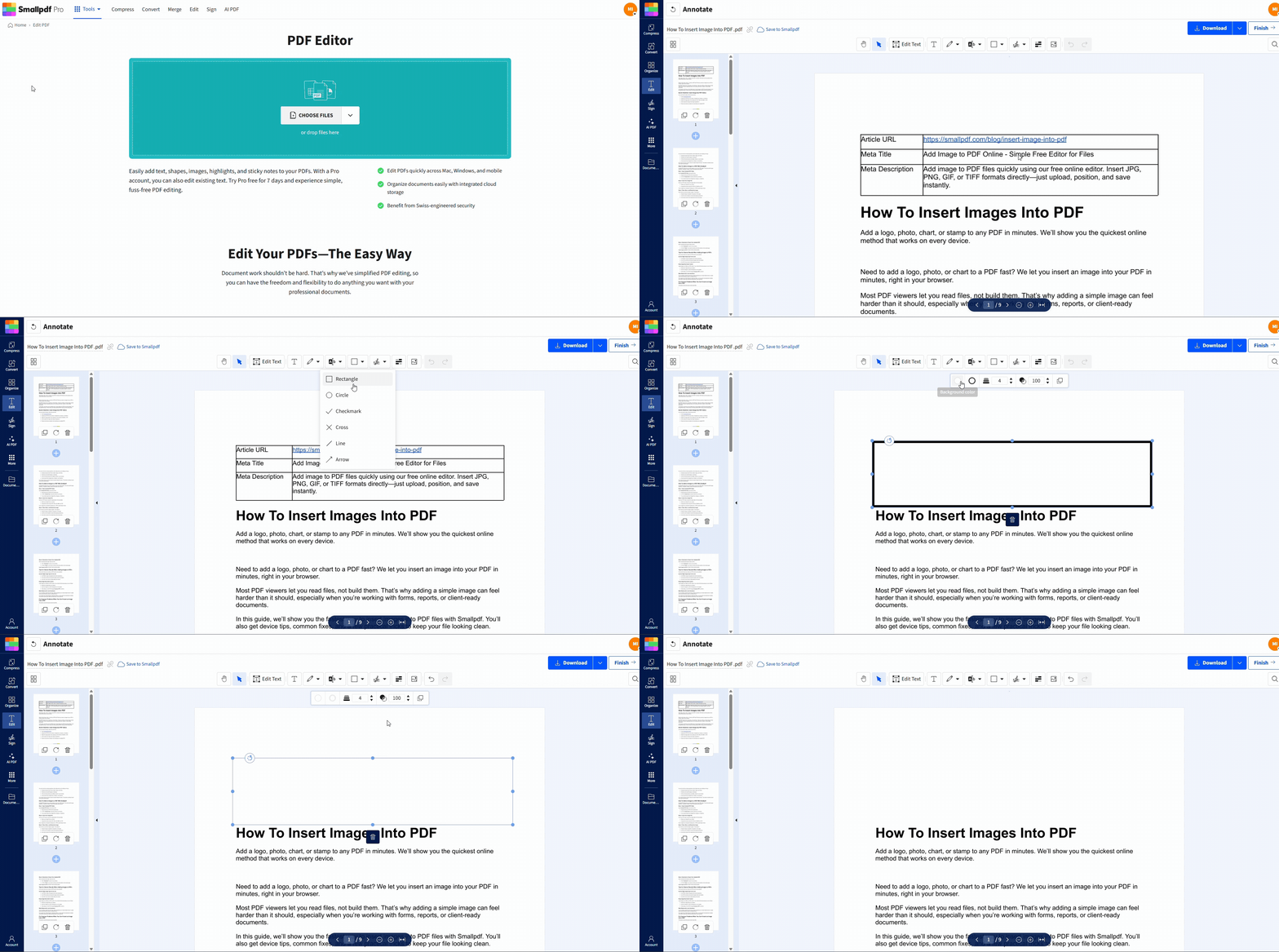
White out PDF text in 60 Seconds
How to White Out Text or Images in Smallpdf Edit PDF
You’re not deleting content here. You’re covering it with a shape. That’s perfect for non-sensitive cleanup, but keep the security section in mind later.
Step 1: Upload Your PDF
Open Edit PDF, then drag and drop your file into the upload area. If you prefer, upload from your device or a cloud drive like Google Drive, Dropbox, or OneDrive (depending on your setup).
Step 2: Choose the Rectangle Shape
In the editor toolbar, open the shapes option and select “Rectangle.” You’ll use this to paint over the content you want to hide.
Step 3: Cover the Content Precisely
Click and drag across the text or image. Zoom in if needed, especially for small fonts, signatures, or tight spacing. A little extra coverage looks cleaner than leaving a visible edge.
Step 4: Set Fill and Border to White
Select the rectangle, then set:
- Fill color: White
- Border color: White
- Opacity: 100%
This prevents outlines or faint transparency from showing up in print or on darker screens.
Step 5: Download the Updated PDF
Once it looks right, download your PDF. If you’re doing several white-outs, do a quick scroll review first, so you don’t miss any spots.
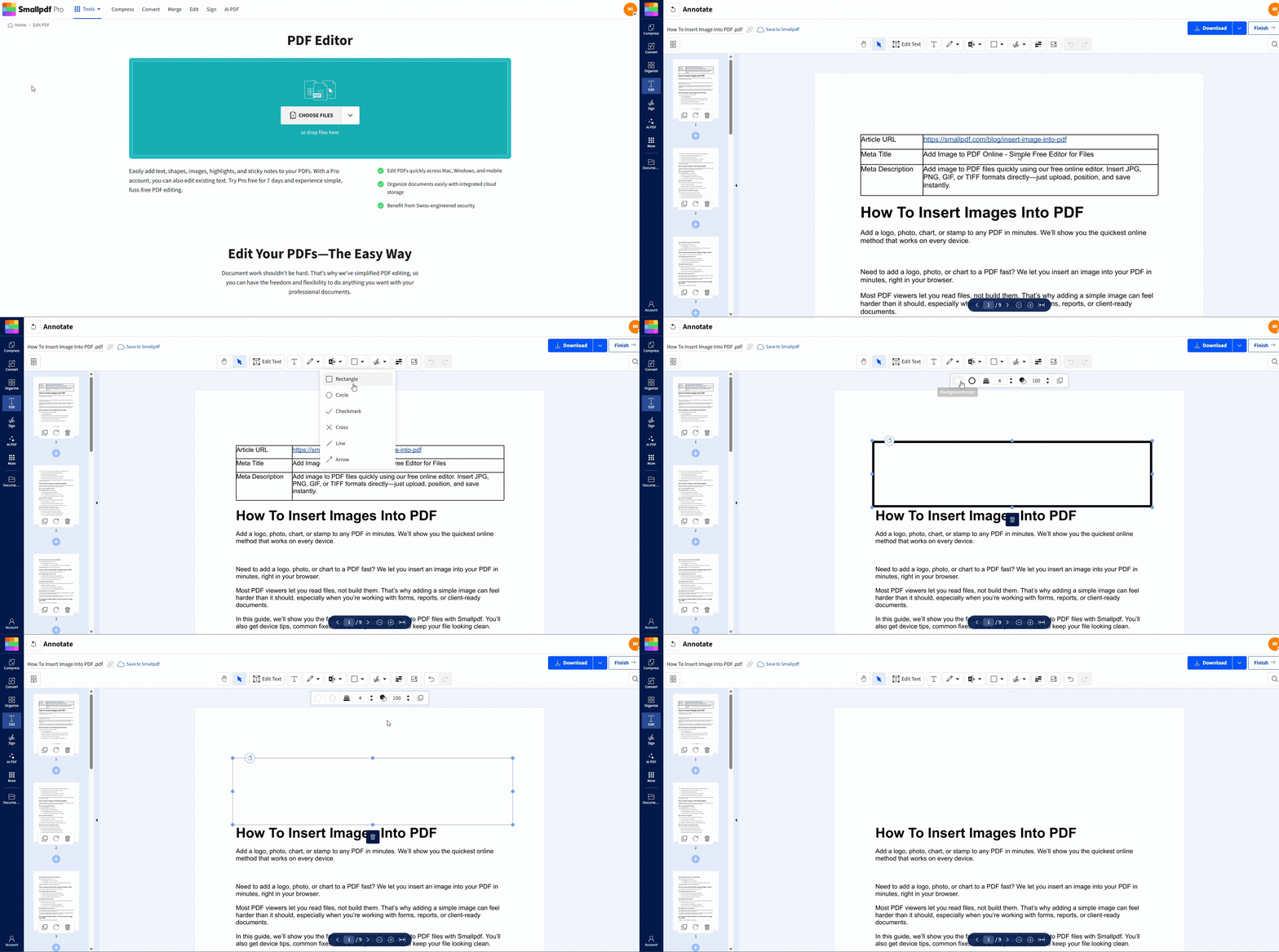
White out text in PDF with Smallpdf in under a minute
How to Add Replacement Text After You White Out
White-out usually happens for one of two reasons: you want the information gone, or you want it replaced.
To replace it cleanly: 1. Add your white rectangle first. 2. Select the text option in the editor. 3. Click on top of the white box and type the corrected text. 4. Match the font size and alignment as closely as possible.
This works well for fixing:
- Wrong dates on a form
- An old price in a quote
- A misspelled name in a draft PDF
PDF White Out vs. PDF Redaction
White-out and redaction look similar on screen. The difference is what happens under the hood.
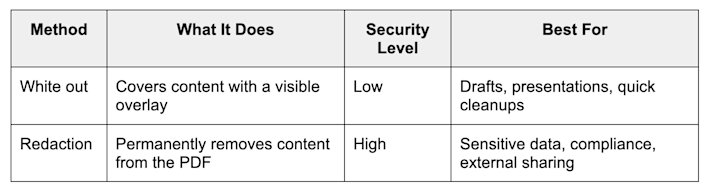
PDF White Out vs. PDF Redaction
A white rectangle can hide what you see, but the original content may still exist in the PDF and could be recoverable in some situations. For anything truly confidential, use a real redaction method that removes the data, not just the appearance.
Smallpdf’s Redact PDF is built for permanent removal, so the hidden content can’t be viewed, copied, or recovered after saving.
Make White Out Harder to Undo: Flatten the PDF
If you’re using white-out for a draft you plan to share, flattening can reduce accidental edits like someone moving the rectangle.
A common workflow is: 1. Add your white rectangles in the Edit PDF tool. 2. Export the file. 3. Run the result through Flatten PDF to merge layers into a more locked output.
Flattening helps with stability and printing, but it still isn’t the same as permanent redaction for sensitive data. If the document includes personal or regulated information, use Redact PDF instead.
When to White Out Text in PDF
White-out is a practical choice when you’re optimizing readability, not protecting secrets. Common real-world cases include:
- Removing draft details before sending a client preview
- Covering a placeholder photo while you wait for the final headshot
- Hiding internal notes in a slide-style PDF handout
- Cleaning a form layout so only the final answers stand out
- Masking a section you plan to rewrite and paste back in later
If your goal is privacy protection, treat white-out as visual cleanup only, and switch to redaction.
Troubleshooting: Issues When You Try to White Out Text in PDF
1. The White Box Looks Gray or Transparent
Set opacity to 100%, and ensure both fill and border are white. Some PDFs also have off-white page backgrounds, so pure white may stand out slightly. In that case, sample a close shade if your editor supports it.
2. The Content Still Shows Through at Certain Zoom Levels
Zoom in and slightly expand the rectangle. Thin fonts and anti-aliasing can reveal edges if coverage is too tight.
3. Can’t White Out a Scanned PDF Cleanly
Scanned PDFs are images. You can still place white rectangles on top, but alignment can be trickier. If you need selectable text or cleaner edits, OCR can help convert the scan into usable text first.
4. Rectangles Moved After I Reopened the PDF
Flatten the file after adding shapes to reduce layer shifting and accidental edits.
Security and Privacy Notes Before You Share
If you’re editing anything sensitive, this is the most important section.
White-out is not secure redaction. It’s an overlay, not a deletion. For permanent removal, use a redaction workflow designed to remove content from the PDF file itself.
Smallpdf tools use protections like TLS encryption, and the files are automatically deleted after one hour of processing in its redaction workflow, with security controls aligned to GDPR and ISO/IEC 27001.
If your PDF contains names, addresses, financial details, medical info, or anything regulated, skip white-out and go straight to redaction.
Next Steps: Clean Up Fast, Then Protect What Matters
If you’re just polishing a draft, white-out is a quick way to tidy a PDF before sharing. If you’re handling sensitive data, switch to Redact PDF so the content is permanently removed, not just hidden.
Start your free trial to access all Smallpdf tools and unlock advanced editing features for your PDF workflow.
Frequently Asked Questions
Can I white out a PDF for free?
Yes. White-out edits are typically done by adding shapes in an editor, and you can do that online without installing software.
Is white-out the same as redaction?
No. White-out covers content visually. Redaction permanently removes content so it can’t be recovered.
Can someone remove the white box and reveal the text?
In some cases, yes, because white-out is an overlay. If the content must stay hidden, use a redaction method instead.
How do I white out a scanned PDF?
You can place white rectangles over the scanned content, since it’s an image. If you need better editing control, OCR can convert scanned text into selectable text first.
How do I replace the text after I white it out?
Add the white rectangle first, then add new text on top. Match font size and alignment for a natural look.
How do I white out an image in a PDF?
Use the rectangle shape to cover the image area, then set fill and border to white. If the image sits on a colored background, you may need a matching shade instead of pure white.
Will white-out increase my PDF file size?
It can, especially if you add many shapes. If the file grows too large, compress the final PDF after editing.