Need a PDF under 100 KB for a job portal or email limit? We help you shrink it fast online, while keeping text readable and the layout intact.
If you need to get a PDF under 100 KB for a strict upload limit, we can help. Whether it’s a job application, government form, or email attachment, hitting that size cap can be frustrating when your file is just a little too big.
The good news is that you can compress a PDF to 100 KB online without installing software or hurting readability. Below, you’ll learn the fastest way to shrink your file with Smallpdf for tight limits, what to adjust when basic compression isn’t enough, and how to keep text and layout intact.
Quick Steps: Compress PDF to 100 KB
Can I compress a PDF to exactly 100 KB?
Not exactly. You can often get very close, but the final size depends on what’s inside your PDF.
Here’s what to do:
- Go to Compress PDF.
- Upload your file (from your device, Google Drive, Dropbox, or OneDrive).
- Pick “Basic” (free) or “Strong” (bigger reduction, Pro).
- Click “Compress,” then download your smaller PDF.

Compress a PDF to a specific size
How To Compress a PDF to 100 KB Online
You can usually get under 100 KB in a minute or two, especially for text-heavy PDFs. 1. Open Compress PDF. 2. Drag and drop your PDF into the upload area (or choose it from cloud storage). 3. Choose your compression level: Basic or Strong.
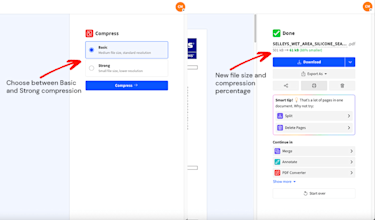
Pick a compression level
- Click “Compress.”
- Download your compressed file.
If you still miss the 100 KB target after one pass, keep reading. The fix is usually one of the tips below.
Can You Compress a PDF to Exactly 100 KB?
Not precisely, and it’s not a limitation unique to us. Compression is content-dependent.
A scanned PDF made of big images might only shrink so far before the pages start looking rough. A simple text PDF can often drop under 100 KB easily. That’s why we show you the expected output size after compression, so you can decide what to do next.
What to Expect: File Size, Quality & Compression Levels
Our compression tool offers two modes to fit your needs:
- Basic compression (free): Reduces file size by 20-40% while maintaining excellent quality.
- Strong compression (Pro): Can reduce your PDF file size by up to 75% with advanced optimization.
- Quality retention: Text, fonts, and layout remain intact throughout the process.
- No watermarks: Your file looks just as it did before compression.
The compression works by scanning your file, identifying similar data patterns, and replacing duplicates with smaller identifiers.
Common Use Cases for 100 KB PDFs
Many platforms and systems require PDFs under 100 KB. Here are the most common scenarios where you’ll need this specific file size:
- Government portal submissions and official document uploads
- Job application systems with strict attachment limits
- University admission portals and scholarship applications
- Email attachment limits for professional correspondence
- Mobile app uploads where bandwidth is limited
- Legacy system requirements in corporate environments
- International visa applications and immigration documents
Basic vs. Strong Compression: What To Use for 100 KB
Picking the right mode matters when you’re aiming for a tight limit like 100 KB.
Basic Compression (Free)
Use Basic when your PDF is mostly text, or when you want a smaller file with minimal visible change. It’s also the best first try when you’re not sure how sensitive your layout is.
Strong Compression (Pro)
Use Strong when your PDF includes photos, scanned pages, big graphics, or long reports. Strong mode can cut much deeper, and it’s the mode to try when Basic doesn’t get you close enough.
Batch Compression (Pro)
If you’re dealing with multiple files, batch processing saves time. Drop several PDFs in, compress them together, and download everything in one go.
Real-World Times You Actually Need a 100 KB PDF
A 100 KB limit feels extreme until you hit it in the wild. Here are the most common places people run into it:
- Job applications that cap attachments at 100 KB or 200 KB
- Government and visa portals with strict file-size rules for forms
- University admissions uploads that reject anything over a set limit
- Email workflows where you want fast sending and fast downloading
- Legacy systems (older HR or finance tools) that enforce tiny limits
If your PDF is getting rejected, it’s usually one of two issues: It’s image-heavy, or it includes extra pages you don’t need.
Tips To Reach 100 KB If Your PDF Is Still Too Big
If compression alone does not get you under 100 KB, you’ll usually hit the target by reducing what the PDF contains.
- Remove extra pages first. If only page one is required, split the PDF and compress the single page.
- Crop large margins. White space still costs bytes when the page is scanned.
- Convert color to grayscale. This can shrink scans a lot when color is not required.
- Reduce image weight before the PDF exists. If you built the PDF from photos, resize or recompress the images, then recreate the PDF.
- Downsample scans. A scan at 300 DPI looks great, but it can be too large for 100 KB. For upload portals, a lower DPI often passes and still reads fine.
- Avoid photo PDFs when possible. If your document is text, exporting as a true text PDF (not a set of images) makes compression much more effective.
- Run a second pass. If you’re close, compressing again can sometimes shave off the last chunk.
If you need to keep the content but reduce size further, Strong compression is often the cleanest next step.
Privacy and Data Security When You Compress a PDF
File size problems are annoying. Privacy problems are worse. Here’s how Smallpdf protects your document during compression:
- TLS encryption protects file transfers during upload and download.
- Automatic deletion removes files from our servers after one hour of processing.
- We support security and privacy standards like GDPR and ISO/IEC 27001.
If your PDF is password-protected, you’ll need to unlock it first (with permission) before most compressors can process it safely.
Compress PDF 100KB and Meet Upload Limits Fast
If an upload form rejects your PDF, you usually don’t need new software or a new scan. Start with Basic compression, switch to Strong when you need a bigger drop, and trim pages or color when the limit is strict.
You can test it out without a 7-day free trial of Smallpdf Pro today. Plus, get unlimited access to all 30+ Smallpdf tools.
Frequently Asked Questions
Can I compress a PDF to exactly 100 KB?
Not exactly. We compress as much as possible while keeping the file usable, and you’ll often land very close to 100 KB depending on the content.
Why is my compressed PDF still over 100 KB?
Most of the time, it’s because the PDF contains scanned pages, photos, or heavy graphics. Try Strong compression, then use the tips above, like removing pages or converting to grayscale.
Will compressing hurt text quality?
Text usually stays sharp. Images may lose some detail, especially with strong compression, because that’s where most size savings come from.
Can I compress a PDF to 100 KB on my phone?
Yes. You can compress directly in your mobile browser, or use our mobile app for iOS and Android.
How long do you keep my file?
Files are automatically deleted after processing, typically within one hour. Can I compress multiple PDFs at once? Yes, with batch processing on Pro. It’s the fastest way to handle a folder of documents.