
Turn scanned PDFs into editable Word docs in seconds with OCR. Upload from your device, Drive, Dropbox, or OneDrive and download a clean DOCX.
If your scanned PDF looks like text but copies like an image, OCR (Optical Character Recognition) is the fix that turns it into a real, editable Word file.
Scanned PDFs are basically photos of pages. That’s why highlighting works, but copying text fails. A scan has no real text layer, so Word can’t edit it like a normal document.
In this guide, we’ll show you how to convert a scanned PDF to Word using our Scan to Word converter, what to expect from OCR, and how to fix common issues when the results look messy.
Quick Steps: Convert a Scanned PDF to Word in Under a Minute
- Open Smallpdf PDF to Word.
- Upload your scanned PDF from your device or cloud storage.
- Turn on OCR when prompted.
- Convert and download your editable DOCX.
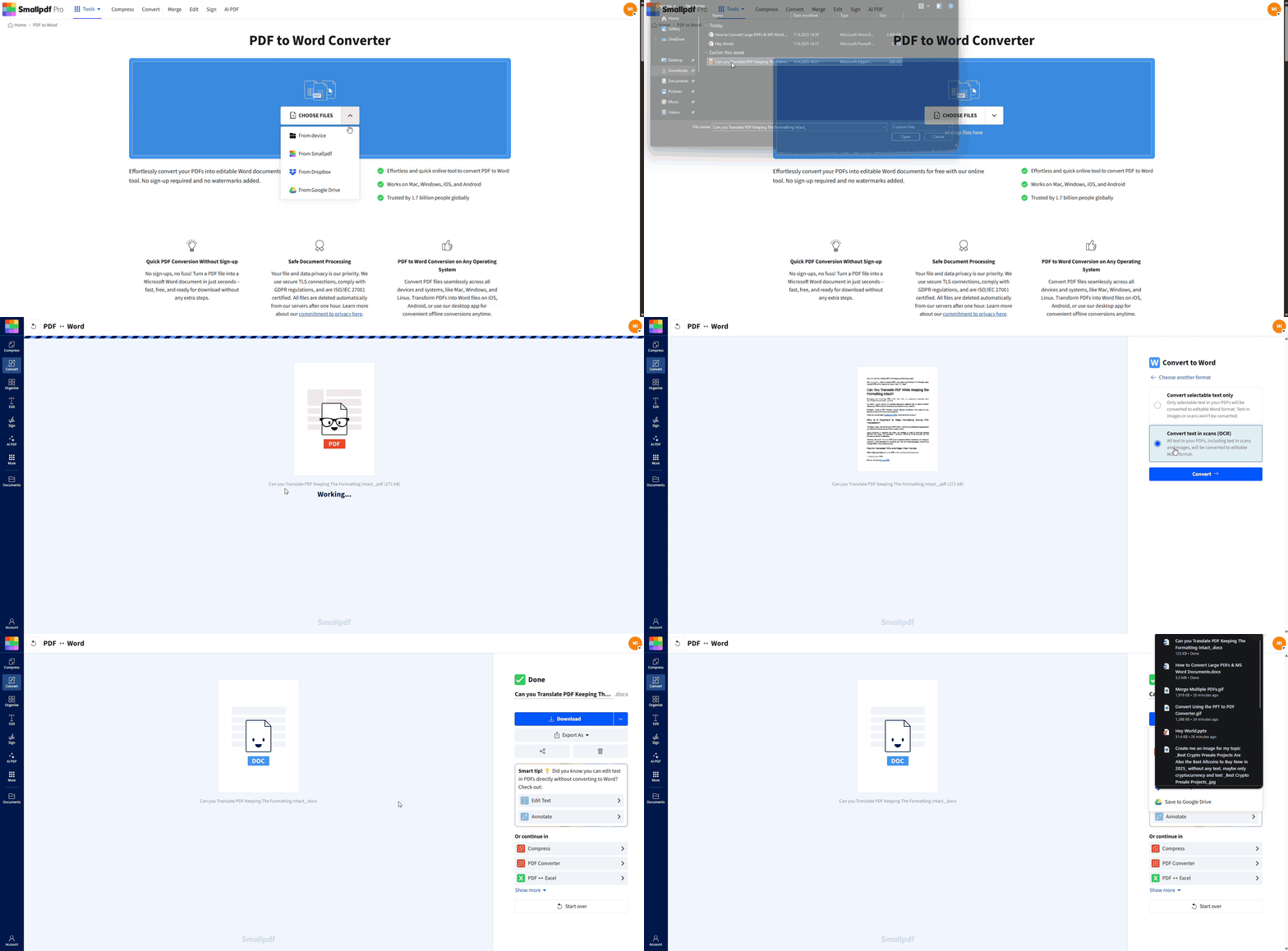
Convert a scanned PDF to Word in under a minute using Smallpdf
If you plan to edit after converting, open the DOCX in Microsoft Word or Google Docs.
Scanned PDF vs. Normal PDF: Why Copying Text Fails
Before you convert, it helps to know what you’re working with.
A native PDF contains real text. You can click, highlight, and copy words like on a webpage.
A scanned PDF contains images of text. You can’t select words because there are no words to select.
Here’s a quick test:
- Try dragging your cursor across a sentence.
- If nothing highlights, your PDF is scanned and needs OCR.
How To Convert a Scanned PDF to Word With Smallpdf Scan to Word Converter
Smallpdf converts scanned PDFs by using OCR to detect letters inside images, then rebuilding that text into an editable Word file.
Step 1: Upload Your Scanned PDF
- Open PDF to Word.
- Drag and drop your PDF into the upload area.
- Or import from Google Drive, Dropbox, or OneDrive.
Step 2: Turn on OCR
- If your file is scanned, choose the OCR option when you see it.
- Then click “Convert.”
OCR is a feature that may require a paid plan or a free trial, depending on your access.
Step 3: Download Your Editable DOCX
- Download the converted Word file.
- Open it in Microsoft Word, Google Docs, or any DOCX editor.
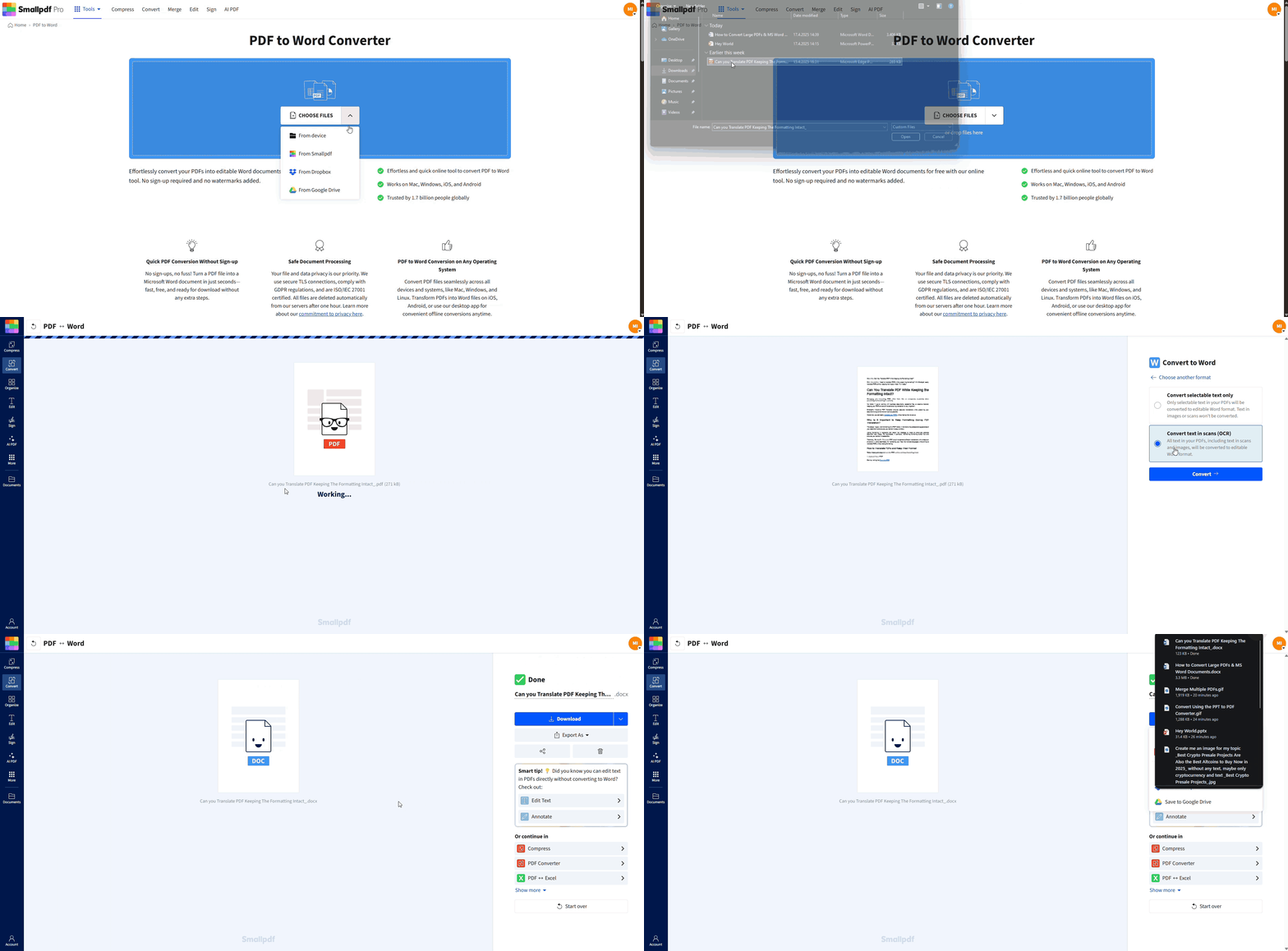
Convert a scanned PDF to Word in under a minute using Smallpdf
What you’ll get: Editable paragraphs and headings, plus tables and lists when the scan quality is good.
Get Better OCR Results Before You Convert
OCR quality depends heavily on scan quality. A clean scan can convert beautifully. A rough scan can still convert, but it may need cleanup.
Use these quick checks before you upload:
- Text clarity: If you can’t read it easily, OCR will struggle too.
- Contrast: Dark text on a light background converts best.
- Straight pages: Crooked pages cause broken lines and weird spacing.
- Resolution: Scans at 300 DPI usually produce better results than low-res images.
If you control the scan, these settings help:
- Use 300 DPI for regular text documents.
- Use grayscale for text-heavy pages.
- Clean scanner glass to avoid haze or streaks.
Convert a Scanned PDF to Word on iPhone or Android
If you’re not at your desk, you can still convert scans quickly.
Option 1: Use Your Mobile Browser
- Open PDF to Word in Safari or Chrome.
- Upload your PDF from Files, Drive, Dropbox, or OneDrive.
- Enable OCR and download the DOCX.
Option 2: Use the Smallpdf Mobile App
If you convert scans often, the Smallpdf mobile app can feel smoother for repeat work:
- Upload the scanned PDF.
- Convert with OCR.
- Export the DOCX and save it back to your phone or cloud storage.
Convert a Scanned PDF to Word Using Microsoft Word
Microsoft Word can open PDFs, but scanned PDFs are hit-or-miss. If the scan is clean and simple, it might work. If the scan is faint or complex, you’ll usually get broken formatting.
Here’s the offline method:
- Open Word.
- Go to “File” > “Open” and select your PDF.
- Confirm the prompt that Word will convert the PDF.
- Then save it as a Word file: “File” > “Save As” > “.docx.”
What to expect: Word may keep the page look, but it often fails to extract clean text from scans. If you need reliable, editable output, OCR is the better route.
Fix Common Scanned PDF to Word Conversion Problems
Even with good OCR, some files need a quick cleanup. Here are the most common issues and what to do next.
1. The Text Is Still Not Selectable
- You likely converted without OCR.
- Re-run the conversion and make sure OCR is enabled.
2. The Word File Has Weird Spacing or Random Line Breaks
This usually comes from a skewed scan or uneven spacing in the original.
- If you can, re-scan with straighter alignment and higher contrast.
- In Word, use “Find and Replace” for repeated double spaces or line breaks.
3. Tables Look Broken
Tables are one of the hardest elements for OCR.
- If the table is simple, Word’s table tools can usually rebuild it fast.
- If the table is complex, try converting the PDF to Excel instead, then move the data into Word.
4. The Font Looks Wrong
Scans don’t contain font data. OCR guesses and recreates it.
- After converting, apply a clean Word font like Calibri or Arial.
- Use Word styles for headings so the document looks consistent.
5. Pages Are Crooked or Text Looks Warped
- Crop or straighten the pages before OCR if you can.
- If only a few pages are bad, split those pages out, fix them, then merge later.
Why Use Smallpdf as Your Scan to Word Converter
When you’re converting scans, you usually care about three things: Accuracy, layout, and speed.
What Smallpdf does well:
- OCR built for scanned documents, so you get real, editable text
- Layout-aware conversion that tries to keep paragraphs, spacing, and structure intact
- Works anywhere in your browser, on Windows, Mac, iOS, and Android.
- Cloud imports so you can pull files from Drive, Dropbox, or OneDrive without extra steps
A quick comparison of your options:
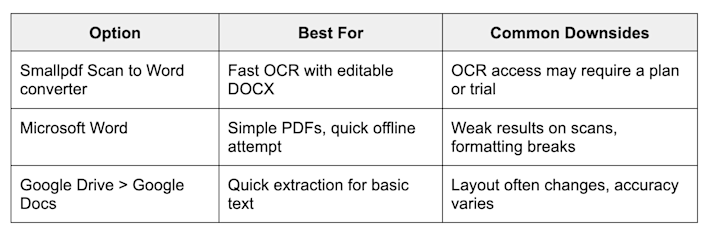
Why use Smallpdf as your scan to Word converter
If you need the cleanest editable result with the least manual work, OCR-focused conversion usually wins.
After Conversion: Edit, Clean Up, and Share
Once your scanned PDF becomes a DOCX, you can finish the workflow faster by keeping everything in one place:
- Convert to Word, then export back to PDF when the edits are done.
- Compress the final PDF if the file is too large to email.
- Add a signature if the file needs approval.
- If you need a quick overview of a long document, use PDF AI features after you export back to PDF.
This flow works especially well for contracts, forms, school documents, and archived paperwork.
Start Converting Scanned PDFs to Word Now
If you need to edit a scanned contract, reuse text from a printed form, or clean up an old document, OCR saves hours of retyping.
Smallpdf converter gives you an editable DOCX in minutes, with a workflow that works on any device.
Frequently Asked Questions
What is a Scan to Word converter?
It’s a converter that uses OCR to turn scanned pages (images) into editable Word text.
What is OCR and why do I need it?
OCR stands for optical character recognition. It detects letters inside images and converts them into real text you can select, copy, and edit.
Can I convert a scanned PDF to Word for free?
Some OCR conversions may be available via a free trial or paid plan, depending on your access. If you only need a one-time conversion, try converting first and follow the prompts for OCR options.
How accurate is OCR for scanned PDFs?
It depends on scan quality. Clean, straight, high-contrast pages usually convert with strong accuracy. Faint or blurry scans may need manual fixes.
Can I convert a scanned PDF with tables to Word?
Yes, but tables can shift during OCR. If the table is complex, converting to Excel first can preserve structure better.
Why is my converted Word file full of line breaks?
Skewed scans and uneven spacing often cause OCR to split lines. Re-scanning with better alignment helps, and Word’s Find and Replace can clean up breaks quickly.
Can I convert scanned PDFs to Word on my phone?
Yes. You can use Smallpdf in your mobile browser or convert using the Smallpdf mobile app, then download the DOCX.
What’s the difference between a scanned PDF and a native PDF?
A native PDF contains real text. A scanned PDF is an image of text. Scanned PDFs need OCR to become editable.