Compress a Word document in minutes so it uploads faster, fits email limits, and looks like your original file. It’s free with no sign-up needed.
Large Word files are usually big for a reason: High-resolution images, embedded fonts, or hidden document data. That becomes a problem fast when you’re trying to email a report, upload to a portal, or share over a slow connection.
In this guide, we’ll start with the quickest way to compress a Word document using Smallpdf, then walk through manual options inside Microsoft Word. You’ll also find a simple comparison table, clear privacy notes, and answers to common questions so you can pick the right method quickly.
If you’re in a rush, open our Compress PDF and shrink your Word document right away.
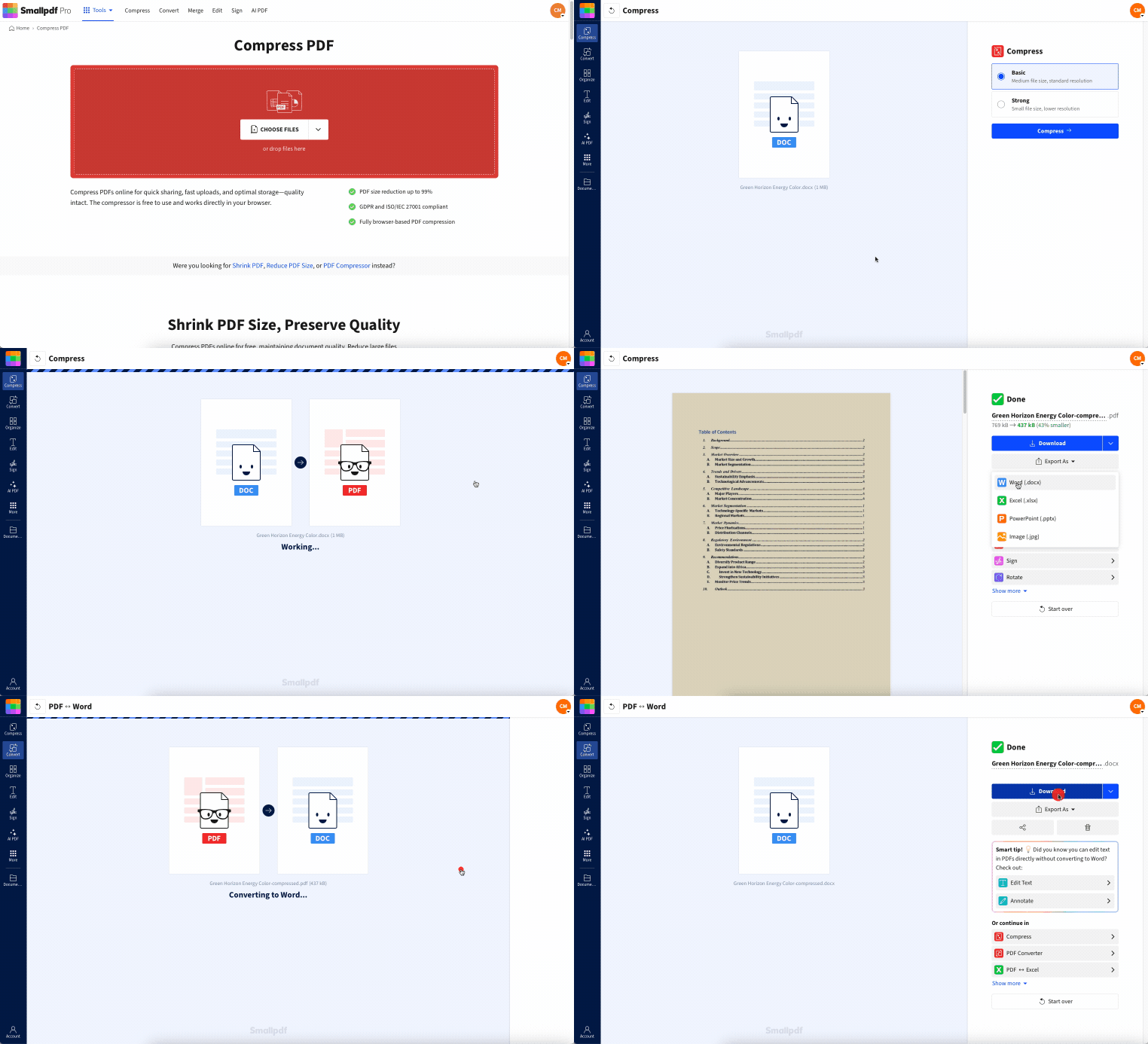
Compress Word file in seconds
How To Compress Word Documents Online for Free
Here’s the most reliable way to reduce DOCX size without digging through settings.
Step 1: Upload Your Word File
Open Compress PDF and upload your Word document.
- Drag and drop your DOCX file.
- Or click “Choose Files” to upload from your device.
- You can also import from Google Drive, Dropbox, or OneDrive.
You’ll see a progress bar while the file uploads and processes.
Step 2: Choose a Compression Level
Select the option that fits your goal.
- Choose “Basic compression” to keep quality high and reduce size.
- If “Strong compression” is available for your plan, use it when the file must be much smaller.
Once you choose, compression starts automatically.
Step 3: Export Back to Word
After compression finishes:
- Click “Export As.”
- Choose “Word (.docx).”
You’ll see export choices before your download starts.
Step 4: Download or Save to the Cloud
Finish by saving the compressed file where you need it.
- Click “Download” to save to your device.
- Or save back to Google Drive, Dropbox, or OneDrive.
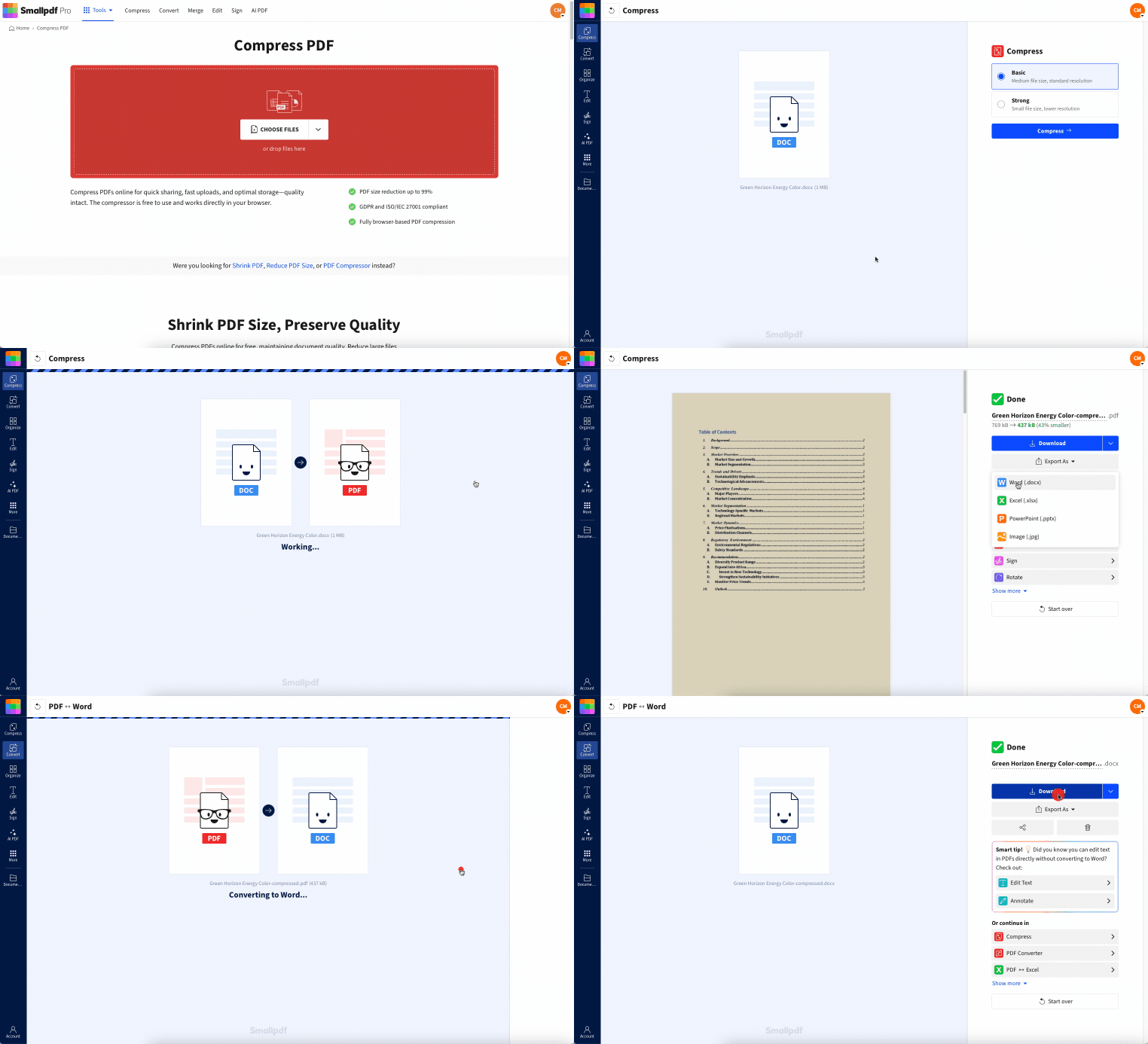
Compress Word file in seconds
If you don’t need a Word file anymore, you can also keep the compressed PDF instead. That’s often the smallest option for sharing.
Compress Multiple Word Documents (Batch) and Large Files
Smallpdf Pro users can process multiple documents at once. Once you have an active Smallpdf Pro subscription, open the PDF compressor and upload as many Word files as you want.
This batch mode acts as a powerful DOCX size optimizer, and when you're done, you can download a ZIP file containing all your compressed Word documents.

Compress more than one Word document at a time with Smallpdf Pro
Having a Pro account will also allow you to use Strong compression on your files. This option is perfect if you have a large file that’s too large for our Basic compression to shrink Word documents effectively.
Not a Smallpdf Pro user? Take advantage of our 7-day free trial to test these compression options and other Pro-exclusive features.
Smallpdf vs. Manual Word Compression: Quick Comparison
Use this to decide in seconds.
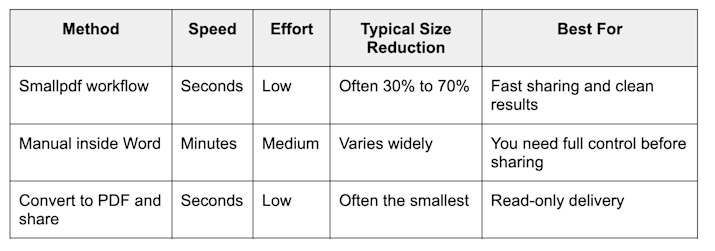
Smallpdf vs. manual Word compression
Size reduction depends on what’s inside your file. A text-only DOCX won’t shrink much. A document packed with images often shrinks a lot.
Why Word Documents Get So Large
DOCX files can balloon even when the document looks simple.
1. High-Resolution Images
Images are the main culprit. A few photos from a phone camera can add tens of megabytes, even if they look normal on the page.
2. Embedded Fonts
Custom fonts can increase file size, especially when the document embeds full font sets instead of only the used characters.
3. Tracked Changes and Hidden Data
A long editing history can add weight. Comments, revisions, and some hidden metadata can stick around after you finalize a document.
4. Embedded Objects
Charts, spreadsheets, and pasted objects can take more space than you expect, especially if they include underlying data.
How Smallpdf Compression Works for Word Files
We convert your Word file into a PDF as part of the workflow, apply compression, then let you export back to Word. This approach often trims file size without breaking your layout.
What usually improves after compression:
- Images get optimized for smaller sizes.
- Extra data that doesn’t help the final output gets reduced.
- The result is easier to share and faster to upload.
If the final file must stay editable in Word, export back to DOCX. If you’re sending a final version for review, the compressed PDF is often the better deliverable.
Security and Privacy When You Compress a Word Document
If your Word file contains personal or business content, you need clear reassurance.
Here’s what happens when you upload a file:
- Your upload is protected with TLS encryption during transfer.
- Files are automatically deleted after a short period of processing.
- Smallpdf follows GDPR practices and maintains ISO 27001 certification.
If you choose to store a file, you control that action. If you don’t, it’s processed and removed automatically.
Reduce Word File Size in Microsoft Word
Sometimes you want to fix the cause of the size issue, not just compress the final output. These built-in options help.
Compress Pictures in Word
This is the fastest manual win. 1. Click any image in the document. 2. Go to “Picture Format.” 3. Click “Compress Pictures.” 4. Choose a target like “Email” or “Web.” 5. Enable “Delete cropped areas of pictures” if you don’t need them. 6. Save the document.
Lower Word’s Default Image Resolution
If you create lots of docs with images, this prevents future bloat.
- Click “File” > “Options.”
- Open “Advanced.”
- Find “Image Size and Quality.”
- Set a default resolution like 150 ppi.
- Save and test on a copy first.
Avoid Embedding Fonts, or Embed Only Used Characters
If fonts are inflating your file: 1. Click “File” > “Options” > “Save.” 2. Find the font embedding section. 3. Turn off full font embedding, or choose “Embed only characters used.” 4. Save the document.
If consistent rendering matters more than file size, keep embedding on, but use the “used characters” option.
Replace Heavy Objects with Images
Objects can add a lot of data.
- Right-click a chart or object.
- Save it as an image.
- Remove the original object.
- Insert the saved image instead.
You lose interactivity, but the document often gets much smaller.
Find What’s Making Your DOCX So Big
A DOCX is basically a zipped folder. If you want to see what’s eating space: 1. Make a copy of your file. 2. Rename the copy from “.docx” to “.zip.” 3. Open it and check the “word” > “media” folder. 4. Look for oversized images and replace them with smaller versions.
This is helpful when one image is doing most of the damage.
Troubleshooting: Still Too Big After Compression?
If your compressed file is still over an email limit, try these quick fixes.
1. Your File Has Too Many High-Res Photos
Resize images before you compress again. Phone photos are often far larger than the document needs.
2. The Document Is Full of Scanned Pages
Convert the DOCX to PDF and keep it as a PDF for sharing. Scans compress better in PDF than inside Word.
3. The File Includes Lots of Embedded Objects
Replace embedded objects with images or links. Then re-run compression.
4. You Hit Upload Issues
If the file won’t upload reliably, try:
- Uploading from Google Drive or OneDrive instead of from your device
- Switching browsers
- Closing extra tabs if your device is low on memory
A Real-World Example of When This Helps
One common situation is sending a report to a client or manager by email.
The file is just a Word doc, but it contains screenshots, charts, and a few images. It ends up over 20 MB, so it bounces or fails to send.
Compressing the document first keeps the layout intact, lowers the size, and saves you from exporting and rebuilding everything at the last minute.
Keep Word Files Small Without Rebuilding Your Work
When a Word file gets too big, you don’t need to rebuild the document or strip out content.
Start with Smallpdf compression for the fastest size drop, then use Word’s image and font settings if you want long-term control.
If your goal is quick sharing, a compressed DOCX is often enough. If you’re sending a final version for review, a compressed PDF can be even smaller and more reliable.
Frequently Asked Questions
How do I compress a Word document online?
Upload your DOCX to Smallpdf Compress PDF, choose a compression level, then click “Export As” and select “Word (.docx)” to download the smaller file.
How much can I reduce a DOCX file size?
It depends on what’s inside. Documents with lots of images often shrink the most. Text-heavy files usually shrink less.
Will compression ruin my formatting?
Most of the time, your layout stays stable. You’ll see the biggest changes in image sharpness if you choose stronger compression.
Is it safe to compress confidential Word documents online?
Your upload is protected with TLS encryption, and files are removed after a short period. This keeps the process secure and time-limited.
Why is my Word document so large?
The most common reasons are high-resolution images, embedded fonts, tracked changes, and embedded objects like charts or spreadsheets.
How do I get a Word document under 20 MB for email?
Start by compressing images inside Word. Then run the file through Smallpdf compression. If it’s still too large, consider sending a compressed PDF instead of DOCX.