Mark up any PDF with freehand drawing, shapes, and notes. Use Smallpdf online, or Preview and Edge offline, then save in one click.
Need to draw on a PDF fast? Upload it, sketch, add arrows, and export a clean copy in minutes, right from your browser. No installs or sign-ups required.
Drawing on a PDF helps you review visually. You can circle a clause, point to a number with an arrow, sketch an idea in the margin, or mark corrections faster than typing long comments.
Below, we’ll show the quickest online method with Smallpdf first, then simple offline options for Mac and Windows.
Quick Steps: Draw On a PDF in Seconds
- Upload your PDF to PDF Annotator.
- Draw freehand, add shapes, or drop a note.
- Export and download your marked-up PDF.
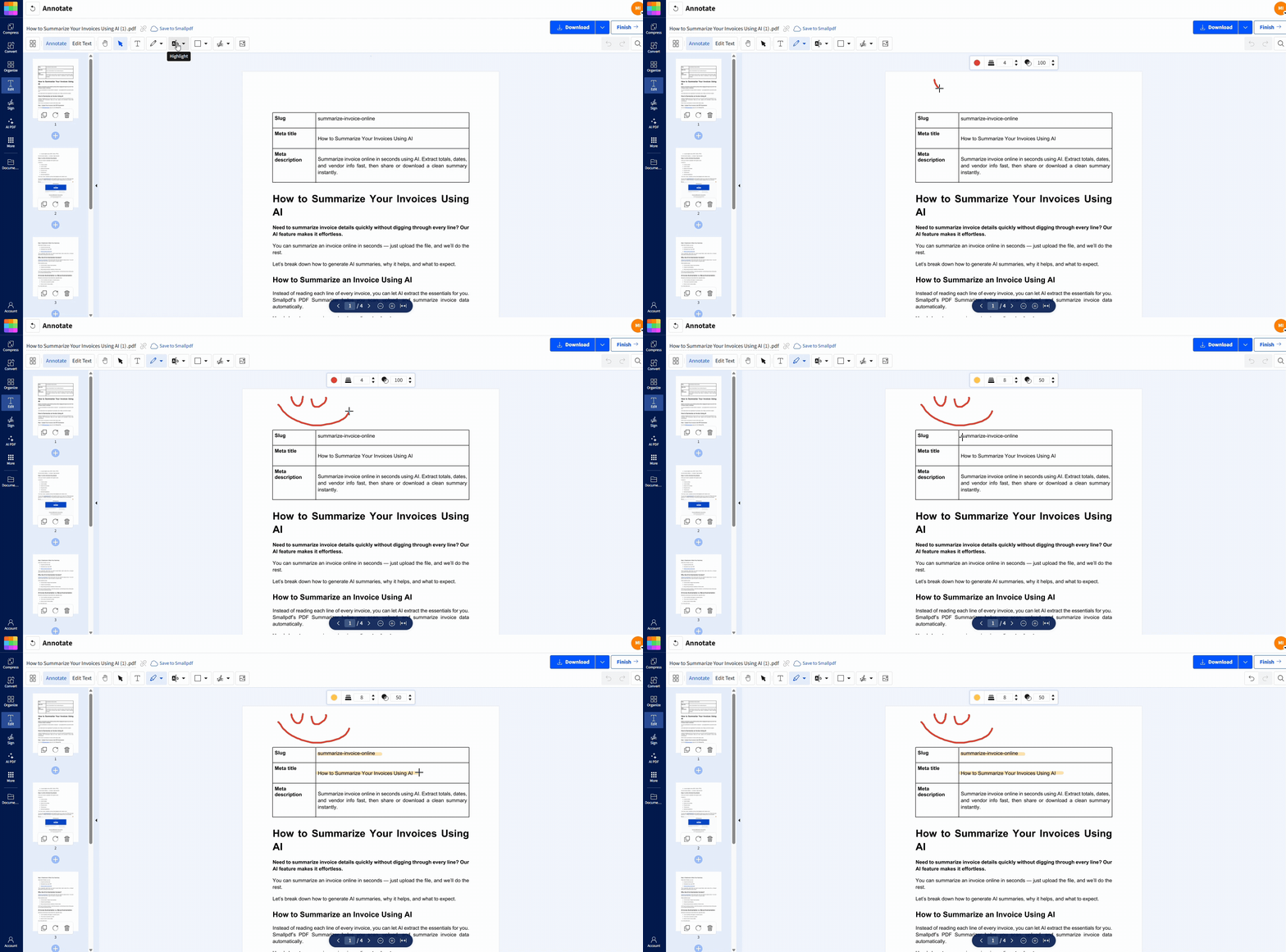
Draw on, add notes, or highlights to your PDFs
How To Draw on a PDF Online With Smallpdf
Smallpdf’s PDF Annotator runs in your browser, so it works on Mac, Windows, and mobile. You can upload from your device or pull files from Google Drive, Dropbox, or OneDrive.
Step 1: Open PDF Annotator and Upload Your File
- Open PDF Annotator.
- Drag and drop your PDF into the page, or choose it from Device, Google Drive, Dropbox, or OneDrive.
Step 2: Pick the Right Markup Tool
In the editor, choose the tool that matches what you need to communicate:
- Pencil / Draw for freehand lines and quick sketches.
- Highlighter / Marker for emphasis over text.
- Shapes for clean arrows, circles, and rectangles.
- Text box for typed notes that stay readable.
Keep your marks consistent. Use one color for ‘must-fix’ items and another for ‘nice-to-have’ suggestions.
Step 3: Draw, Add Arrows, and Circle What Matters
- Click on the page to start drawing.
- Use your mouse, trackpad, stylus, or finger on a touchscreen.
- Drag shapes into position, then resize them to fit the content.
If you want clean circles, use a shape instead of freehand. If you want a straight arrow, use the arrow shape rather than drawing it by hand.
Step 4: Export and Download
When you’re done, click “Finish” (top right). Then download your updated PDF with your annotations saved in place.
If you need to keep the file in the same cloud folder, export it and upload it back to your Drive or storage location right away. That keeps the marked-up version easy to find later.
How To Draw on a PDF on Mac With Preview
Preview is built into macOS, so it’s a solid offline option. It’s great for quick markups when you don’t want to upload anything.
Step 1: Open the PDF in Preview
- Right-click the file.
- Select “Open With” > “Preview.”
Step 2: Turn On the Markup Toolbar
- Click the “Markup” icon (pen inside a circle), or go to “View” > “Show Markup Toolbar.”
Step 3: Draw, Sketch, or Add Shapes
- Use “Sketch” for freehand marks.
- Use “Shapes” for arrows, rectangles, and circles.
- Hold “Shift” while placing shapes to keep them perfectly straight or perfectly round.
Step 4: Save
- Go to “File” > “Save,” or press “Command+S.”
Tip: Preview saves changes directly into the file by default. If you want a separate copy, duplicate the file first and mark up the duplicate.
How To Draw on a PDF on Windows With Microsoft Edge
Microsoft Edge includes a PDF viewer with drawing tools. It works well for fast annotations, especially on a Surface device or any touchscreen laptop.
Step 1: Open the PDF in Edge
- Right-click the PDF.
- Choose “Open with” > “Microsoft Edge.”
Step 2: Select a Drawing Tool
In the top toolbar, choose:
- Pen for drawing
- Highlighter for emphasis
- Eraser to remove ink marks Adjust color and thickness from the tool settings.
Step 3: Draw and Mark Up
Draw directly on the page. Use the highlighter for headings or key lines, and the pen for arrows and callouts.
Step 4: Save Your Changes
- Click the “Save” icon, or press “Ctrl+S.”
If you don’t see your marks after reopening, confirm you saved to a writable location. Some folders or shared drives block direct edits.
How To Edit or Remove Drawings From a PDF
If you need to clean up markups, do it before you export whenever possible. That’s the fastest path.
In Smallpdf:
- Click the annotation you want to remove.
- Press “Delete,” or use the eraser if the tool is available.
- Use “Undo” right away if you just made the change.
In Preview or Edge:
- Some marks behave like objects and can be selected and deleted.
- Freehand ink may not always delete cleanly, depending on the tool.
If your PDF is already exported and you need more edits, upload the updated version again and continue from there.
Troubleshooting: Why You Can’t Draw on a PDF
Most problems around drawing on a PDF come down to permissions, viewer limits, or file type.
1. Your PDF viewer is read-only
- Fix: Upload the file to PDF Annotator and draw there.
2. The PDF is locked or restricted
- Signs: You can open it, but drawing and saving are blocked.
- Fix: Ask for the password or permission from the document owner. If you have permission, unlock it first, then annotate.
3. The browser shows a preview, not a real editor
- Fix: Download the PDF to your device, then upload it to an editor that supports annotations.
4. Your annotations don’t save
- Fix: In Smallpdf, always click “Export.” In Edge, press “Ctrl+S” and confirm the save location.
5. The file is a scanned PDF and feels flat
- Good news: You can still draw on top of scans.
- If you also need editable text, OCR is typically required. In Smallpdf, OCR features may require a Pro plan, which you can access via a free trial.
6. Nothing draws, or strokes lag
Fixes to try quickly:
- Refresh the page and re-upload the PDF.
- Switch browsers (Chrome, Edge, Safari, Firefox).
- Close other heavy tabs, especially video calls.
What Else You Can Add in PDF Annotator
Drawing is usually the start. Most reviews need a mix of visual marks and clear notes.
In PDF Annotator, you can also:
- Highlight text to guide attention.
- Add text boxes for instructions like ‘Change this date.’
- Drop shapes and arrows to keep feedback neat.
- Place images like stamps, logos, or screenshots.
If you need to change existing text in the PDF, that’s a different workflow than annotation. You can use Edit PDF to make these changes.
Draw on a PDF From Your Phone (iOS and Android)
You can draw on PDFs from your phone when you need quick feedback on the go.
- Open the Smallpdf mobile app.
- Import your PDF.
- Tap “Annotate,” then draw with your finger or a stylus.
- Export when you’re done. For small screens, zoom in before drawing. That helps you place arrows and circles accurately.
Start Drawing on a PDF Now
When you need fast feedback, drawing beats long comment threads. With Smallpdf PDF Annotator, you can upload a file, mark it up, and export a clean copy in minutes.
If you’re sharing your PDF after review, keep it simple. Export your annotated version, then compress it if email limits get in the way.
If the next step is approval, you can add signatures with Smallpdf eSign before you send it out.
Frequently Asked Questions
Can I draw on a PDF without downloading software?
Yes. With Smallpdf’s PDF Annotator, you draw in your browser and export a saved copy. No installs needed.
How do I draw on a PDF in Google Chrome?
Chrome’s built-in viewer is mainly for viewing. If you need drawing tools, open the PDF in an annotator like Smallpdf, then export the updated file.
How do I draw on a PDF in Microsoft Edge?
Open the PDF in Edge, click the pen or highlighter icon, draw your marks, then press “Ctrl+S” to save.
Why can’t I draw on my PDF?
Most of the time, the PDF is locked, your viewer is read-only, or you didn’t save correctly. Upload it to Smallpdf to rule out viewer limitations first.
Can I draw straight lines in a PDF?
Yes. Use the line or arrow shape in Smallpdf. In Preview, hold “Shift” while placing shapes for straight lines.
Can I draw on a scanned PDF?
Yes, you can draw on top of scans. If you also need to edit the scanned text, you’ll usually need OCR.
How do I erase or undo drawings?
Before exporting, use “Undo” or delete the selected markup. After exporting, re-upload the PDF and remove the annotations in the editor.
Will my drawings stay in place when I share the PDF?
Yes. Once you export or save, the annotations are embedded into the PDF so others can see them in standard viewers.