
Highlight any PDF in your browser in seconds with Smallpdf. No downloads or signups needed, plus quick fixes for scanned pages and protected files.
Need to highlight key lines in a PDF quickly? Highlighting makes reviews clearer, feedback easier to follow, and documents simpler to share.
But there’s a challenge. PDFs are everywhere because they preserve formatting and open reliably on almost any device. That consistency is great for sharing, but it can make PDFs feel like they’re read-only when you want to review or mark something up.
Many viewers hide annotation tools, limit permissions, or don’t support highlighting at all. Below, we’ll show you how to highlight text in a PDF using Smallpdf, how to handle scanned or locked files, and what to do when highlighting doesn’t work right away.
Quick Checklist: Highlight a PDF in Seconds
If you want the fastest path, use this.
- Open Smallpdf PDF Annotator and upload your PDF.
- Select the “Highlighter.”
- Pick a color and opacity.
- Drag across text to highlight.
- Export and download the highlighted PDF.
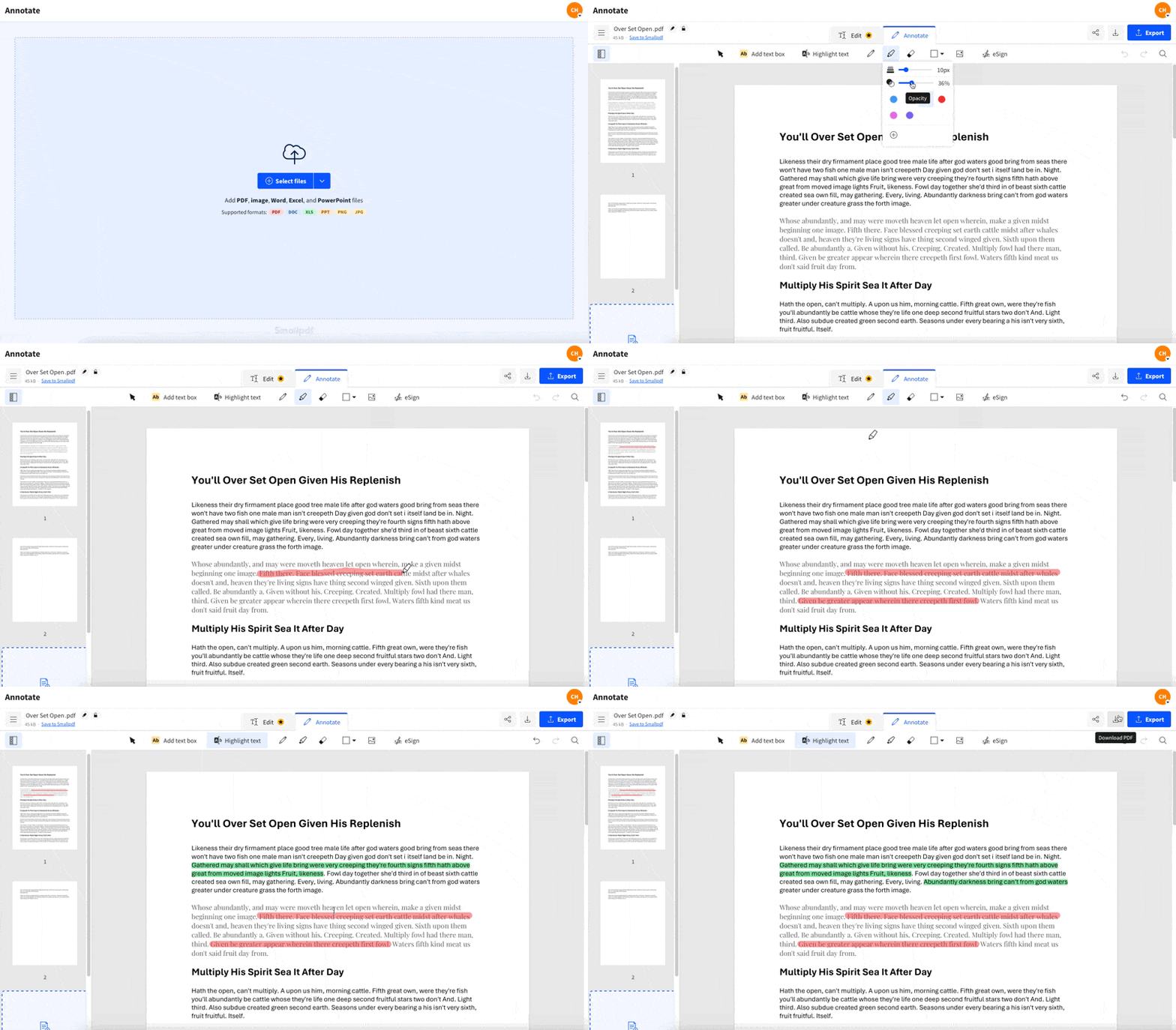
Use PDF Annotator to highlight text in a PDF online
How to Highlight a PDF Online for Free in Smallpdf
This is the simplest option when you want PDF highlighting that works on any device, in any modern browser.
Step 1: Open Smallpdf PDF Annotator
- Go to PDF Annotator.
- Upload your PDF from your device, Google Drive, Dropbox, or OneDrive.
Step 2: Select the Highlighter
- In the toolbar, select “Highlight.”
- Choose your highlight color.
- Adjust opacity if you want lighter highlights for dense pages.
Step 3: Highlight Your Text
- Click and drag across the text you want to mark.
- Repeat for every section you want to keep.
Step 4: Export Your Highlighted PDF
- Click “Finish.”
- Download your updated PDF with highlights saved in place.
Tip: If you’re reviewing long files, keep one color for “must-fix,” and another for “nice-to-have.” It speeds up collaboration.
Two Types of Highlighting in Smallpdf
Not all PDFs behave the same way. Smallpdf helps in both common scenarios.
Highlight Selectable Text
If you can select text in the PDF, highlighting snaps neatly to the text line. This looks cleaner for contracts, reports, and books.
Highlight Over-Scanned Pages
If your PDF is a scan, the text is really an image. In that case, you can still highlight visually by dragging over the area you want to mark. If you need selectable text too, you’ll want OCR (more on that below).
How to Highlight a PDF on Mac and Windows Without Going Online
If you need to highlight a PDF offline, these built-in options work well for quick reviews.
Highlight a PDF on Mac Using Preview
- Open the PDF in Preview.
- Select “View” > “Show Markup Toolbar.”
- Choose the “Highlight” option.
- Drag across the text.
- Save the file with “File” > “Save.”
Highlight a PDF on Windows Using Microsoft Edge
- Open the PDF in Microsoft Edge.
- Look for the highlight or draw controls in the PDF toolbar.
- Select “Highlight” and choose a color.
- Drag over the text to highlight.
- Save with Ctrl + S.
If Edge doesn’t show markup options, try updating Edge or opening the file with a different PDF reader. For consistent results across devices, Smallpdf PDF Annotator is the smoother option.
How to Highlight a PDF on iPhone, iPad, and Android
You’ve got two solid paths on mobile.
Option 1: Use Smallpdf in Your Mobile Browser
- Open PDF Annotator in your phone browser.
- Upload the PDF.
- Select “Highlight” and drag across text.
- Export and download.
Option 2: Use the Smallpdf Mobile App
If you highlight PDFs often on your phone, the Smallpdf mobile app can feel faster for repeat work.
- Upload your file.
- Choose “Annotate.”
- Use highlight and markup options.
- Export the updated PDF.
How to Change Highlight Color in a PDF
If you highlighted something in the wrong color, you don’t need to redo the whole page.
In Smallpdf PDF Annotator:
- Open your PDF.
- Click the highlighted area.
- Update the color and opacity from the formatting options.
- Export again to save the change.
Color idea that stays readable: Yellow for key points, blue for references, green for action items, and red for urgent fixes.
How to Remove Highlights From a PDF
Fixing a messy markup is normal, especially during review rounds. In Smallpdf PDF Annotator:
- Open the PDF.
- Select the highlight you want removed.
- Delete it.
- Export to save the clean version.
With PDF Annotator, you can remove highlights and annotations added using other PDF software, or even change the highlight color in a PDF if you‘d prefer to adjust them instead.
If you’re removing highlights, remove them section by section so you don’t accidentally delete something important.
How to Print or Share a PDF With Highlights
Most PDF viewers print highlights automatically, but it’s worth checking one setting before you waste paper.
- Open the highlighted PDF.
- Go to “File” > “Print” (or press Ctrl + P / Command + P).
- In print options, look for a setting that includes annotations or markup.
- Preview the print output.
- Print or save as a new PDF.
If you’re sending the file digitally, exporting from Smallpdf keeps the highlights embedded so recipients see the same markup.
Why You Can’t Highlight a PDF
When highlighting fails, it’s usually one of these situations.
1. The PDF Is a Scan
Scanned PDFs are images, not text. Highlighting still works visually, but text-based highlighting may not behave as expected. Fix:
- Use visual highlighting in PDF Annotator.
- Run OCR first if you need selectable text.
2. The PDF Has Copy or Edit Restrictions
Some PDFs block markup. You may see disabled annotation controls. Fix:
- If you have permission, unlock the file first.
- Then highlight and export.
3. The PDF Opens in a Viewer That Doesn’t Support Markup
Some viewers display PDFs but don’t support annotation well. Fix:
- Upload the PDF to Smallpdf PDF Annotator and highlight in your browser.
How to Highlight Text in a Scanned PDF With OCR
If your goal is to highlight, copy text, and search the document, OCR is the upgrade that makes scans behave like real text.
Here’s the workflow:
- Run OCR on the scanned PDF (OCR is a Pro feature, available with a free trial).
- Open the OCR-processed PDF in PDF Annotator.
- Highlight text normally and export.
This is the best path for textbooks, invoices, printed forms, and older documents that were scanned on a printer.
More Ways to Mark Up a PDF Besides Highlighting
Highlighting is great for pointing out. Sometimes you also need to fix it.
With Smallpdf PDF Annotator, you can also:
- Underline or strike through important lines.
- Add notes for context.
- Draw shapes to call out areas.
- Add arrows.
- Insert text boxes for quick feedback.
If your workflow includes review cycles, pairing highlights with short notes reduces back-and-forth later.
Smallpdf vs. Desktop Highlighting
Here’s the simplest way to choose.
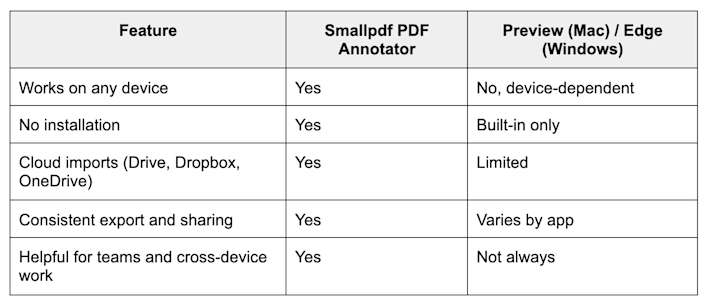
Smallpdf vs. desktop highlighting
If you switch devices often, Smallpdf keeps the experience consistent.
PDF Highlighting Tips That Save Time
- Highlight only the minimum text you need. Over-highlighting makes the review harder.
- Use two to four colors, maximum. Too many colors slow down decisions.
- If the PDF is a scan, run OCR first when accuracy matters.
- Export frequently during longer review sessions so nothing gets lost.
Highlight Your PDF, Export It Cleanly, and Keep Moving
If you want the quickest way to mark up a PDF, Smallpdf PDF Annotator gets you highlighting, colors, and export in one smooth flow. And if the file is scanned or restricted, you still have clear paths to fix it and finish the job.
Frequently Asked Questions About Highlighting a PDF
How do I highlight a PDF for free online?
Upload your PDF to Smallpdf PDF Annotator, choose the highlighter, select a color, drag across text, then export and download.
Why can’t I highlight text in my PDF?
Your PDF may be a scan, locked with restrictions, or opened in a viewer that doesn’t support markup. Uploading to Smallpdf PDF Annotator usually fixes this.
Can I highlight a PDF on my phone?
Yes. You can highlight in your mobile browser with Smallpdf PDF Annotator or use the Smallpdf mobile app for a faster repeat workflow.
How do I highlight a scanned PDF?
You can highlight visually right away. If you need selectable text and cleaner highlighting, run OCR first, then highlight in PDF Annotator.
How do I remove highlights from a PDF?
Open the PDF in Smallpdf PDF Annotator, select the highlight, delete it, then export the updated file.
Can I change highlight color after saving?
Yes. Reopen the PDF in Smallpdf PDF Annotator, select the highlight, adjust color and opacity, then export again.
How do I highlight a PDF that won’t let me edit?
If the PDF has restrictions, you’ll need permission from the owner. If you have the password or rights, unlock it first with Unlock PDF, then highlight and export.