Add a clear PDF download button in WordPress using the File block, a custom Button block, or a Smallpdf PDF icon, then optimize for faster loads.
Want a clean PDF download button in WordPress? We’ll show three reliable ways to add one, plus quick fixes for mobile, file size, and tracking.
A plain text link works, but most visitors skip right past it. A button makes the next step obvious, especially if you’re sharing a lead magnet, a pricing sheet, a menu, a brochure, or a downloadable checklist.
WordPress can generate a PDF download button for you, and you can also create a custom button that matches your site.
If you want a more document-friendly experience, you can add a Smallpdf PDF icon that opens the file in our viewer, where readers can zoom, search, and work with the PDF online.
We’ll start with the fastest method, then show two alternatives that give you more control. Along the way, we’ll cover file size, OCR for scanned PDFs, and simple tracking options.
Quick Comparison: Which PDF Download Button Method Should You Use?
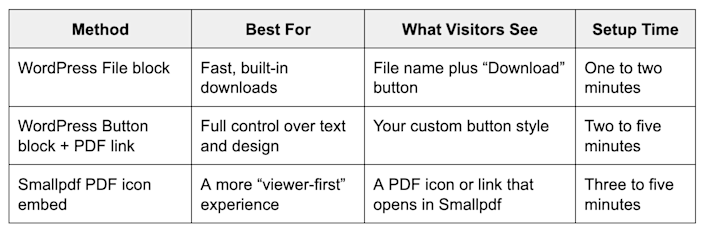
Which PDF download button method should you use
If you want the simplest option, start with the File block. WordPress’s File block can display a file link and an optional download button, and it can also embed a PDF inline on the page.
How To Insert a Button in WordPress to Download a PDF: Step-by-Step Guide
Step 1: Upload the PDF to Your WordPress Media Library
You need a stable URL for your button, so upload the PDF first.
- In your WordPress dashboard, go to “Media” > “Add New.”
- Drag and drop your PDF, or click “Select Files.”
- Wait for the upload to finish.
WordPress upload limits depend on your host, so if your file is large, you may hit a size cap. If that happens, compress the PDF first, then upload the smaller version.
Step 2: Choose One of the Three Button Methods
Pick the method that matches your page layout and the experience you want.
- Use the File block if you want a quick download button with minimal styling.
- Use the Button block if you want a prominent, branded call-to-action.
- Use the Smallpdf PDF icon if you want a viewer-style experience that’s easy for readers to interact with.
Step 3: Publish and Test on Desktop and Mobile
After you add the button, test three things:
- Click the button on desktop and mobile.
- Confirm the PDF opens or downloads the way you expect.
- Check load speed on mobile data, not just Wi-Fi.
If the PDF feels slow, compress it and try again. If the PDF is scanned, run OCR, so the text becomes searchable before you upload.
Method 1: Use the WordPress File Block Download Button
The WordPress File block is the fastest way to add a PDF download button, and it works well on most sites. It’s also handy because WordPress can show a “Download” button by default when you add a file.
Step 1: Insert the File Block
- Open the page or post in the block editor.
- Click the “+” button to add a block.
- Search for “File,” then select the File block.
Step 2: Select Your PDF
- Click “Media Library” and choose your PDF, or click “Upload” to add it on the spot.
- WordPress will insert the file name and a button-style download link.
Step 3: Adjust File Block Settings
With the File block selected, use the block settings to control what appears.
Common options include:
- Showing or hiding the download button
- Changing the visible file name text
- Enabling inline PDF embed on supported setups
If you’re embedding the PDF inline, still keep a download option available. Mobile devices don’t always render embedded PDFs consistently, so a download button gives visitors a fallback.
When This Method Works Best
Use the File block when you want a clean, low-maintenance option for:
- A lead magnet download under a blog post
- A printable worksheet or checklist
- A PDF menu, schedule, or brochure
- A one-page product sheet
Method 2: Create a Custom WordPress Button That Downloads Your PDF
The Button block is the best choice when you want the call-to-action to stand out, match your site style, and use clearer button text than a plain “Download.”
Step 1: Copy the PDF URL
- Go to “Media.”
- Click your PDF.
- Copy the file URL (it’s often labeled “Copy URL” or “File URL” depending on your setup).
Step 2: Add a Button Block
- Open your page or post.
- Click “+” and choose the “Buttons” block, then add a “Button.”
- Paste the PDF URL into the button link field.
Step 3: Use Button Text That Tells People What They Get
Buttons convert better when the text is specific. Good examples:
- ‘Download the Pricing Guide (PDF)’
- ‘Get the Employee Handbook’
- ‘Download the Brochure’
Step 4: Decide How the PDF Should Open
Many site owners prefer opening the PDF in a new tab so visitors don’t lose their place.
- Enable the “Open in new tab” option in the block’s link settings, if available in your editor.
If you want the file to download instead of opening, WordPress does not always force that behavior. Many browsers will still preview PDFs first.
In most cases, the best solution is to keep the PDF lightweight and make the button label clear, so users understand what happens next.
When This Method Works Best
Use a custom button when you’re optimizing for clicks, like:
- A landing page lead magnet
- A product page spec sheet
- A webinar replay page with downloadable slides
- A real estate listing brochure
Method 3: Add a Smallpdf PDF Icon Button for a Viewer-First Experience
Sometimes you don’t want visitors to download right away. You want them to open the PDF, preview it, and then decide to download or share. That’s where a Smallpdf PDF icon embed can help.
We published a step-by-step guide for adding a PDF icon to HTML, and you can use the same idea inside WordPress with a Custom HTML block.
Step 1: Get a Shareable Link to Your PDF
You need a URL that your visitors can access. Many site owners use:
- The WordPress media file URL
- A hosted PDF URL on their own domain
Step 2: Generate the Icon Code
- Head over to the Embed PDF page.
- Paste the link.
- Click “Generate code.”
- Once the code is ready, click “Copy code.”
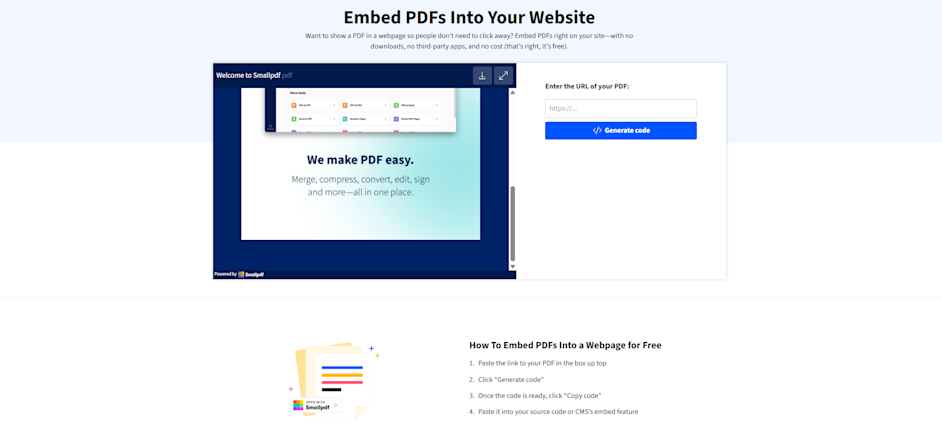
Add a Smallpdf PDF Icon Button for a viewer-first experience
Step 3: Add the Code to WordPress
- In your post or page, click “+” to access block options.
- Add a “Custom HTML” block.
- Paste the HTML code, then preview the page.
What This Gives You
This method is helpful when you want a more interactive PDF experience. Visitors can open the PDF in a clean viewer and, depending on the workflow, continue with common PDF actions online instead of hunting for desktop software.
A Real-World Example
Say you run a small agency and publish brand guidelines as a PDF. Clients often open it on a phone first. If the file loads slowly or looks cramped, they’re likely to bounce.
A viewer-first approach plus a smaller file size keeps them reading, and a clear download option stays available when they’re ready.
Alternative Methods for PDF Download Buttons in WordPress
The three methods above cover most sites. If you need more control, these options can help.
Add the PDF Button in Your Navigation Menu
If you want a “Download PDF” link in your main menu:
- Go to “Appearance” > “Menus.”
- Add a “Custom Link.”
- Paste your PDF URL and name it something clear, like “Download Guide (PDF).”
- Save the menu.
This is a good setup for evergreen downloads that you want visible on every page.
Use a Download Management Plugin for Tracking and Control
If you need advanced features like gated downloads, download limits, or a library of files, a download plugin may be worth it. Some plugins can generate shortcodes that display a styled download button and track clicks.
The tradeoff is added complexity. If you only have one or two PDFs, the built-in File block or Button block is usually enough.
Use HTML for a Simple Link That Looks Like a Button
If you’re working with a page builder or custom layout, you can add a link styled as a button. This is a common pattern, but it depends on your theme and CSS setup.
If you go this route, keep accessibility in mind. The button text should describe the file, not just say “Click here.”
Smallpdf vs. WordPress Options: What’s Unique?
WordPress focuses on publishing. It lets you upload a PDF, display it, and offer a download.
Smallpdf focuses on what usually comes next, like compressing, making a scanned PDF searchable, or preparing a document that people can fill and sign.
Here’s a practical way to choose:
Use WordPress Features When
- You want a simple on-page PDF download button.
- You don’t need extra PDF processing.
- Your PDF is already optimized and searchable.
Use Smallpdf Before Uploading When
- The PDF is too large and slows down your page.
- The PDF is scanned, and users can’t search or copy text.
- You want a cleaner file for mobile visitors.
That’s why we often recommend a quick prep step before you embed.
Optimize Your PDF Before You Add the Download Button5
A PDF download button is only as good as the file behind it. If the PDF is slow, blurry, or unsearchable, people won’t use it.
Compress the PDF for Faster Loading
If your PDF is heavy, your page feels slower, and mobile users drop off faster.
A solid target for most website downloads is under 5 MB. If your PDF is larger, run it through Smallpdf Compress PDF, then upload the smaller version to WordPress.
Make Scanned PDFs Searchable With OCR
If your PDF is a scan, it often behaves like an image. Visitors can’t search, select text, or copy anything useful.
Run OCR before uploading so the PDF becomes searchable and more accessible.
Keep the Filename Clean
Rename the PDF before uploading. A clean filename helps you stay organized and can look more trustworthy if the URL is visible.
A good example is ‘employee-handbook-2026.pdf’ instead of ‘final_v9_revised2.pdf.’
Track PDF Button Clicks and Downloads
If you’re already using analytics, you can often track PDF clicks as link events. Some WordPress analytics plugins also track file download events, depending on your configuration.
If you want deeper control, download management plugins can track downloads in a central dashboard.
Add the Button, Then Make the PDF Worth Downloading
A WordPress PDF download button is easy to add. The bigger win is making the file fast, searchable, and pleasant to use on any device.
If you want the simplest setup, use the WordPress File block. If you want a stronger call-to-action, build your own Button block. If you want a viewer-first experience, embed a Smallpdf PDF icon and let visitors open the file in a clean viewer before they download.
Before you publish, compress the PDF and run OCR on scans. That small prep step is what turns a download link into a smooth experience people actually finish.
Want to add unlimited access to all 30+ Smallpdf tools? Start your free trial today. No credit card required.
Frequently Asked Questions
How do I insert a button in WordPress to download a PDF?
Upload the PDF to your Media Library, then either use the File block’s download button or create a Button block that links to the PDF URL.
Can I embed the PDF and still show a download button?
Yes. The File block can embed a PDF and also show a download option in many setups. Keeping a download option is smart for mobile visitors.
Why does my PDF open in a new tab instead of downloading?
Many browsers preview PDFs by default. You can label the button clearly as “Download,” and you can also offer both options, an embed for viewing and a separate download button.
What’s the maximum PDF file size I can upload to WordPress?
It depends on your host and server settings. Some sites allow only a few MB, others allow much more. If you hit a limit, compress the PDF and try again.
How do I add a PDF download button without a plugin?
Use the File block or a Button block linking to the PDF URL. Both methods work in the block editor with no plugin needed.
Can I protect my PDF with a password if it’s downloadable?
WordPress doesn’t add password protection to file downloads by default. If you need access control, you can password protect the PDF before uploading, or use a gated download solution.