
Add a logo, photo, chart, or stamp to any PDF in minutes. We’ll show you the quickest online method that works on every device. Fast and free.
Need to add a logo, photo, or chart to a PDF fast? We let you insert an image into your PDF in minutes, right in your browser.
Most PDF viewers let you read files, not build them. That’s why adding a simple image can feel harder than it should, especially when you’re working with forms, reports, or client-ready documents.
In this guide, we’ll show you the fastest way to insert images into PDF files with Smallpdf. You’ll also get device tips, common fixes, and a few practical tricks to keep your file looking clean.
Quick Checklist: Insert Image Into PDF Online
If you just need the steps, follow this quick flow.
- Open Smallpdf PDF Editor.
- Upload your PDF from your device, Google Drive, Dropbox, or OneDrive.
- Select the image option, then upload your JPG, PNG, GIF, BMP, or TIFF.
- Click to place the image, then drag to reposition it.
- Resize and rotate as needed, then download your updated PDF.
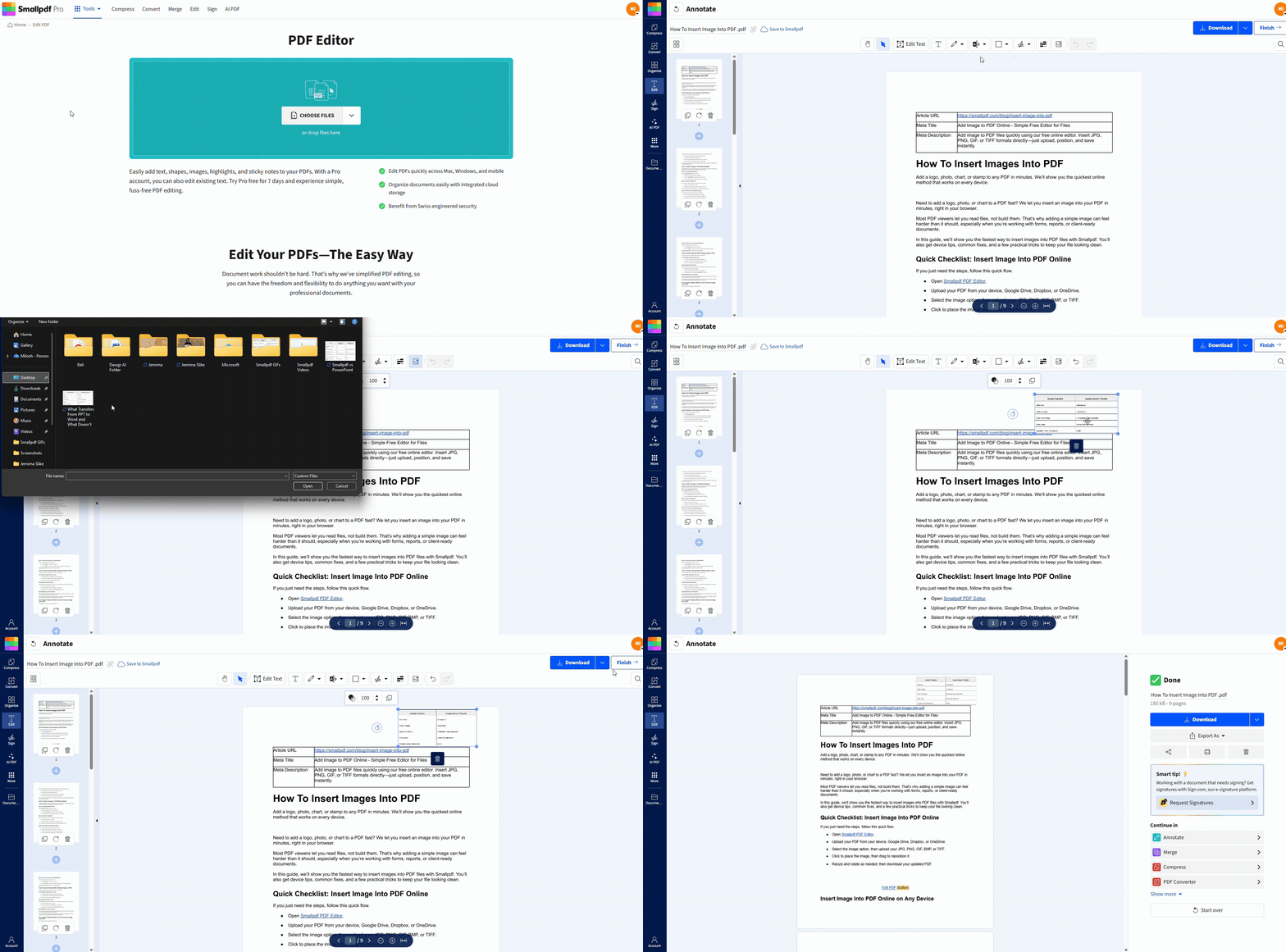
Insert image into PDF online
Insert Image Into PDF Online on Any Device
You can do this from almost anywhere, which helps when you’re editing on the go.
- Desktop browsers like Chrome, Safari, Edge, and Firefox.
- Windows and macOS laptops or desktops.
- iOS and Android phones and tablets, directly in your browser.
- Cloud imports from Google Drive, Dropbox, and OneDrive.
If you switch devices mid-task, keep the original image file handy. That makes re-adding it quick if you need a second pass.
How To Add an Image to a PDF With Smallpdf
Smallpdf PDF Editor lets you place images on top of your PDF pages. This works well for logos, signatures, headshots, stamps, charts, and simple visual callouts.
Step 1: Open Smallpdf PDF Editor
Open PDF Editor, then add your file.
- Drag and drop your PDF into the upload area.
- Or click “Choose Files” and pick a file from your device.
- You can also import from Google Drive, Dropbox, or OneDrive.
Step 2: Insert Your Image File
Once your PDF loads, choose the image option in the top toolbar.
- Select your image from your device.
- Supported formats include JPG, PNG, GIF, BMP, and TIFF.
If your image has a transparent background, a PNG usually keeps it clean.
Step 3: Place, Move, and Resize the Image
Click where you want the image to appear. Then adjust it:
- Drag the image to reposition it anywhere on the page.
- Use the corner handles to resize while keeping proportions.
- Use the rotate controls if the image lands at the wrong angle.
If you’re adding a logo, align it once, then reuse the same placement approach on other pages.
Step 4: Download or Export Your Updated PDF
When everything looks right, export your file.
- Click “Download” to save it to your device.
- Or click “Finish” if you want to continue with other actions on the results page.
Add an image to a PDF using Smallpdf Editor
Tips for Cleaner Results When Adding Images to PDFs
A few small choices can make your PDF look far more polished.
Use the Right Image Type for the Job
- Use PNG for logos and graphics that need transparency.
- Use JPG for photos and scanned images where size matters.
- Use TIFF if your source is high-quality print artwork.
Keep Image Size Under Control
Large images can inflate your PDF quickly. If you notice the file size jumping, try one of these:
- Resize the image before you upload it.
- Save the image as a JPG if transparency is not needed.
- After editing, run the PDF through Compress PDF to shrink it.
Make Watermarks Look Intentional
If you’re adding a watermark logo to your PDF, adjust transparency so it doesn’t fight the text. A subtle mark should sit behind content, not distract from it.
If you need a true behind-the-text watermark effect, you may need to test placement carefully since PDFs handle layers differently depending on the original file.
Fix Common Problems When You Can’t Insert an Image Into a PDF
This section covers the issues we see most often.
The Image Won’t Upload
This usually comes down to file format or corruption.
- Re-save the image as JPG or PNG, then try again.
- Open the image once on your device to confirm it loads correctly.
- If the image is huge, resize it first and re-upload.
The Image Looks Blurry After You Place It
This often happens when the source image is low resolution.
- Start with a higher-resolution image if you can.
- Avoid stretching a small logo to cover a large area.
- If the PDF is zoomed out, zoom in and preview at 100% before exporting.
The Image Covers Text You Need to Keep Visible
You have a few clean options:
- Resize the image and move it into a margin area.
- Place the image on a blank spot on the page.
- Add a blank page first, then place the image on that page and reorder pages later with Organize PDF.
The PDF Is Protected and Editing Is Blocked
Some PDFs restrict changes.
- If you have permission, remove protection first using Unlock PDF.
- Then return to the PDF Editor and insert your image.
Only edit files you own or have clear permission to modify.
What Else You Can Do After You Insert an Image Into PDF
Once your image is in place, you may want to finish the document in one pass.
- Use Compress PDF to reduce file size for email or uploads.
- Use Merge PDF to combine the edited file with other documents.
- Use Split PDF to extract pages you want to share separately.
- Use Add Page Numbers if you inserted pages and need numbering fixed.
If you need to edit existing text inside the PDF, that can require advanced editing access depending on the document’s structure.
Insert Images Into PDFs Without Installing Anything
Inserting images into a PDF should feel simple because it is. Upload your PDF, add your image, place it where it belongs, then export the updated file. If your PDF is protected or your image looks off, the fixes above usually solve it in minutes.
Are you a frequent PDF user? Start your free Pro trial for unlimited access to all 30+ Smallpdf tools.
Frequently Asked Questions
Can I insert images into PDF for free?
Yes. You can insert an image into a PDF online with Smallpdf PDF Editor, then download the updated file. Some advanced editing capabilities may require a paid plan.
What image file types work best?
JPG and PNG cover most needs. PNG is a good pick for logos with transparent backgrounds. GIF, BMP, and TIFF also work, but GIFs appear as a static image in PDFs.
How do I insert more than one image?
Insert the first image, then select the image option again and upload the next file. Repeat for each image you want to place.
Will adding images increase my PDF size?
Usually, yes. The impact depends on image resolution and compression. If the PDF gets too large, run Compress PDF after you finish.
Why is my image not showing after I download the PDF?
This can happen if the export step didn’t complete.
- Reopen the downloaded PDF and check the page again.
- If the image is missing, repeat the insert steps and click “Download” after placing the image.
- Avoid closing the tab before export finishes.
How do I add an image to a protected PDF?
If editing is restricted, you’ll need permission to unlock it first. Use Unlock PDF, then insert your image in PDF Editor.
Can I insert an image into PDF on my phone?
Yes. Open Smallpdf in your mobile browser and follow the same steps. If you’re pulling an image from your camera roll, keep the file ready so upload is smooth.