
Need to turn an image into a PowerPoint slide fast? Convert a JPG into PPT in seconds, keep it sharp, and edit it right after export.
If you’ve ever dropped a JPG into PowerPoint and struggled with sizing or layout, you know how quickly it can get frustrating. The slide may look fine at first, then fall apart when you present, share, or try to edit it.
With Smallpdf, you can convert an image into a PPT using a clean, reliable workflow. Your image is placed neatly on slides, and if you need editable text, you can enable OCR (a Pro feature) during export so you can work with the content right away.
Quick Summary: Image Into PPT in Seconds
Use this as your quick win checklist.
- Upload your JPG (or JPEG, PNG, GIF, BMP, TIFF) to the Smallpdf Converter.
- Convert it to PDF, then click “Export As.”
- Choose “PowerPoint (.pptx).”
- Enable OCR if you want editable text.
- Download your PPT, or save it to Google Drive, Dropbox, or OneDrive.
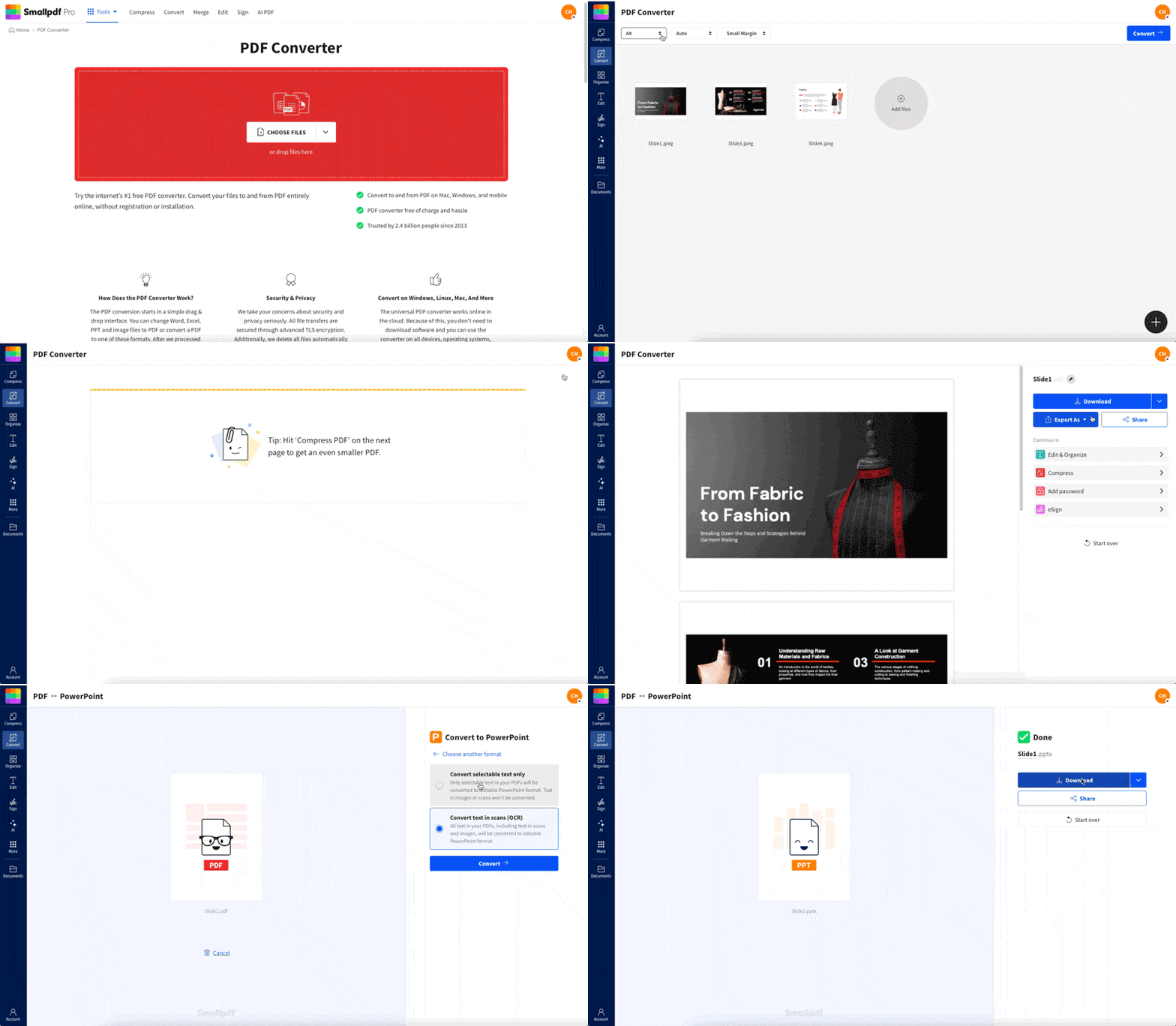
Convert your JPG to PPT in under a minute with Smallpdf
Quick Fixes If You’re Stuck
If you’re blocked, start here before you redo the whole conversion.
- File won’t upload: Check format and try a smaller version of the image.
- Slides in the wrong order: Rename files 01, 02, 03 before upload.
- Text isn’t editable: OCR must be enabled, and it requires a clear image.
- Output looks blurry: Use a higher-resolution image and avoid screenshots of tiny text.
How To Convert Image Into PPT Online
This is the main workflow. It’s fast, and it keeps things predictable across devices.
Step 1: Upload Your Image
Open the Smallpdf Converter and upload your image.
- Drag and drop your file into the upload area.
- Or click “Choose Files” to pick one from your device.
- You can also import from Google Drive, Dropbox, or OneDrive.
You’ll see a progress bar while the file uploads, then a confirmation screen.
Step 2: Check the Layout Options
Before export, you may see simple layout controls like margins or page fit.
- If your image has white borders, reduce margins.
- If the image looks cropped, choose a fit option that keeps the full picture visible.
Step 3: Export As PowerPoint
This is the step that turns your image-based PDF into a PPTX.
- Click “Export As.”
- Select “PowerPoint (.pptx).”
- Choose how to handle text inside your image.
If you need editable text, enable the OCR option if it’s available on your plan.
Step 4: Download or Save Back to Cloud Storage
Finish by saving your new presentation.
- Click “Download” to save the PPTX to your device.
- Or save it directly to Google Drive, Dropbox, or OneDrive to keep the file in the same place you started.
Convert Multiple Images Into One PPT
If you want a full deck, you can convert multiple images at once using the same process as above. Each image becomes its own slide.
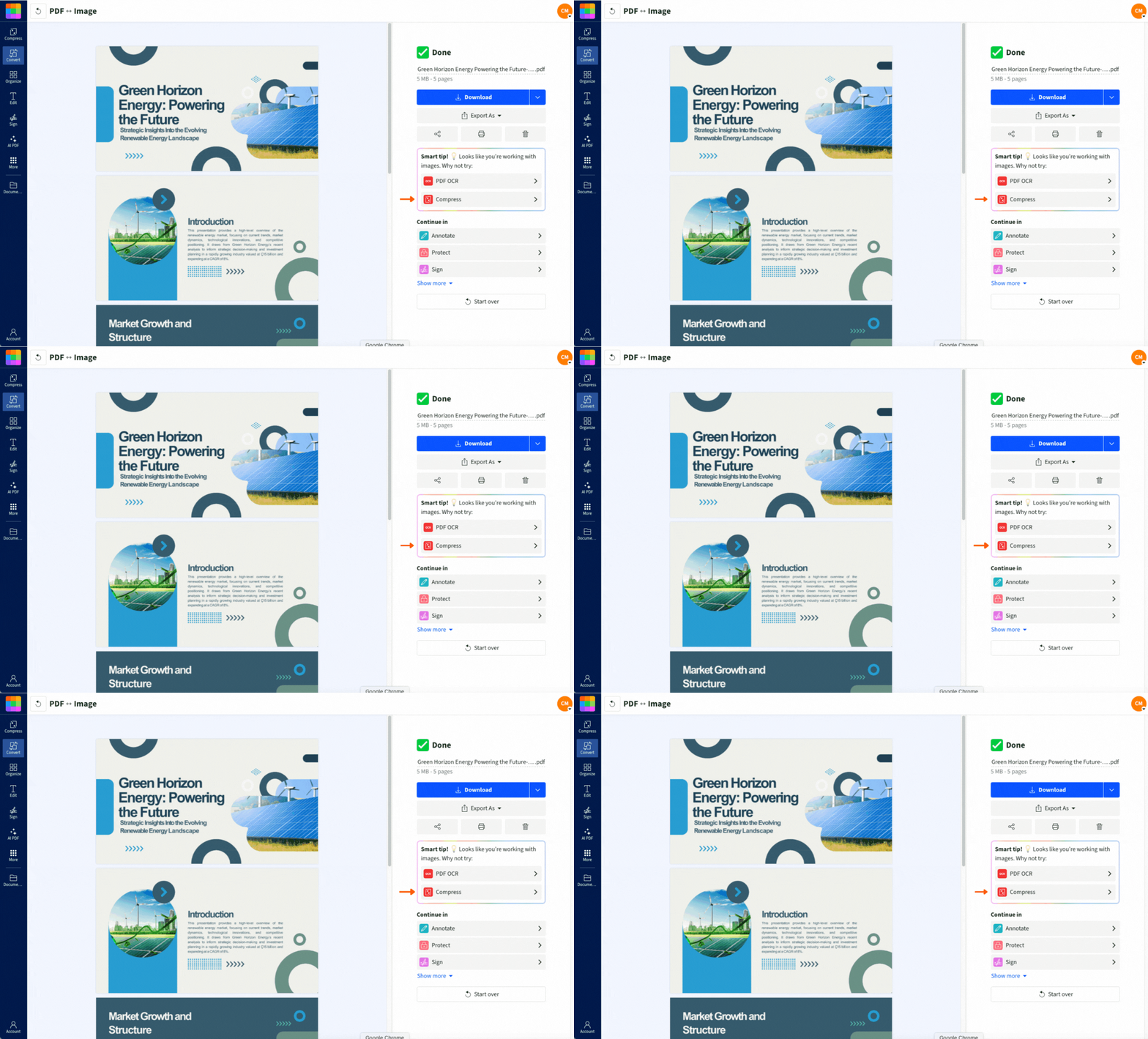
Convert multiple images to PPT
To keep the slide order clean:
- Rename files in sequence before uploading, like “01.jpg,” “02.jpg,” “03.jpg.”
- Keep all images in the same orientation, either landscape or portrait.
- Use a consistent aspect ratio so slides feel uniform.
If you only need one slide updated, convert just that image and paste the exported slide into your existing deck.
Why Convert an Image Into PPT
This isn’t only for JPG to PPT. It’s useful any time your content starts as an image.
Common examples:
- A scanned chart you need on a slide
- A poster or flyer you want to present as a deck
- Product photos you want in a pitch presentation
- Lesson visuals you want to share as slides
A converter saves you from manual resizing and gives you a cleaner starting point.
Tips for Better-Looking Slides
If you want your slides to look professional, image quality matters more than most people expect. These tips keep your export crisp and readable.
1. Start With the Right Resolution
Aim for images that match modern slide screens.
- A good baseline is 1920 × 1080 pixels for a full-slide image.
- If your image contains small text, use a higher resolution so letters stay sharp.
2. Use the Right Shape for Slides
Most modern decks use a widescreen slide shape called 16:9.
- If your image is very tall, it may show with extra space.
- If it’s very wide, important edges can feel cramped.
When possible, crop your image to a widescreen shape before upload.
3. Clean Up Before You Convert
Small fixes can improve your output immediately.
- Straighten the image if it’s a photo of a page.
- Increase contrast if the text looks washed out.
- Remove big empty borders so the slide focuses on content.
- Avoid images that are tilted or shadowed.
4. Keep Text OCR-Friendly
OCR works best when text is easy to read.
- Use high-contrast text, like dark text on a light background.
- Avoid tiny fonts and busy backgrounds behind text.
- Skip handwriting if you expect accurate text output.
OCR can be excellent for printed text, but it’s not perfect. Always review the result before sending the deck.
Smallpdf vs. Manual Methods For Converting JPG to PPT
You can always build slides manually, but it’s slower, and it’s easy to lose quality.
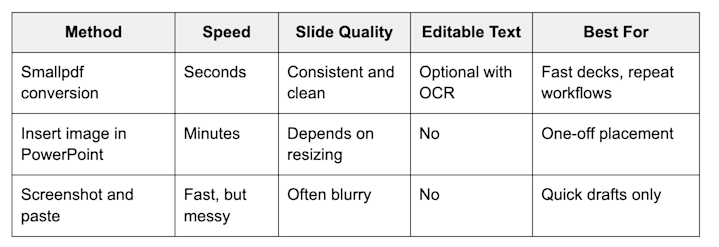
Smallpdf vs. manual methods
If you need something you can share with confidence, conversion gives you a cleaner baseline.
OCR: What It Does and What to Expect
OCR stands for Optical Character Recognition. It tries to read text inside an image and turn it into real, editable text.
Use OCR when:
- You have a scanned page or photo with printed text.
- You want to copy text into speaker notes or slide text boxes.
- You need to edit wording instead of retyping everything.
Do not expect OCR to be perfect when:
- The text is very small or low contrast.
- The image is angled, shadowed, or blurry.
- The text is handwritten.
If OCR matters for your file, upload the cleanest image you can. It saves you time later.
Troubleshooting Common Image Into PPT Problems
Here are fixes that solve most issues quickly.
1. The File Won’t Upload
- Confirm the file is a supported format.
- Try exporting the image again from your device, then upload the fresh copy.
- If the image is huge, compress it first, then convert.
2. The PPT Looks Blurry
- Use a higher-resolution image.
- Avoid screenshots of zoomed-out documents.
- Crop away unused space so the content fills the slide.
3. Text Isn’t Editable
- OCR must be enabled during export if you want editable text.
- Improve contrast and re-upload if OCR struggles.
- If you only need the slide as an image, skip OCR and keep it simple.
4. Slides Are in the Wrong Order
- Rename your images with leading numbers, like 01, 02, 03.
- Upload them together in one batch so the order stays consistent.
5. The Conversion Times Out
- Check your connection and try again.
- Compress large images before upload.
- If you still see issues, try another browser.
Security and Privacy When Converting Images
If you’re uploading client work, documents, or personal images, you should know how files are handled.
- File transfers use TLS encryption.
- Files are deleted automatically after a short retention period.
- Processing is automated, and we don’t manually review files.
- Smallpdf follows GDPR practices and maintains ISO 27001 certification.
If you want to keep a file longer, save it to your preferred cloud storage after export. That keeps your workflow organized and predictable.
Beyond Conversion: Helpful Next Steps in Smallpdf
Once your PPT is ready, a few related features can save time.
- If your original image came from a scan, you can clean up the PDF version before export with Smallpdf Edit PDF.
- If the file is too big to share, compress the PDF stage first, then export to PPT.
- If you’re extracting key points from a document-style image, our AI PDF features can help you summarize the PDF version before you export.
Turn Images Into Slides You Can Share Confidently
If you need slides fast, converting an image into PPT beats manual resizing every time. Upload your image, export to PPTX, and you’ll have a deck-ready file you can edit and share right away.
If you need editable text, enable OCR and start with a clean, high-resolution image for the best result.
Frequently Asked Questions
How do I convert an image into PPT?
Upload your image, then click “Export As” and choose “PowerPoint (.pptx).” Download the PPTX or save it to your cloud storage.
Can I convert multiple images into one PowerPoint?
Yes. Upload multiple images in one run. Each image becomes its own slide. Rename files 01, 02, 03 first to control slide order.
Will the text in my image be editable?
Only if OCR is enabled and the image text is clear. Printed text with good contrast converts best. Photos with shadows or tiny fonts reduce accuracy.
How do I put a JPG into PowerPoint without converting?
You can insert it directly in PowerPoint, then resize it manually. Conversion is better when you want consistent slides and less manual work.
What’s the best image to PPT converter?
The best option is the one that keeps quality, supports cloud imports, and gives you a clean PPTX quickly. Smallpdf is built for that workflow.
Can I do this on mobile?
Yes. You can convert in a mobile browser, or use the Smallpdf mobile app on iOS or Android. You can also import files from Google Drive, Dropbox, or OneDrive on mobile.