


Transform blurry, hard-to-read PDF text into crisp, selectable content. Learn how with this simple guide and quick troubleshooting tips.
Blurry PDF text becomes a problem fast, especially when you need to read closely, copy content, or share the file with someone else. In most cases, the cause is predictable, and so is the fix.
The key question is whether your PDF contains real, selectable text or an image of text from a scan. Once you know that, choosing the right solution is straightforward.
Below, we’ll help you identify the issue quickly and walk you through the best way to improve text quality using Smallpdf and built-in tools.
Quick Start: Fix PDF Text Quality in 60 Seconds
Start here if you want the fastest solution.
- Step 1: Open the PDF and try to highlight a line of text.
- Step 2: If text highlights, use Edit PDF to improve readability (font weight, spacing, clarity fixes).
- Step 3: If the text won’t highlight, run OCR to make it selectable and searchable.
- Step 4: If the PDF looks blurry only on your screen, check viewer settings and zoom options.
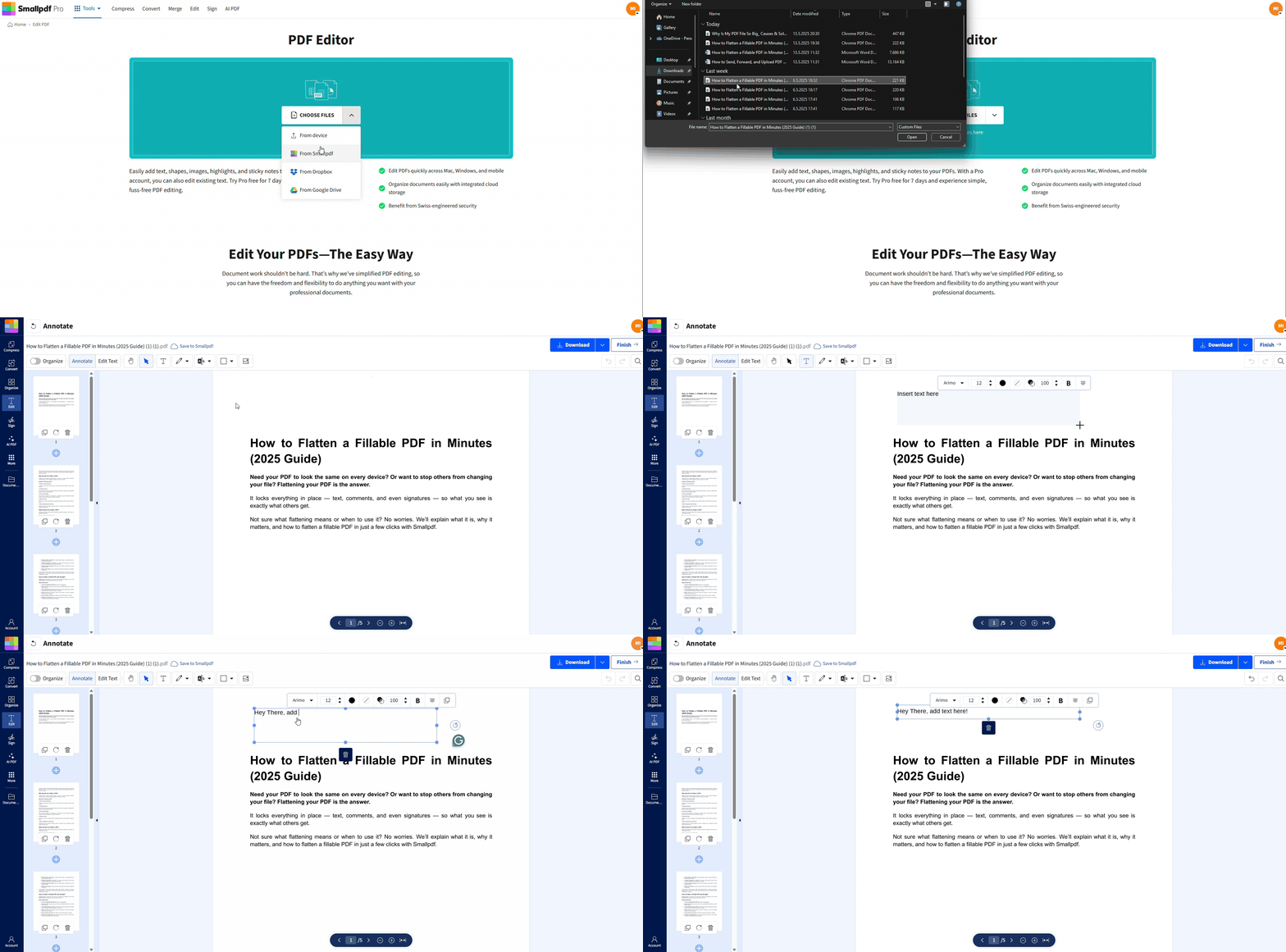
Use Smallpdf Edit PDF to improve the text
Fast Visual Guide: Find the Right Fix
Use this quick flowchart to choose the best method.
Can you highlight the text?
(A) Yes - Your PDF has selectable text.
- Text looks fuzzy or thin → Check zoom and viewer smoothing, then try Edit PDF.
- Text is readable but messy → Convert to Word to reformat cleanly.
(B) No - Your PDF is image-based (scan or photo).
- Scan looks blurry → Rescan at 300 DPI+ if possible.
- No rescan available → Run OCR, then clean it up in Edit PDF.
Note: If text looks sharp at 200% zoom but not at 100%, this is most often a display issue, not a file issue.
Why PDF Text Looks Blurry or Low-Quality
Most text problems come from scanning, compression, or how the PDF gets displayed.
Common causes include:
- Low-resolution scans: Anything under 300 DPI can look pixelated, especially small fonts.
- Heavy compression: Strong compression can introduce artifacts around letters.
- Low contrast: Light gray text on a light background becomes hard to read.
- Rasterized text: Text saved as an image loses crisp vector edges.
- Skewed scans: Crooked pages distort lines and reduce clarity.
- Dirty scanner glass: Dust and smears add haze and speckles.
Once you know the cause, the fix becomes much easier.
File Quality vs. Display Quality: A Quick Check
Before you change anything, confirm if the blur is inside the PDF or caused by your viewer.
Try these checks:
- Zoom to 200%: If the text gets sharp, the PDF may be fine. Your viewer is smoothing at certain zoom levels.
- Open in a second viewer: Compare Chrome, Edge, Preview (Mac), or our PDF Reader.
- Print one page: If it prints sharp but looks fuzzy on-screen, it’s likely display rendering.
If the problem stays with every viewer, move on to the fixes below.
Method 1: Rescan at 300–600 DPI for Sharper Text
Rescanning is the cleanest fix when you have the original paper document.
Use these settings for better results:
- Set DPI to 300 minimum: Use 300 DPI for normal text documents.
- Use 400 to 600 DPI for tiny text, fine print, or archival needs.
- Choose grayscale for text-heavy pages: It often produces clearer letters than full color.
- Clean the scanner glass: Use a lint-free cloth. Avoid streaks.
- Align pages carefully: Keep the page straight and fully inside the scan area.
- Save a high-quality scan format first: If your scanner supports it, TIFF can preserve detail better before you convert to PDF.
If you scan with your phone, try to avoid shadows and angled shots. Flat lighting improves clarity and helps OCR later.
Need to scan quickly? Use the Smallpdf mobile app to capture pages cleanly, then export to PDF.
Method 2: Use OCR to Make Scanned Text Selectable
If your PDF is a scan, the text is often just pixels. OCR adds a selectable text layer so you can search, copy, and edit.
Step 1: Confirm the PDF Needs OCR
- Open the PDF.
- Try to highlight a sentence.
- Press Ctrl + F (Windows) or Command + F (Mac) and search for a word you can see.
If nothing highlights and search finds nothing, you need OCR.
Step 2: Run OCR With Smallpdf
- Open OCR PDF in Smallpdf.
- Upload your file from your device, Google Drive, Dropbox, or OneDrive.
- Let OCR process the document.
- Download the new PDF with selectable text.
OCR is a Pro feature, but you can test it with the free trial.
Step 3: Clean Up the Result
OCR output depends on scan quality. After OCR, you may still need to fix:
- Misread characters (e.g. O vs. 0, l vs. 1)
- Broken line spacing
- Hyphenated words across lines
For a cleaner final document, convert the PDF to Word and adjust formatting there.
Method 3: Improve Readability With Contrast and Cleanup Fixes
Sometimes the text is technically there, but it still looks light, washed out, or noisy. Here are practical improvements that usually help:
- Darken faint text: Increase contrast so letters stand out.
- Reduce background haze: Light gray scan backgrounds can wash out text.
- Remove speckles: Scanner noise creates dots that distract from letters.
- Straighten skewed pages: Crooked scans make lines harder to read.
Quick Fixes You Can Try on Mac or Windows
These depend on what you have installed, but the idea stays the same: improve contrast and reduce noise before exporting again.
- On Mac Preview, open a PDF and test basic markup and export options.
- On Windows, open the PDF in a modern viewer and test print settings, like “fit” or “actual size,” to rule out scaling blur.
If you need to remove distractions like marks, stamps, or messy annotations, use Edit PDF to clean the page visually.
Method 4: Fix Blurry Text Caused by Compression
Compression helps shrink file size, but strong compression can soften details.
If your PDF got blurry after someone compressed it, try this:
- Ask for the original file if possible.
- If you only have the compressed PDF, OCR can help if the text was rasterized.
- If the text is selectable but looks thin, you may be seeing display smoothing. Test different viewers and zoom levels first.
If you must compress, use Compress PDF and start with Basic Compression. Strong Compression should be your last step, not your default.
How To Improve PDF Text Quality With Smallpdf
This workflow covers both scanned PDFs and text-based PDFs.
Step 1: Upload Your PDF
Open Smallpdf and upload your document.
Step 2: Decide If You Need OCR
- If you can’t highlight text, run PDF OCR first.
- If you can highlight text, skip OCR and go straight to editing.
Step 3: Improve Readability With Edit PDF
In Edit PDF, you can:
- Add text on top of unclear areas.
- Cover distractions that reduce readability.
- Highlight key lines for review.
- Add shapes, arrows, and callouts to guide attention.
Step 4: Split and Fix Only the Bad Pages
If only a few pages look bad: 1. Use Split PDF to extract the problem pages. 2. Fix those pages with OCR or editing. 3. Use Merge PDF to put everything back together.
Prevent PDF Text Quality Problems Before They Start
If you create PDFs often, prevention saves the most time.
Use these habits:
- Scan at 300 DPI minimum for text documents.
- Avoid extreme compression unless you need to hit a strict upload limit.
- Use standard fonts when exporting from Word.
- Export to PDF instead of printing to PDF when possible. Exports keep text crisp.
- Keep contrast high: Dark text, clean background.
- Avoid screenshots as “PDF creation.” Screenshots often create blurry text and uneven scaling.
If you receive PDFs from others, ask for the source file when the text matters. A Word file exported properly usually beats a scan.
Real-World Scenarios and the Best Fix
Here’s how this plays out in real workflows.
You Received a Scanned Contract That’s Hard to Read
- Best path: OCR PDF → download selectable text → highlight key clauses in Edit PDF.
You Downloaded a PDF Report, but Text Looks Fuzzy on Your Screen
- Best path: Test zoom and viewer first. If it stays fuzzy everywhere, try a clean export or request the original.
You Need to Copy Text from a Blurry PDF Into Word
- Best path: OCR PDF → then PDF to Word for cleaner formatting and editing.
You’re Preparing Documents for a Client Review
- Best path: Clean up pages in Edit PDF, then add highlights and callouts for fast approvals.
Improve PDF Text Quality With Smallpdf Today
If your PDF text looks blurry, start with the fastest check: can you highlight the text? If you can’t, OCR usually fixes the core issue in minutes. If you can, editing and viewer adjustments often solve it just as fast.
Use Smallpdf to run OCR, clean up pages, and export a PDF that’s easier to read, copy, and share. Start your free trial to access all Smallpdf tools today.
Frequently Asked Questions
How do I make text sharper in a PDF?
If it’s a scan, rescan at 300 DPI or run OCR. If it’s selectable text, try a different viewer and adjust readability with editing tools.
How do I improve PDF text quality online?
Upload the file to Smallpdf. Use OCR PDF for scanned documents, then use Edit PDF to clean up and mark up the final version.
Why does PDF text look blurry after compression?
Strong compression can soften fine detail. If the file is already degraded, OCR may help by creating a clean, selectable text layer.
Can OCR fix blurry text?
OCR won’t sharpen pixels, but it can make the text selectable and readable by creating a text layer. That often solves the real problem: search, copy, and clarity.
How do I improve text quality on mobile?
Use the Smallpdf mobile app to scan with better lighting and alignment. Then run OCR and export a clean PDF directly from your phone.
What if the PDF text is readable but too light?
Increase contrast in the source scan if possible. If not, use editing tools to reinforce key text, add highlights, or place clear text overlays.



